To delete devices from Google Play, sign in to play.google.com through your web browser and access your account settings via the gear icon. Navigate to the device management section where you’ll see a list of connected devices. Click “Remove” or “Delete” next to any device you want to remove from your account. For enhanced security, it’s recommended to regularly clean up your device list and enable two-factor authentication. Discover additional steps to strengthen your Google Play account’s protection.
Understanding Your Google Play Device List
Google Play maintains a list of devices linked to your account, including phones, tablets, smartwatches, and other Android devices you’ve used to access Google services.
This device list helps manage account synchronization across your various Android products and controls device visibility within your Google ecosystem.
When you access Google Play, you’ll find your connected devices displayed with specific details like model names, dates of last use, and registration status.
Each device entry shows whether it’s currently active and if it’s eligible for app installations or content downloads.
Understanding this list is essential for maintaining your account’s security and ensuring proper functionality across your devices.
You can review which devices have access to your Google account and identify any unfamiliar or outdated entries that may need removal.
Why Remove Old Devices From Google Play
Maintaining a clean and organized device list on Google Play serves multiple important security and performance purposes. As part of good account hygiene, removing old devices helps protect your account from unauthorized access and keeps your digital footprint current.
When you remove devices you no longer use, you’re reducing potential security vulnerabilities that could arise from lost or stolen devices.
Managing your device lifecycle effectively through Google Play guarantees you’ll only see relevant devices when installing apps or managing content. It’s particularly important to remove devices you’ve sold, given away, or that are no longer functioning.
Accessing Your Google Play Account Settings
To access your Google Play account settings, you’ll need to sign in through a web browser and navigate to your device management page.
Once logged in, you can view your complete list of connected devices and manage which ones remain linked to your account.
You’ll find a detailed history showing when each device was last active and connected to Google Play services.
Login Through Web Browser
The first step requires visiting play.google.com through your preferred web browser on a computer or mobile device.
Once the page loads, click the “Sign In” button located in the top-right corner of the screen. Enter your Google account credentials, including your email address and password. If you’ve enabled two-factor authentication for enhanced browser security, you’ll need to complete this additional verification step.
After signing in successfully, you’ll gain access to your account management dashboard.
Verify you’re using a secure and up-to-date browser to protect your account information. If you’re on a public computer, remember to sign out when you’re finished and clear your browsing data.
Google Play’s web interface provides a thorough view of your account settings and connected devices.
Device List Management Steps
Once you’ve accessed the Google Play dashboard, locate the settings icon (gear symbol) in the upper right corner of your screen. Click on this icon to open your account settings, where you’ll find the device management section.
In the device management area, you’ll see a list of all devices synchronized with your Google Play account. Select the device you want to remove and click the “Remove” or “Delete” button next to it.
If you’re having trouble with device synchronization, use the refresh button to update your device list. For security purposes, Google Play may require you to verify your identity through account recovery steps before removing devices.
Remember to review your device list periodically to confirm all listed devices are ones you currently use and trust.
Check Connected Devices History
Regularly checking your connected devices history provides essential security oversight of your Google Play account.
You’ll want to monitor which devices have accessed your account to maintain proper device synchronization and account privacy.
To review your connected devices:
- Go to Google Play Settings on your browser
- Navigate to the “My Devices” section
- View the complete list of devices linked to your account
- Look for any unfamiliar devices or suspicious activity
- Note the last sync date for each device
Pay attention to devices you no longer use or don’t recognize.
This regular monitoring helps prevent unauthorized access and guarantees your account remains secure.
If you spot any suspicious devices, immediately remove them and consider changing your password to maintain account security.
Step-by-Step Device Removal Process
Removing devices from Google Play requires accessing your account settings through a web browser.
Navigate to play.google.com and sign in to your account. Click the settings icon in the top-right corner and select “Settings” from the dropdown menu.
In the settings page, find the “My devices” section. You’ll see a list of all devices connected to your Google Play account. For proper device identification, verify the model name and last sync date.
Before removing any device, guarantee you’ve completed account synchronization to prevent data loss.
To remove a device, click the three-dot menu next to it and select “Remove.” Confirm your choice in the popup window. The device will be immediately unlinked from your Google Play account.
Repeat this process for each device you want to remove.
Managing Multiple Android Devices
Beyond removing individual devices, effectively managing multiple Android devices linked to your Google Play account helps maintain organization and security.
When you’re handling several devices, it’s essential to understand proper device synchronization and account recovery procedures to protect your digital ecosystem.
- Review your connected devices regularly through Google Play’s device manager, making sure you recognize all active devices and remove any that you no longer use or own.
- Set up device-specific settings for each Android device, controlling app installations, updates, and content access based on individual device requirements.
- Implement security measures across all devices by enabling two-factor authentication and maintaining unique device names to easily identify each one during account recovery procedures.
The systematic management of your devices guarantees smooth operation while maintaining tight security control over your Google Play ecosystem.
Security Benefits of Regular Device List Cleanup
Regular cleanup of your Google Play device list offers critical security advantages for your account.
You’ll prevent unauthorized users from making app purchases on old or unfamiliar devices while blocking potential access to your personal data through previously connected hardware.
Prevent Unauthorized App Purchases
Keeping your Google Play device list clear of unused devices serves as an essential security measure against unauthorized purchases.
By maintaining strict device security and regularly reviewing your purchase settings, you’ll minimize the risk of unwanted transactions on your account.
To protect yourself from unauthorized app purchases:
- Enable authentication requirements for all transactions, forcing verification before any purchase can be completed.
- Remove devices you no longer use or recognize from your Google Play account to prevent potential access points for unauthorized purchases.
- Set up purchase controls and spending limits within your Google Play settings to create additional safeguards.
These proactive steps strengthen your account’s security and give you better control over your Google Play transactions.
Regular maintenance of your device list helps guarantee only trusted devices can make purchases through your account.
Block Potential Data Access
Maintaining a clean device list on Google Play greatly reduces potential security vulnerabilities through unauthorized data access. When you remove old or unused devices, you limit potential entry points that could compromise your data privacy.
Each connected device retains some level of access to your Google account and associated information. Through proper device management, you’ll prevent outdated devices from syncing your contacts, emails, photos, and other sensitive data.
This is particularly important if you’ve sold, lost, or no longer use certain devices. By regularly reviewing and removing devices from your Google Play list, you create a more secure digital environment.
It’s recommended to audit your device list monthly and immediately remove any devices you no longer actively use to maintain ideal security standards.
Maintain Account Privacy Controls
Through consistent cleanup of your Google Play device list, you’ll strengthen your account’s privacy safeguards and reduce potential security risks.
Maintaining strict control over your registered devices enhances your account security and prevents unauthorized access to your personal data.
Regular device list management provides these key privacy benefits:
- You’ll maintain better visibility over which devices can access your Google Play account, allowing you to quickly spot any suspicious activity.
- Your privacy settings remain enhanced as you remove outdated device permissions that could create security vulnerabilities.
- You’ll reduce the risk of unauthorized purchases or downloads by limiting access to only your current, actively used devices.
Remember to review your device list monthly and adjust your privacy settings accordingly to maintain peak account security.
Troubleshooting Device Removal Issues
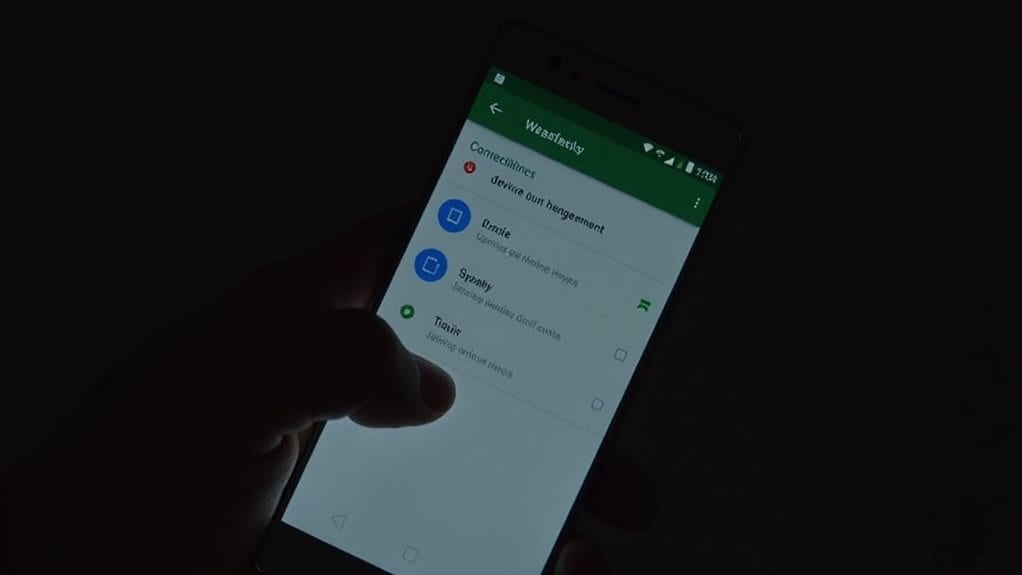
When issues arise during the device removal process in Google Play, several common problems can be addressed with specific troubleshooting steps.
If you’re experiencing device compatibility issues, first verify you’re signed into the correct Google account and have a stable internet connection. Clear your Google Play Store cache and data if the device won’t disappear from your list.
For persistent problems, try these troubleshooting techniques: force stop the Google Play Store app, restart your device, and attempt the removal process again.
If a device shows as “inactive” but won’t delete, wait 24 hours before trying again, as Google’s servers may need time to sync. You can also contact Google Support directly through your account settings if these steps don’t resolve the issue.
Best Practices for Device Management
To maintain an organized Google Play experience, you’ll benefit from regularly reviewing and removing unused devices from your account.
Managing your devices actively enhances your account’s security by preventing unauthorized access through old or compromised hardware.
You should keep your active device count minimal, removing any devices you no longer use or own to streamline your account management and improve overall performance.
Regular Device Cleanup
Maintaining a clean device list on Google Play helps streamline your app management and enhances security. Regular device organization guarantees you can effectively monitor and control which devices have access to your Google Play account.
Implement these essential practices for peak device management:
- Review your device list monthly to identify and remove outdated or unused devices, preventing unauthorized access and maintaining a clutter-free account.
- Set calendar reminders to perform routine device cleanups, making it easier to track which devices actively sync with your Google Play services.
- Document any changes you make to your device list, including removal dates and reasons, to maintain a clear record of your app management decisions.
Following these steps helps you maintain better control over your Google Play account while guaranteeing peak security and organization.
Security Through Device Control
Three fundamental security practices strengthen your Google Play device control: enabling two-factor authentication, monitoring device activity patterns, and establishing unique device identifiers.
Implement two-factor authentication to add an extra security layer to your account management. This prevents unauthorized devices from accessing your Google Play account even if your password is compromised.
Review your device activity logs regularly to detect suspicious patterns or unfamiliar device logins. Set up customized names for each device to quickly identify legitimate ones from potential security threats.
Maintain your device security by removing old or unused devices promptly. Create a schedule for periodic device verification to guarantee only current, active devices retain access to your account.
Consider using Google Play’s security notifications to receive alerts about new device connections or unusual account activity.
Limit Active Device Count
Building on your security foundation, an effective device management strategy requires limiting the number of active devices on your Google Play account.
Maintaining control over device synchronization and account accessibility helps prevent unauthorized access while optimizing performance across your connected devices.
Key actions to implement device limits:
- Set a maximum threshold of 5-10 devices to guarantee manageable oversight and reduce potential security vulnerabilities.
- Review and remove inactive or unfamiliar devices quarterly to maintain clean device synchronization.
- Enable notifications for new device additions to monitor account accessibility in real-time.
Restoring Removed Devices When Needed
While Google Play doesn’t offer a direct “restore” option for removed devices, you can easily re-add a previously deleted device by signing into your Google account on that device.
The device recovery process happens automatically when you log back into your Google account on the device. Once you’ve signed in, Google Play will recognize the device and add it back to your list of authorized devices.
During the restoration process, you’ll need to wait for Google Play to sync your account data and preferences.
If you’re having trouble with the re-authorization, try clearing your Google Play cache and data, then sign in again.
You can also check your device’s network connection, as a stable internet connection is essential for successful device restoration.
Additional Google Play Account Security Tips
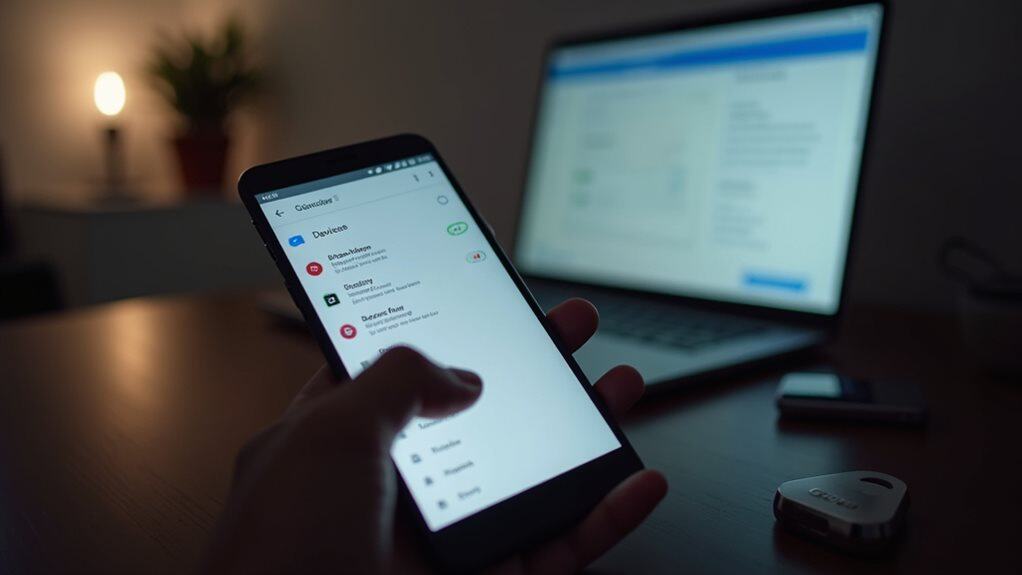
Managing your device list is just one aspect of keeping your Google Play account secure. To enhance your account’s protection, implement these essential security measures across your Google services.
- Set up account recovery options by adding a backup email address and phone number, ensuring you can regain access if you’re locked out of your account.
- Establish strong password management practices by using unique, complex passwords and enabling two-factor authentication for an additional layer of security on your Google Play account.
- Regularly review your account’s security settings and activity logs to identify any unauthorized access attempts or suspicious behavior that could compromise your Google Play purchases and personal information.
These proactive steps work together to safeguard your digital content and maintain the integrity of your Google Play experience.
Final Thoughts
Proper device management in Google Play strengthens your account’s security and maintains an organized digital footprint. You’ll find it’s crucial to regularly review and remove unused devices, implement two-factor authentication, and keep track of your active installations. By following these steps and best practices, you’re ensuring superior account performance while protecting your digital content and personal information across all your Android devices.