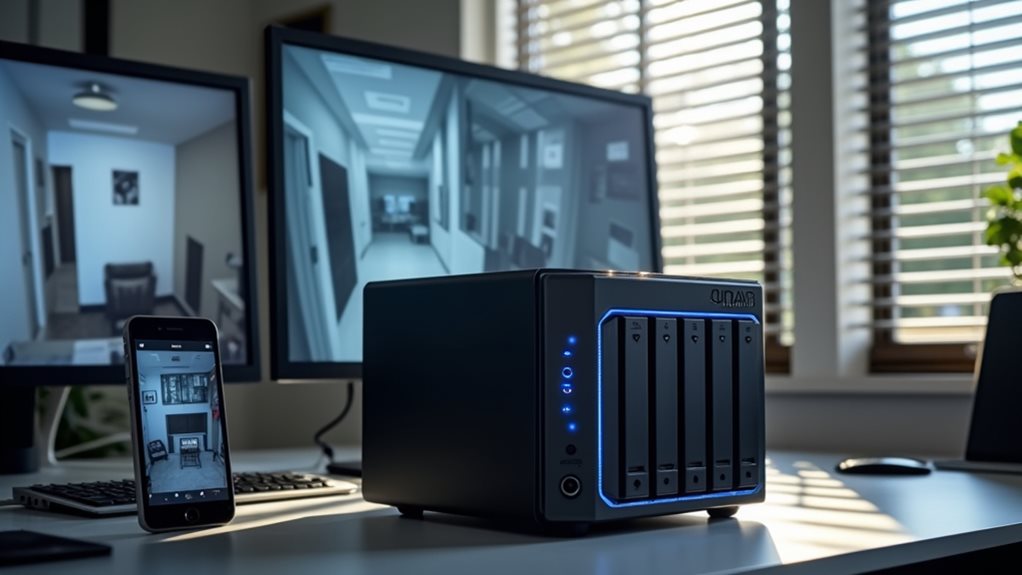
Yes, QNAP devices can effectively function as surveillance systems through two specialized applications: Surveillance Station and QVR Pro. You’ll need to ascertain your NAS has adequate CPU power, memory, and storage capacity for your camera configuration. Both applications support remote monitoring via mobile apps, AI-powered video recognition, and customizable recording settings. Proper RAID configuration and security measures like two-factor authentication are crucial for protecting your footage. Exploring QNAP’s surveillance capabilities reveals a complete security solution for homes and businesses.
QNAP Surveillance Applications: Surveillance Station vs. QVR Pro
When selecting a surveillance solution for your QNAP NAS, you’ll need to choose between two primary applications: Surveillance Station and QVR Pro.
These platforms offer different approaches to video surveillance management. Surveillance Station provides a straightforward interface with crucial monitoring functions. It supports a wide range of IP cameras and includes motion detection, recording schedules, and basic playback options.
QVR Pro, the newer solution, delivers advanced capabilities for more complex surveillance needs. It features a modular design that allows you to add specific functionality through apps. You’ll find improved video analytics, fisheye dewarping, and more flexible storage management options.
Both applications offer mobile apps for remote viewing, but they differ in licensing structures and hardware requirements. Your choice should depend on the scale of your surveillance system and specific features needed.
Hardware Requirements for Optimal Camera Performance
The performance of your surveillance system ultimately relies on your QNAP hardware specifications. You’ll need adequate CPU power to handle video processing, especially when multiple cameras are streaming simultaneously.
Memory requirements increase with the number of cameras and resolution quality. For basic setups with 1-4 cameras, 4GB RAM may suffice, while 8-16+ cameras typically need 8GB or more for seamless operation.
Storage capacity is another critical factor. Higher resolution footage consumes more space, and longer retention periods require additional drives. Consider using QNAP’s RAID configurations to protect your surveillance footage against drive failures.
Network bandwidth also impacts performance. Gigabit Ethernet connections are recommended, particularly for IP cameras with HD or 4K resolution.
For wireless cameras, verify your network infrastructure can handle the constant data streams.
Setting Up Your First Surveillance System on QNAP
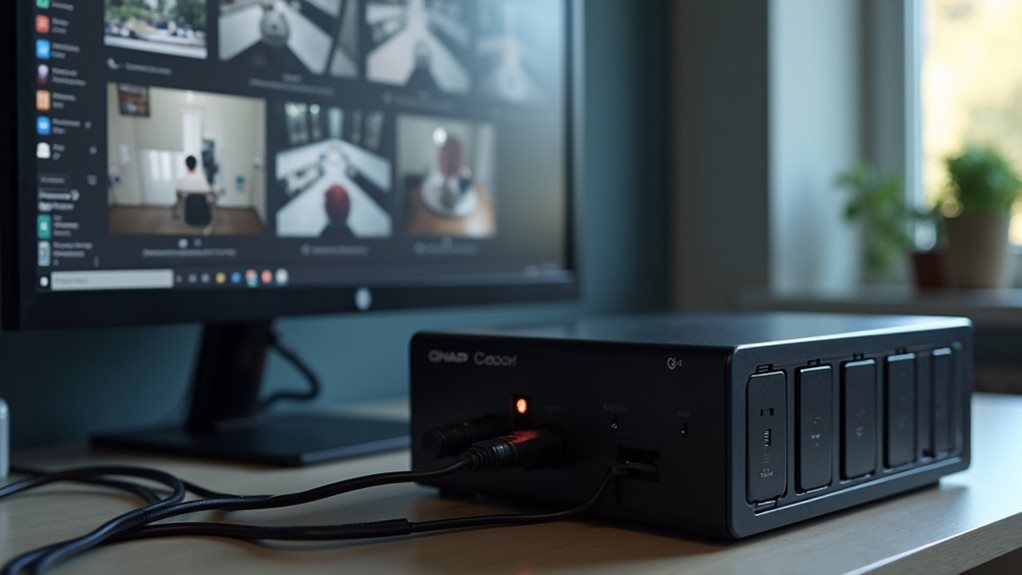
Setting up your first surveillance system on QNAP begins with guaranteeing your hardware meets the necessary requirements for your camera configuration.
You’ll need to verify that your QNAP NAS has sufficient processing power, memory, and storage capacity to handle your planned number of cameras and recording quality.
After confirming your hardware specifications, you can proceed with downloading and installing QVR Pro, QNAP’s dedicated surveillance application that offers extensive camera management features.
Hardware Requirements Overview
Before establishing a functional surveillance system with QNAP, you’ll need to understand the vital hardware components required for peak performance.
Your QNAP NAS device serves as the central hub, with models like the TVS-472XT offering dedicated surveillance capabilities.
Storage capacity is significant, with surveillance footage requiring approximately 2-4TB per camera annually for continuous recording at standard resolution.
Compatible IP cameras are key components, with most QNAP systems supporting ONVIF-compliant devices from manufacturers like Hikvision and Axis.
Consider cameras with at least 2MP resolution for clear footage.
Network infrastructure must support adequate bandwidth—typically 2-8 Mbps per camera.
A gigabit router and CAT6 cabling are recommended for multiple camera setups.
For reliable monitoring, you’ll need a display device and sufficient memory—at least 8GB RAM for systems with 8+ cameras.
QVR Pro Installation
Four simple steps will transform your QNAP NAS into a powerful surveillance command center through QVR Pro installation.
Begin by accessing the App Center on your QNAP device and search for “QVR Pro.” Download and install this application, which typically takes 2-3 minutes depending on your connection speed.
Next, launch QVR Pro and follow the setup wizard to create your administrator account. This account will manage all surveillance configurations and user permissions.
Connect your IP cameras to the same network as your QNAP device. The automatic camera detection feature will identify compatible devices, allowing you to add them to your system with minimal effort.
Finally, configure your recording settings, including schedule, resolution, and storage allocation. The default settings provide balanced performance, but you can customize based on your specific surveillance needs.
Storage Management for Long-Term Video Retention
QNAP’s storage management capabilities offer you effective solutions for long-term surveillance footage retention through strategic storage tiering, which moves older footage to less expensive storage media.
You’ll maximize both storage capacity and data protection by implementing optimized RAID configurations that balance performance with redundancy for your surveillance needs.
Advanced video compression techniques available on QNAP systems can reduce your storage requirements by up to 50% without greatly compromising video quality, allowing for extended retention periods.
Storage Tiering Solutions
When planning for extended surveillance storage needs, implementing a tiered approach can markedly optimize both performance and cost-effectiveness.
QNAP NAS systems support extensive storage tiering, allowing you to configure multiple storage layers based on access frequency. You’ll benefit from keeping recent, frequently-accessed footage on faster SSD drives while automatically moving older recordings to higher-capacity, more economical HDDs.
This tiered structure enables intelligent data management through QNAP’s Qtier technology, which monitors file access patterns and automatically migrates data between tiers. You can establish customized migration policies based on your retention requirements.
For enterprise surveillance deployments, you can expand your tiering strategy beyond a single NAS by incorporating QNAP’s cloud storage gateways. This creates a seamless multi-tier architecture that spans from local SSDs to remote cloud archives.
RAID Configuration Optimization
Beyond storage tiering, proper RAID configuration stands as a foundational element for maximizing both data protection and performance in surveillance systems.
When configuring RAID for surveillance applications, you’ll need to balance redundancy with performance requirements. RAID 5 or RAID 6 configurations often provide the ideal middle ground, offering protection against disk failures without excessive storage penalties.
For high-camera-count deployments, consider RAID 10 to handle the intense write operations from multiple concurrent video streams. This configuration combines mirroring and striping to deliver superior performance and reliability.
You should also implement hot spare drives that automatically rebuild array data if a disk fails.
Regular health monitoring of your RAID setup guarantees early detection of potential issues before they impact your surveillance footage retention.
Video Compression Techniques
While storage hardware forms the foundation of any surveillance system, effective video compression techniques dramatically reduce file sizes without substantial quality loss. QNAP NAS devices support multiple compression standards including H.264, H.265/HEVC, and newer codecs.
H.265 offers approximately 50% better compression than H.264, allowing you to store twice the footage in the same space. This efficiency becomes essential when archiving weeks or months of surveillance video.
You’ll find variable bitrate options that adjust compression based on scene complexity. Static scenes require less data, while high-motion footage receives higher bitrates to maintain clarity.
QNAP’s Surveillance Station software lets you customize compression settings for each camera independently. You can balance quality against storage constraints by adjusting resolution, frame rate, and compression level according to each camera’s importance.
Remote Monitoring Capabilities and Mobile Access
Although modern surveillance demands flexibility, QNAP’s remote monitoring features deliver exactly that through extensive mobile access options.
The system allows you to view live camera feeds from anywhere with an internet connection using the QNAP mobile app.
You’ll have access to real-time alerts and notifications when motion is detected, providing immediate awareness of potential security concerns.
The Qfile and Qmanager apps are compatible with both iOS and Android devices, guaranteeing broad accessibility.
QNAP’s QuMagie feature uses AI recognition to sort and categorize surveillance footage, making it easier to find specific events.
QuMagie’s AI-powered recognition transforms surveillance management by intelligently organizing footage for effortless event retrieval.
Many users appreciate the intuitive interface that doesn’t require technical expertise.
Remote management capabilities let you adjust camera settings, review recorded footage, and manage storage without being physically present at the NAS device location.
Security Considerations for Your Surveillance NAS
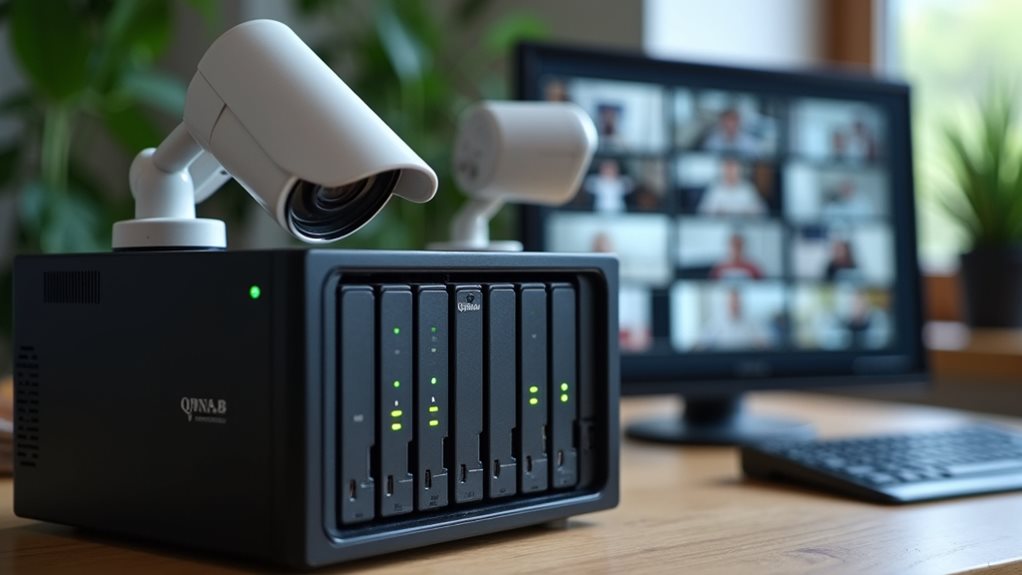
Since your QNAP surveillance system will store sensitive footage, implementing proper security measures is essential to protect your data.
Always update your QNAP firmware promptly to patch known vulnerabilities and security flaws.
Enable two-factor authentication to add an extra verification layer beyond your password.
Configure proper access controls by creating individual user accounts with specific permissions rather than sharing admin credentials.
Use strong, unique passwords for all accounts, combining uppercase letters, lowercase letters, numbers, and special characters.
Implement network security by placing your NAS behind a firewall and using HTTPS connections instead of HTTP.
Consider setting up a virtual private network (VPN) for secure remote access to your surveillance footage.
Regularly back up your vital surveillance data to prevent loss from hardware failure or cyber attacks.
Frequently Asked Questions
How Does QNAP Compare to Dedicated Surveillance NVR Systems?
QNAP NAS devices offer flexibility and integration with other services, but dedicated NVRs typically provide more specialized surveillance features, better camera compatibility, and optimized performance specifically for video recording and monitoring.
Can QNAP Surveillance Systems Integrate With Smart Home Devices?
Yes, your QNAP surveillance system can integrate with smart home devices through IFTTT, allowing you to connect cameras with lights, sensors, and other IoT devices for automated home security scenarios.
What Are the Licensing Costs for Additional IP Cameras?
QNAP requires camera licenses beyond the included free channels. You’ll pay $50-60 per camera for 1-license packs, with better value in multi-license bundles. Annual subscription options are also available for QVR Elite.
Is Cloud Backup Available for QNAP Surveillance Footage?
Yes, you can backup your QNAP surveillance footage to the cloud. QNAP offers cloud backup solutions like HybridMount and QuTScloud, or you can use third-party services like Dropbox, Google Drive, or Amazon S3.
How Do QNAP Surveillance Solutions Handle Power Outages?
QNAP surveillance systems use UPS integration to maintain recording during brief outages. You’ll need a compatible UPS device for automatic shutdown during longer outages, guaranteeing your footage isn’t corrupted when power unexpectedly fails.
Final Thoughts
QNAP devices excel at surveillance applications, offering robust solutions through Surveillance Station and QVR Pro. You’ll need to match your hardware specifications to your camera requirements for peak performance. With proper setup, your QNAP NAS can provide reliable video storage management, convenient remote monitoring, and crucial security features. Whether for home or business surveillance needs, QNAP systems deliver the functionality, storage capacity, and accessibility you’re looking for in a thorough surveillance solution.