AI is coming in handy for all sorts of uses. At first it was just a paragraph of text, but now it can do full articles, muisc, code, and recently websites. In this review I walk you through my hands-on experience using EasySite — the AI-driven website builder from the team behind New Oaks. I was invited to test the platform and, after building several sites, I want to share exactly how it performs: the good, the frustrating, and the surprising features that make EasySite an interesting tool for business owners and creators who want to move fast.
Right from the dashboard EasySite keeps things minimal: templates, your projects, pricing information and a single prompt input area. That simplicity is part of the appeal — you type what you want, hit go, and the AI begins to build. A quick note: the platform lists “popular prompts” under the input box, but clicking those kicks off generation immediately, so be careful if you want to review a prompt first.
Quick overview: what EasySite sets out to do

This easysite review focuses on the platform’s key strengths. EasySite isn’t just a standard landing page creator — the templates hint at broader possibilities: portfolios, interactive demos (think Wordle or a solar system), even chat-to-PDF tools. That creative breadth makes it a good fit for people who want more than a static brochure site.
- Minimal interface: prompt box + templates + assets
- AI-first page generation: type a command and watch the builder create code and pages
- Asset library + custom knowledge to feed business-specific content
How I built a website in under five minutes
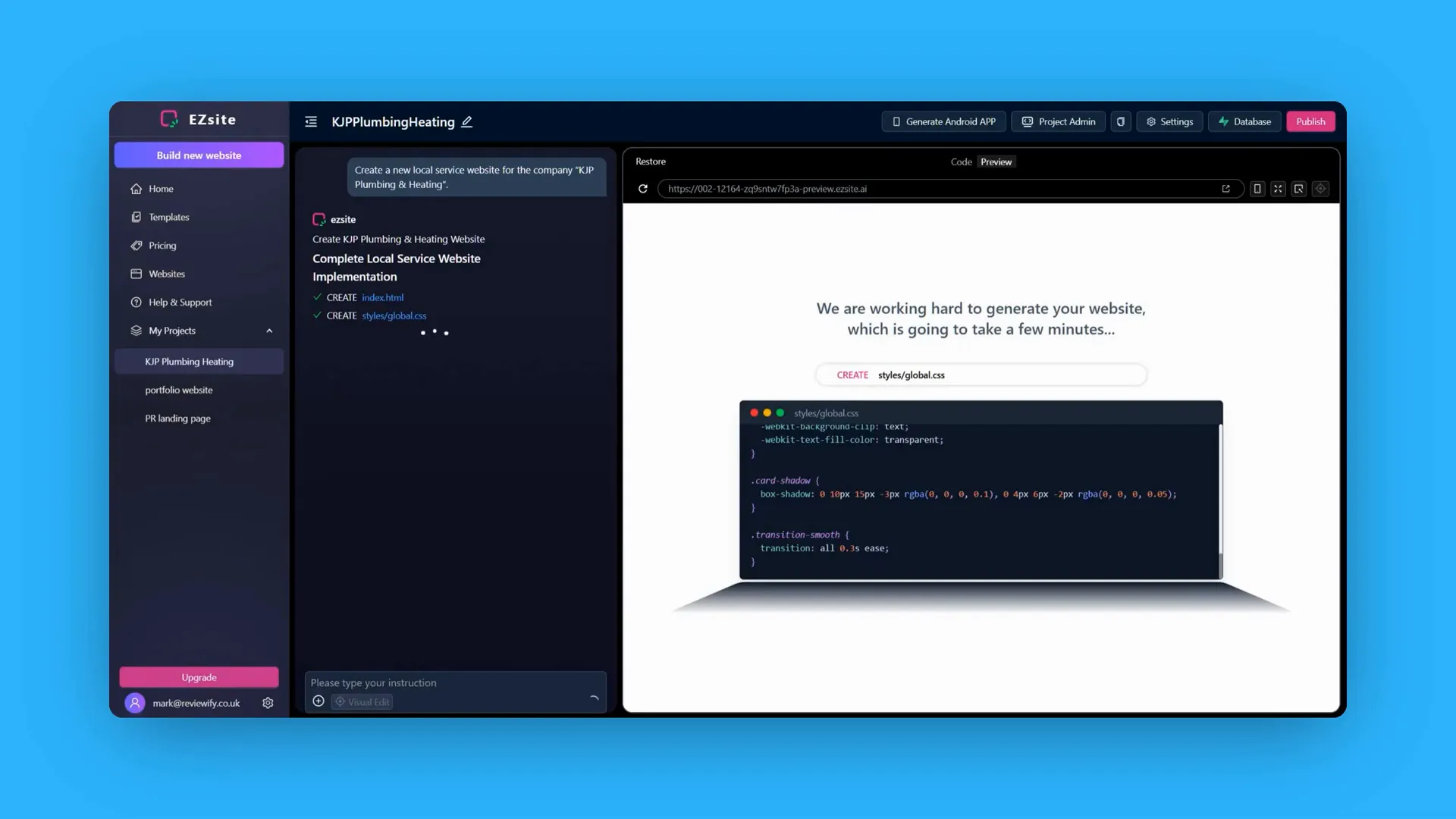
My workflow for this easysite review was straightforward. I gathered content from an SEO research tool, edited it, and added it to EasySite’s custom knowledge area. This is where you paste business details, phone numbers, stylistic guidance and anything else you want the AI to use. Then I typed a prompt — for example, “build a full website for a renovation company” — and let the builder do its thing.
Within three to four minutes the platform generated a complete site: pages, animations, menus and multiple content blocks. It even displayed the generation progress with on-screen code being produced, which is useful if you want to download or edit the raw files later.
Templates, animations and initial output

The generated site came with an animated header, hover effects on service items, a quote form, testimonial blocks and a portfolio section. Colors and imagery were nicely matched to the theme. For a demo build — no custom assets provided — EasySite filled in placeholder contact details and a plausible address, which is handy for demos but something you’ll want to replace for production.
Editing: manual tweaks vs AI instructions
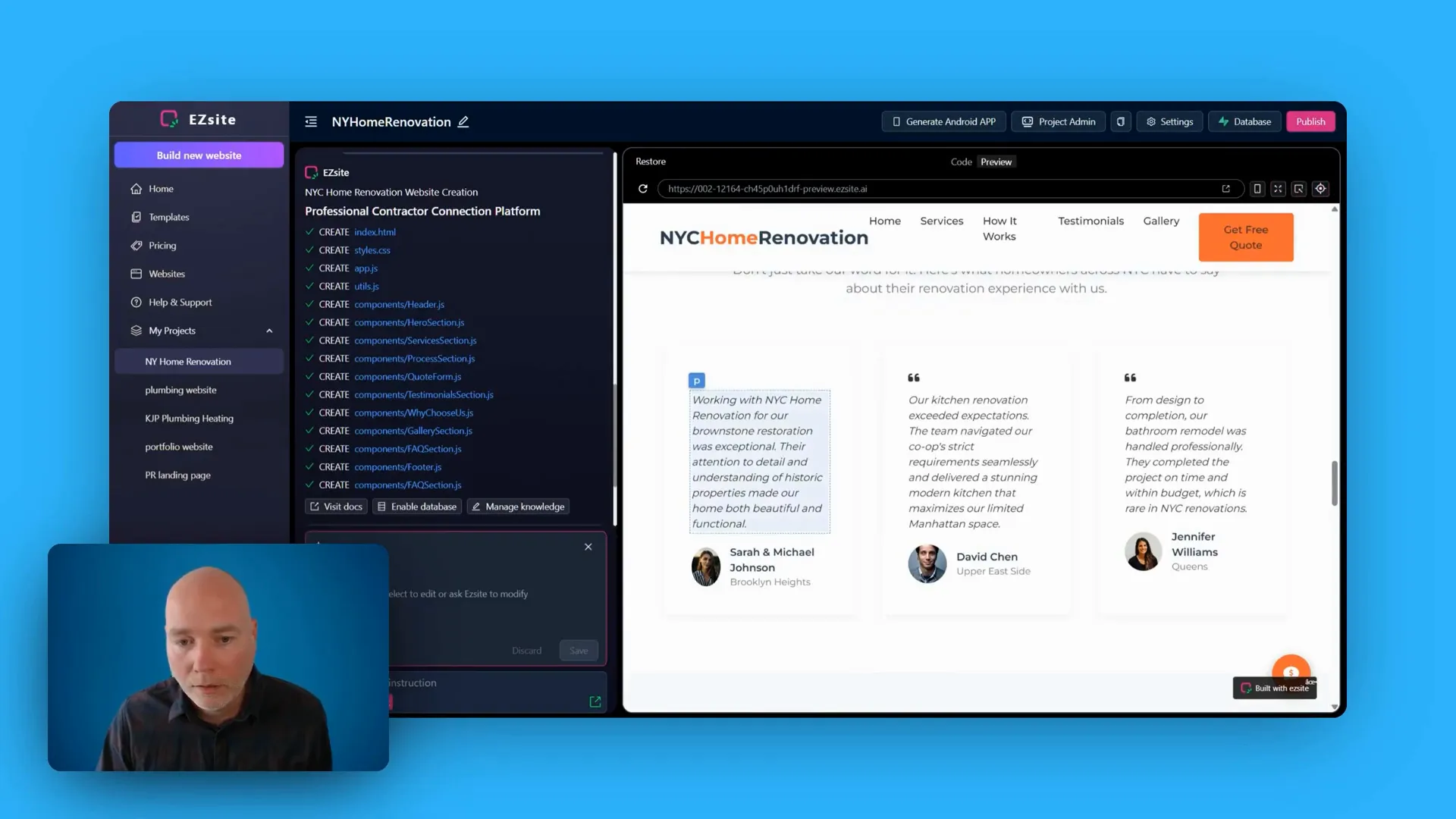
Editing content is mixed. For basic text blocks, it’s refreshingly simple: click, edit, and change font weight or content from the side panel. When I selected testimonials, I could swap text easily. However, other elements are locked down in the visual editor and require the AI to change — especially background images in hero sections and some link updates.
That leads to a defining characteristic I highlight in this easysite review: EasySite blends manual editing with AI-assisted edits. Where manual controls exist, they’re adequate. Where they don’t, the AI can modify structure and code for you — you tell it “please add a policy to the footer” and it generates the code and adds a privacy policy link.
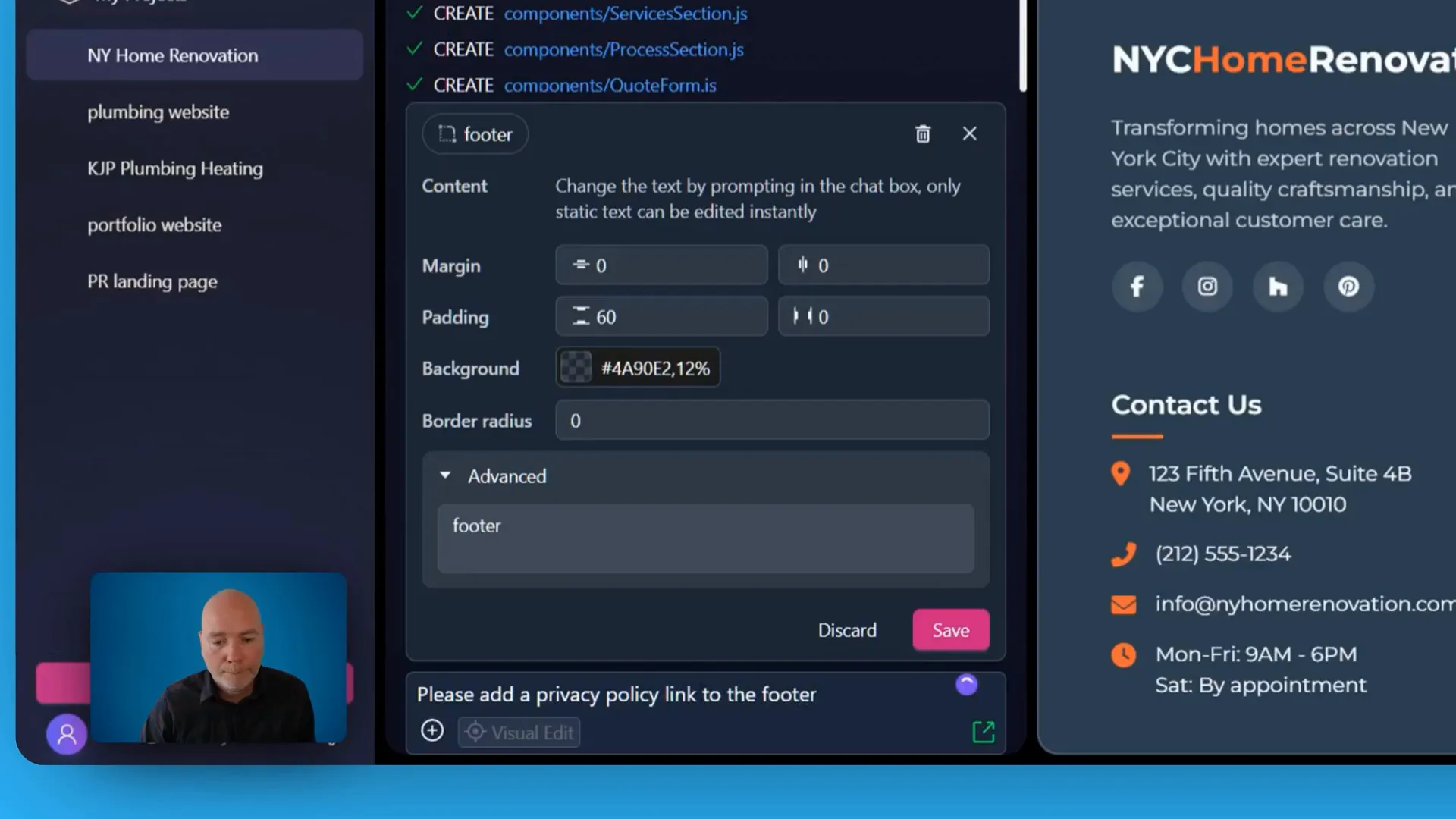
The AI responded by creating the link and even generating a full privacy policy page. That was impressive and saved a lot of time, but it also revealed a limitation — the link appeared but initially didn’t navigate correctly because of how the site was set up.
Fixing navigation and anchor links
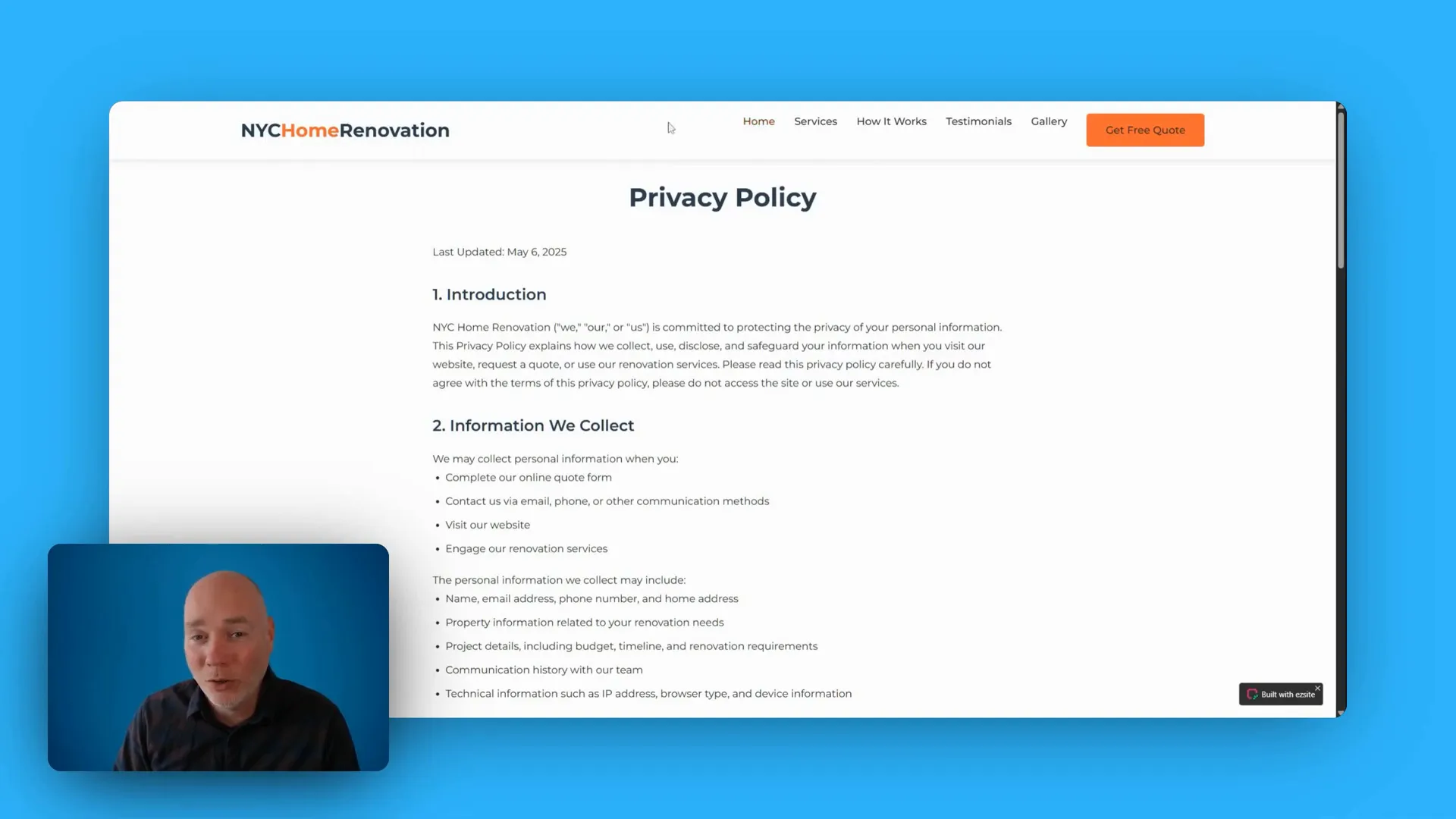
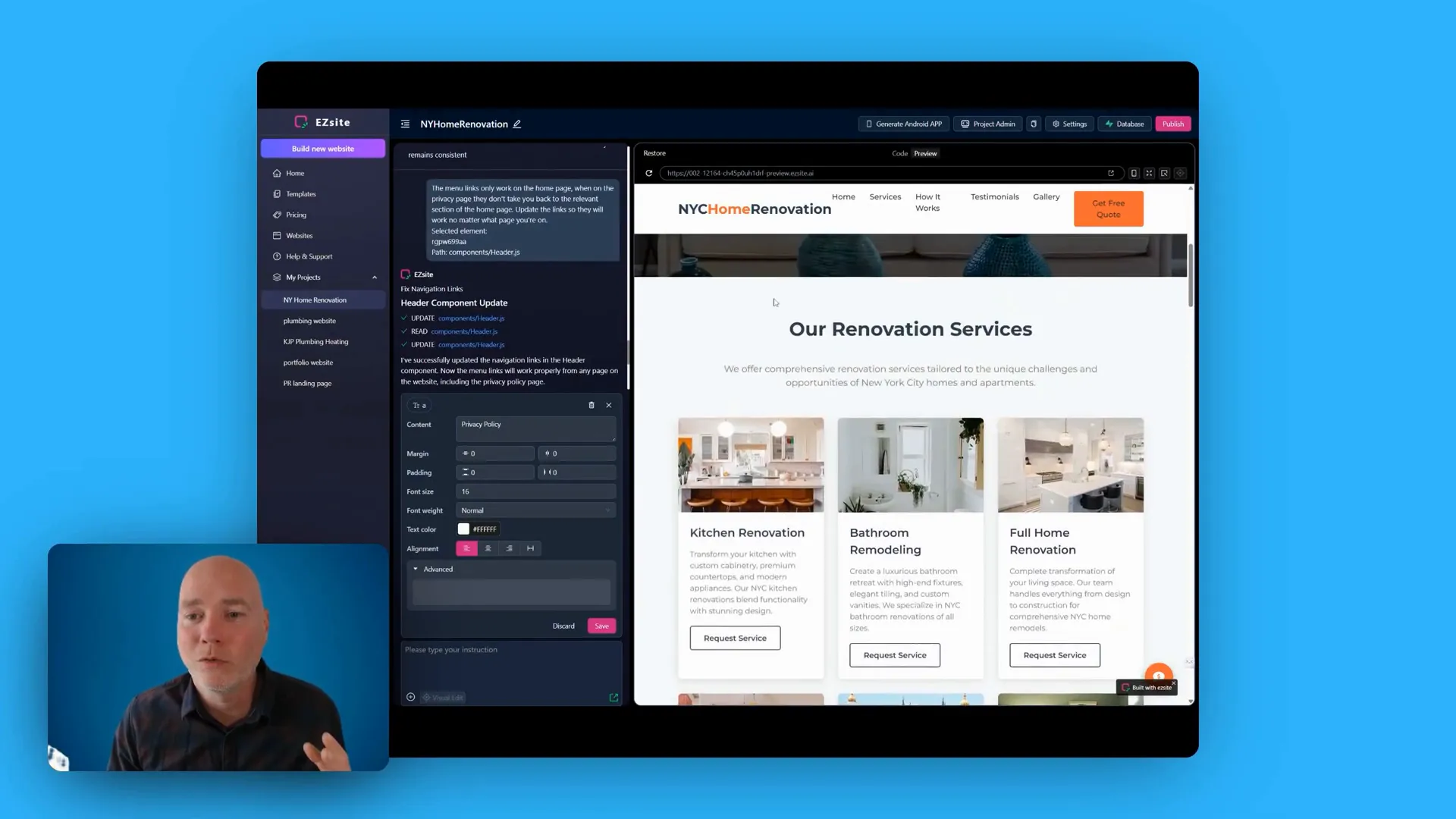
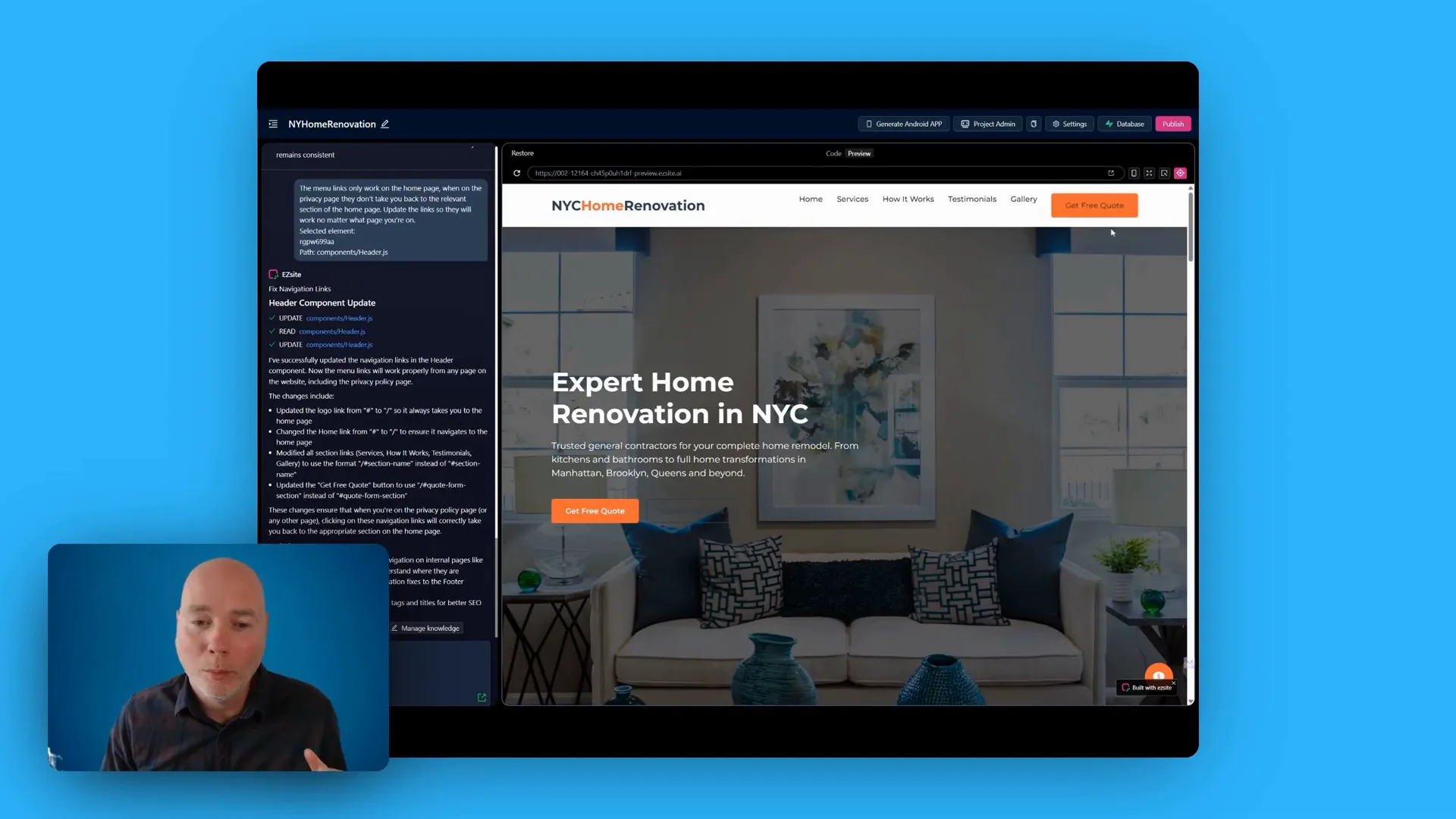
When the generated privacy page didn’t allow the header menu to return to the home page, I asked the AI to update the menu links. EasySite detected that the menu items were anchor links tied to the single-page setup and updated them so they worked across pages. This is a practical example of how the AI can diagnose and fix structural issues without you opening code editors.
Publishing options: hosting, WordPress deployment and downloads
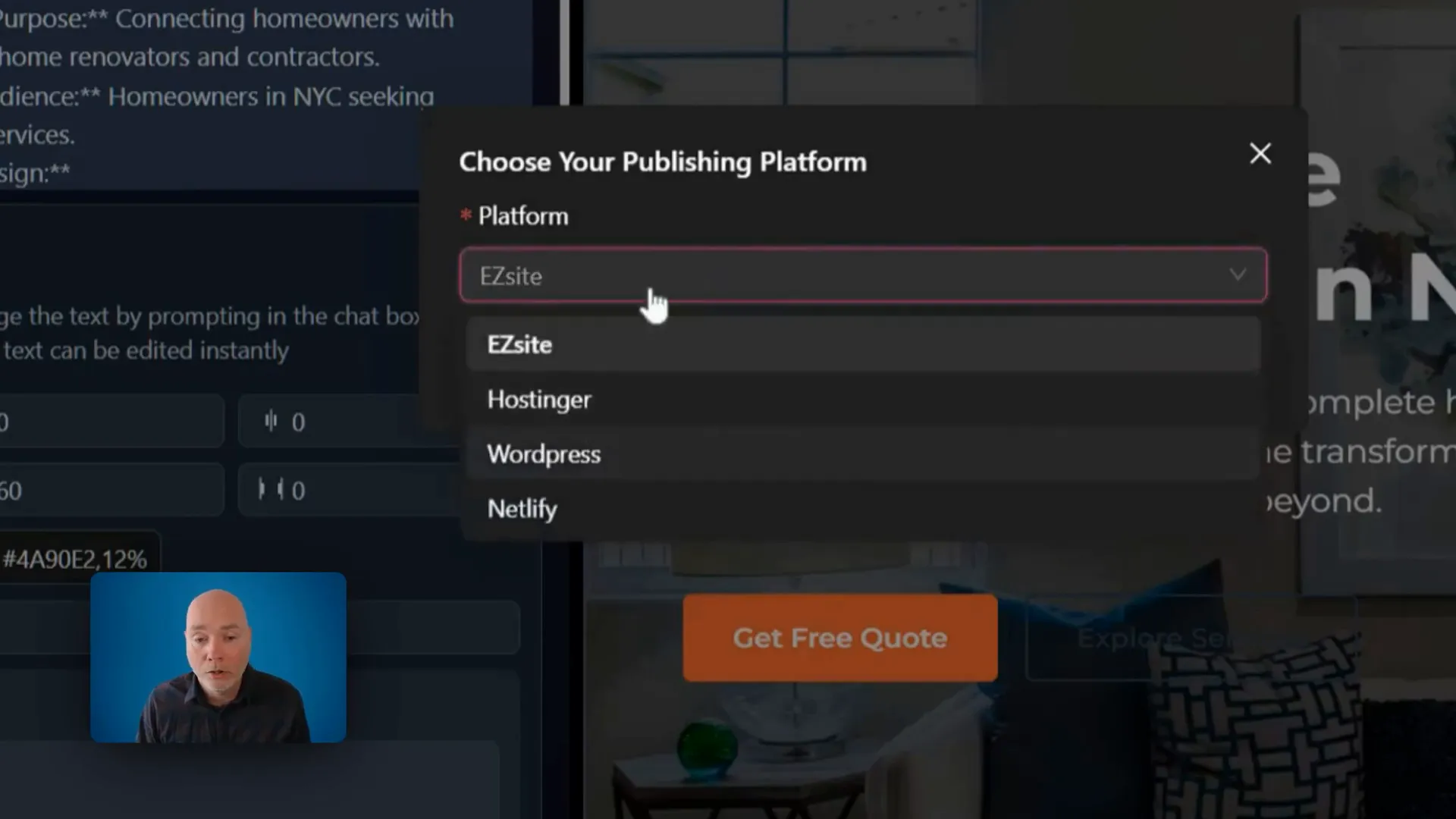
Publishing is flexible. You can host on EasySite’s platform (recommended if you want the smoothest experience), download the static files to host anywhere, or push to a hosting account that supports static files — including FTP deployments to WordPress hosting space. Important clarification in this easysite review: the WordPress option uploads a static site into the wp-content directory; you’re not getting a dynamic WordPress theme or plugin support. That means no blog engine, no typical WordPress plugins — the site is static even though the hosting may be a WordPress plan.
If you want a conventional WordPress site with posts, plugins and dynamic functionality, EasySite’s WordPress deployment is not a substitute. It’s useful if you have a WordPress hosting plan and want to use that account to serve a static site instead.
Download and code access
For developers, EasySite provides the full code for download. You can extract and host the HTML/CSS/JS wherever you like. For non-developers, the built-in hosting is simpler and avoids FTP hassles. Either approach works depending on your workflow.
Costs, AI usage and API keys
One practical point for this easysite review: many users will be on a “bring your own key” model for the underlying AI (I used an Anthropics plan). Every AI-driven edit consumes AI credits. In my case the usage cost was modest across several test projects — a couple of dollars — but EasySite also supports higher-tier models and options like OpenRouter, which aggregates access to multiple AI backends. The team added OpenRouter support in a recent update, which can give you access to higher-tier models without the same direct deposit requirements.
Limitations and a few bugs
During testing I noticed a handful of friction points:
- Some hero backgrounds and top sections aren’t editable manually; you must use AI edits to change them.
- Links created by the generator sometimes act as page anchors only — the AI can fix them, but it’s an extra step.
- The portfolio placeholders aren’t clickable by default and might need further configuration.
- Because generated contact details are placeholders, you must be diligent about replacing them for production sites.
These are not deal-breakers, but they do mean you’ll spend a little time polishing the output after the initial generation. If you prefer granular, manual control over every element without calling AI, EasySite can feel restrictive in areas.
New features and roadmap
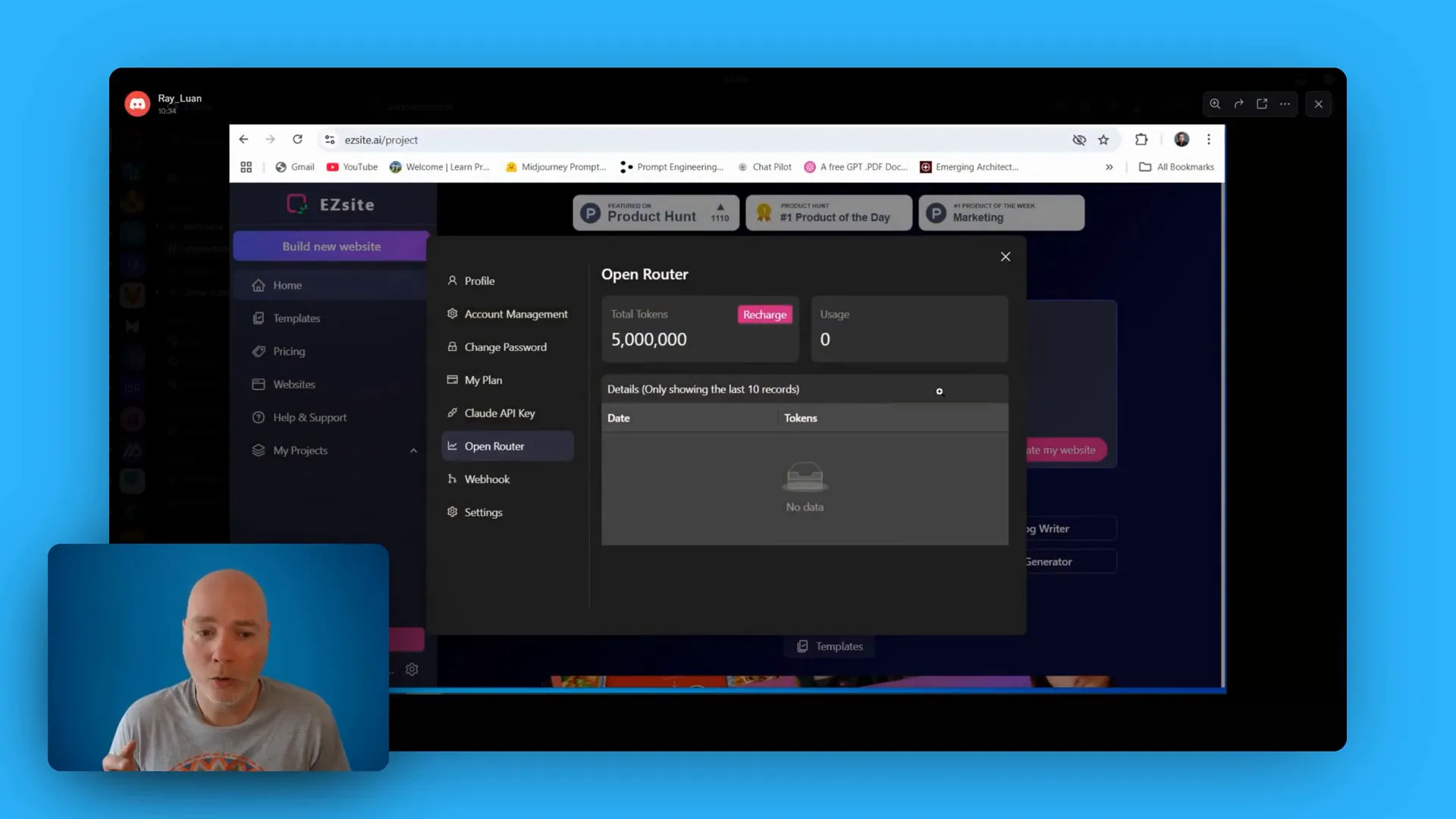
The platform evolves quickly. Since my initial testing the team announced OpenRouter integration, which broadens AI access, and there are claims of forthcoming capabilities like generating Android apps and adding databases. These features hint at EasySite becoming a multi-output content platform — not just static websites.
Who should use EasySite?
Here’s a summary from this easysite review to help you decide:
- Use EasySite if you need a fast, appealing static site quickly and prefer telling an AI what you want rather than building from scratch.
- Use it for landing pages, small business sites, portfolios and demos where you want to test messaging and visuals rapidly.
- Don’t use it if you need complex dynamic functionality from WordPress plugins, blog-driven architecture or granular manual-only control over every element.
Practical tips from my test
- Populate the custom knowledge area before building — it improves copy, FAQs and social proof blocks.
- Keep a sample set of assets (logo, hero image, portfolio photos) to upload first so the AI has relevant content to work with.
- After generation, run through these checks: contact details, privacy policy, menu navigation and CTA links.
- If you’re using your own AI key, monitor consumption for iterative edits; use OpenRouter if you want broader, cost-efficient models.
Final thoughts — is it worth it?
In this easysite review I found EasySite to be a powerful, efficient way to create attractive static websites in minutes. It’s especially valuable for business owners, freelancers and marketers who want a working site fast without diving into code. The AI-driven fixes are clever and save time, but the hybrid nature of manual editing plus AI-assisted structure means you’ll still need to tidy things up after generation.
If you want to prototype landing pages, replace legacy brochure sites, or generate client demos rapidly, EasySite is worth a look. For complex, dynamic projects that rely on WordPress plugins or a content-heavy blog, stick with a conventional CMS. Either way, EasySite demonstrates what modern AI-assisted web building can achieve in minutes — and that’s an exciting place to be.
Want to try it? Visit the EasySite homepage and follow the quick-start prompts. I’ll continue exploring the platform’s database and app-generation features and will share what I learn in future posts.