
If you publish on YouTube, you already know the pain points: writing descriptions, adding timestamps or chapters, and reworking ideas for other platforms. Taja AI is an AI workflow tool built to reduce that effort by generating key YouTube assets (like titles, descriptions, transcripts, and chapters) and then repurposing your long-form content into multiple social formats.
This guide explains what Taja AI does, how the workflow works, and how to get practical results for YouTube optimization and cross-platform repurposing.
What Taja AI is (and why creators use it)
Taja AI is designed as a “toolbox” for content repurposing. Instead of manually creating separate assets for each platform, the workflow focuses on transforming one video into multiple deliverables:
- YouTube-ready text: title options, a generated description, and a full transcript.
- Chapters: timestamped section titles based on the video content to improve navigation.
- Short-form repurposing: generating Shorts-related outputs and captions/subtitles controls.
- Social posts: blog post generation and social captions for platforms such as LinkedIn and X threads.
- AI thumbnails: multiple thumbnail options with an edit step.
It can work with an existing YouTube link, and it can also accept an upload so the system can generate the same kinds of outputs.
Getting started: paste a YouTube URL (or use an unlisted link)
The first step is simple: paste a YouTube URL into the dashboard input so the tool can pull in the video content.
Important access rule: if the video is private, the tool may not be able to access it. If the goal is to repurpose unpublished work, set the video to unlisted so it is accessible for generation.
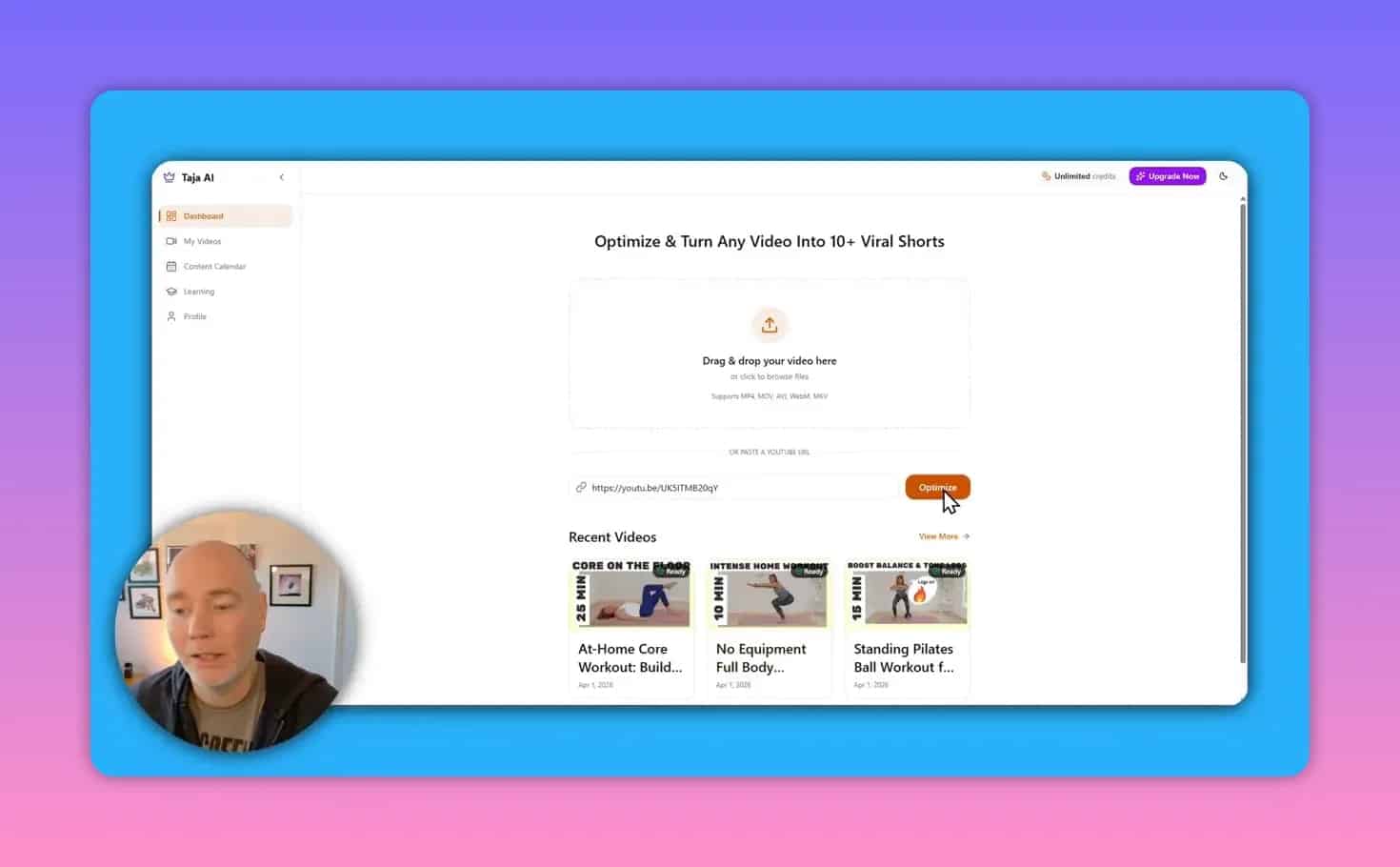
Generate YouTube titles, descriptions, transcripts, and chapters
Once the video is loaded, Taja AI can start producing assets immediately. Instead of forcing you to start from scratch, it provides multiple options where helpful and uses the video transcript as the basis for other outputs.
1) Titles: choose from multiple options
Rather than a single suggestion, the interface provides a set of title options. The intended workflow is to pick the one that best matches your channel’s style and the video’s goal.
Note on syncing: an automated “push back to YouTube” feature is described as still in development. At the time of the walkthrough, the practical approach is to copy the selected title and paste it into your YouTube editor.
2) Descriptions: transcript-based and ready to copy
The generated description is built from the video’s transcription. That gives you a starting point you can refine, without manually writing everything word-for-word.
3) Full transcript: copy it for other uses
If you need the transcript elsewhere (for editing, repurposing, or documentation), the tool provides the transcript text so it can be copied directly.
4) Chapters: add timestamped section titles
One of the most useful outputs for long-form videos is automatic chapters. Chapters are timestamped section titles that show up in the player navigation, helping people quickly find the part they want.
In practice, the chapter generation uses the content transcription to create section markers. These are especially valuable for:
- Talking head content where readers want specific information quickly.
- Instructional videos where steps or topics occur in a sequence.
- Long interviews or guides that benefit from skimmable structure.
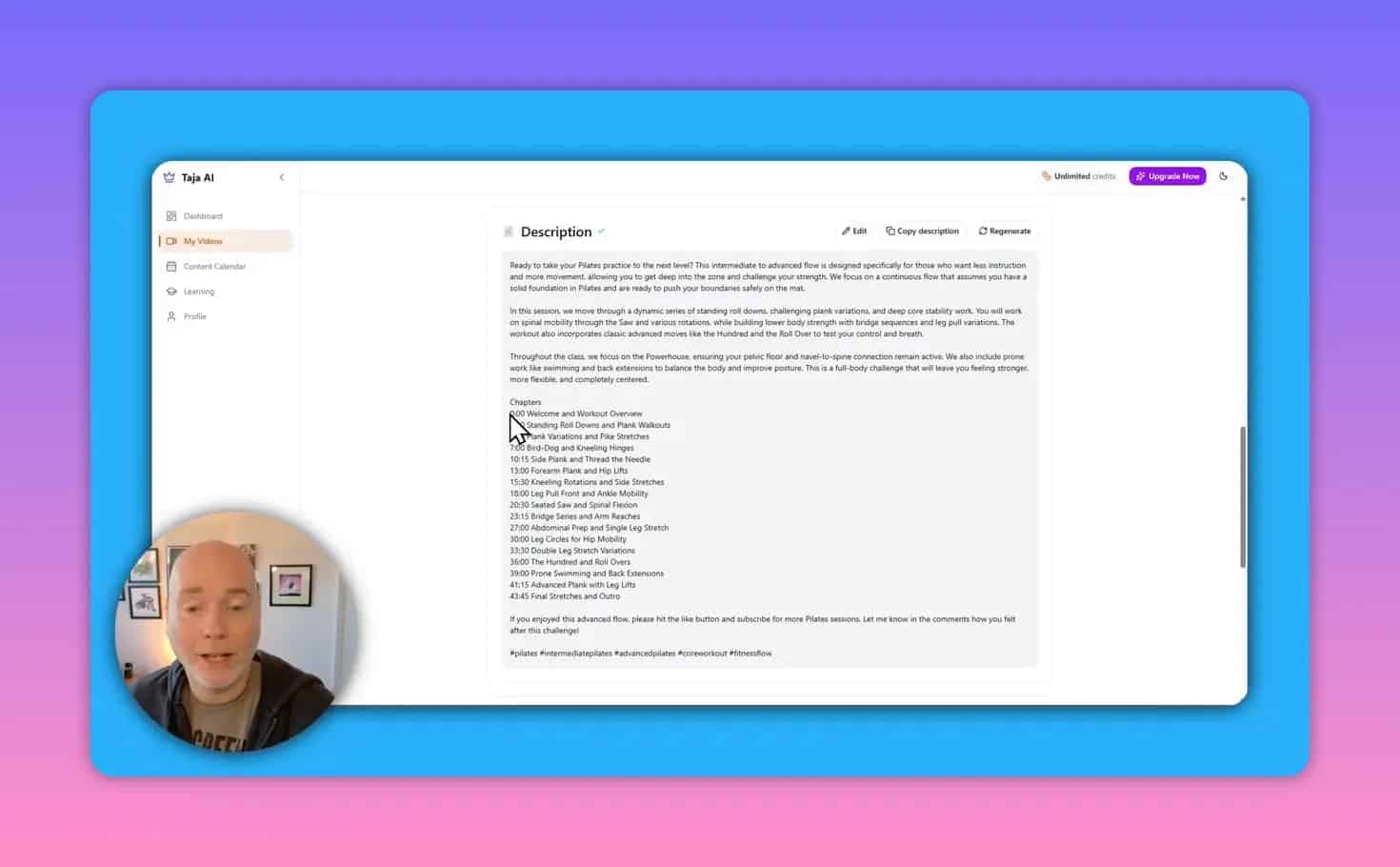
Use Taja AI to generate chapters effectively
Even with strong automation, good chapters still depend on matching the section names to what people expect to see when they jump there.
A simple chapter quality checklist
- Clarity first: section titles should describe what the viewer will learn or do.
- Avoid vague labels like “More info” or “Step details” if you can be more specific.
- Match the moment: ensure the timestamped section actually starts when that topic begins.
- Keep the number reasonable: too many chapters can become cluttered, while too few reduces navigability.
Create Shorts and repurpose content into other formats
Taja AI includes a repurposing bar that is meant to generate additional content beyond YouTube text. The repurposing focus includes outputs such as Shorts and posts for other channels.
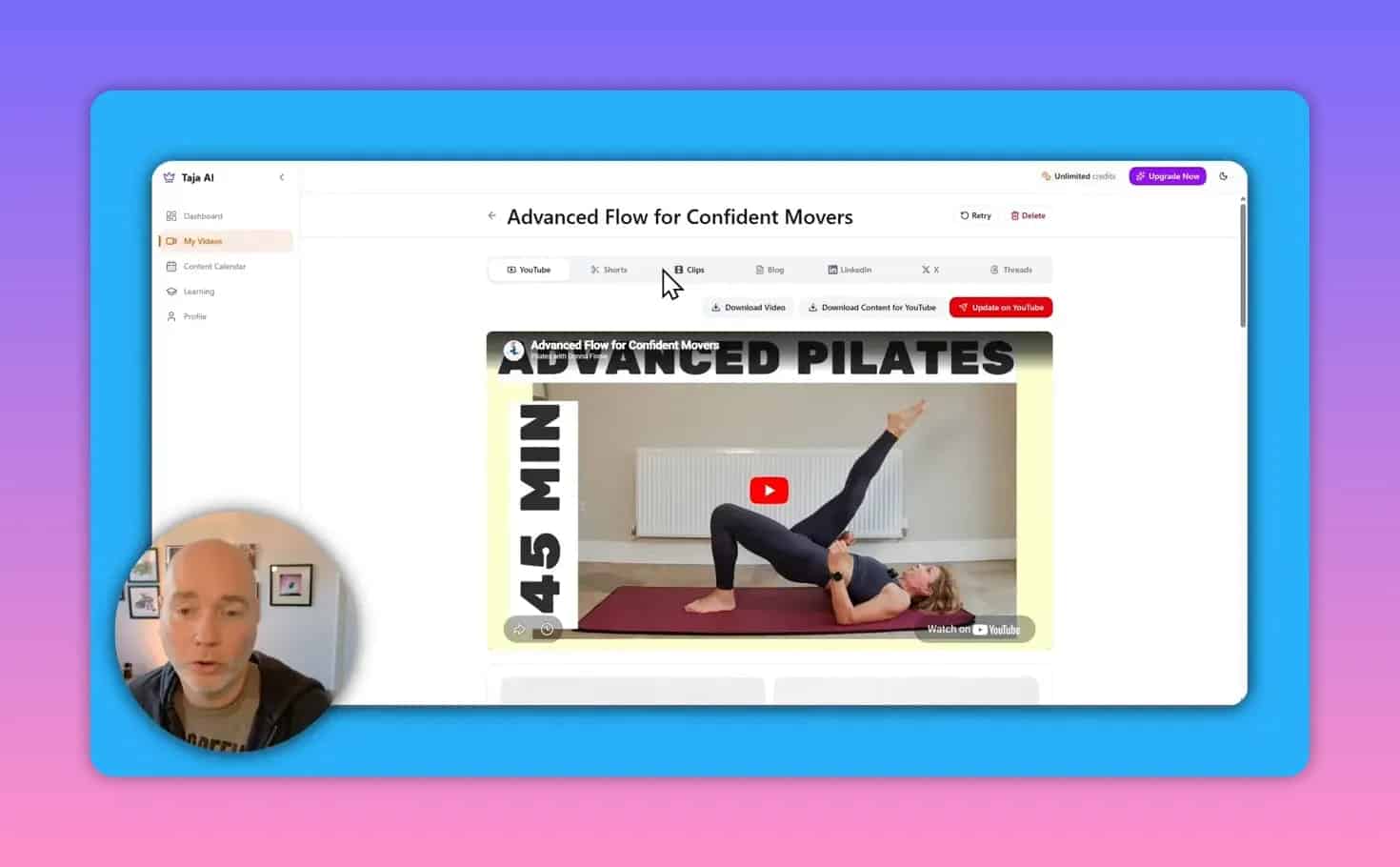
Generating Shorts outputs
Shorts generation drops you into an editor where you can fine-tune the output details.
- Edit the short title.
- Caption and subtitles controls: captions can be toggled, subtitle placement can be adjusted, and style (including colors) can be changed.
- Transcript-based support: the tool provides the transcript associated with what is being used for the Shorts output.
- Trim timing: a slider control lets you make the clip shorter or adjust where it begins and ends.
There is also an observed limitation: caption placement may not be fully changeable, so adjust using the available controls.
AI captions and subtitle styling
Short-form content often fails due to readability. The styling options can help you align subtitles and captions with your brand and the visual tone of the clip. Use the available styles and reposition subtitles if they cover important visuals.
Generate blog posts and social posts (LinkedIn and X threads)
Beyond Shorts, Taja AI can generate longer and social-native text assets. After you create or select a repurposing output, it can produce:
- A blog post that you can copy and paste into your blogging platform.
- LinkedIn posts tailored for business-focused content.
- X threads and the ability to publish or schedule through an account connection.
- Additional threading behavior similar to X threads (the interface is described as generating a thread format and supporting publish/schedule actions).
Practical workflow tip: treat AI-generated social text as a first draft. Edit for tone, clarity, and accuracy before publishing.
AI thumbnail generation: options, editing, and how to improve results
Taja AI can generate AI thumbnails, described as multiple options for the loaded video. Thumbnail generation can take some time, so it is normal for generation to be delayed.
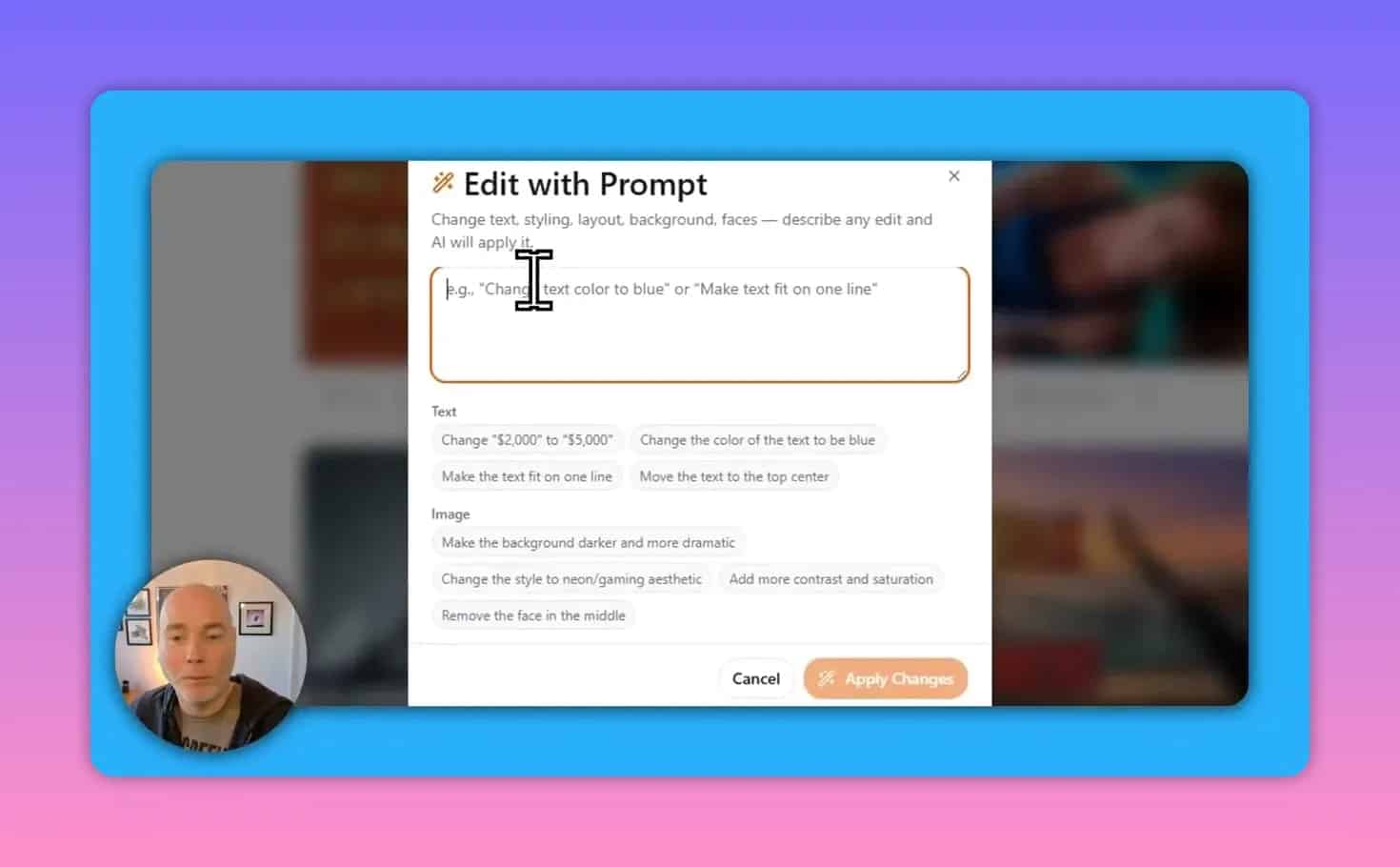
There is also an editing flow for generated thumbnails. In the example, the thumbnails can be edited via an “AI edited changes” step, described as versioned (such as a version 1 result).
Prompting thumbnail style
Thumbnail quality depends heavily on the inputs you provide. The workflow described includes:
- Copying the transcript text from the transcription area.
- Using a prompt field to generate an image generation prompt based on that transcript.
- Testing different thumbnail styles and types to find what works best for the creator’s brand.
For some creators, AI thumbnails may not render faces as desired. That is why iterating on styles and prompts is an important part of the workflow.
How to repurpose one YouTube video end-to-end (a practical workflow)
Here is a practical sequence you can follow to save time while still producing assets you would be comfortable publishing.
- Load the video URL (or use an accessible unlisted link).
- Review the suggested title options and choose one that fits your audience and positioning.
- Copy the generated description and refine it for clarity, keywords, and your call-to-action.
- Inspect automatic chapters and rename timestamps if needed to match the content accurately.
- Generate Shorts outputs and open the editor for trimming.
- Adjust captions/subtitles so they do not obscure key visuals and are readable.
- Create blog and social text assets as needed (LinkedIn post, X thread, blog post).
- Generate AI thumbnails, then edit and iterate until a style is acceptable.
- Copy outputs into your platforms (since full automatic syncing back to YouTube is described as not fully implemented at the time).
Common mistakes to avoid
1) Using private videos
If the content is private, the tool may not be able to access it. Use unlisted when you need to process unpublished videos.
2) Publishing AI text without editing
Generated descriptions and posts are a strong starting point, but they should still be reviewed for tone, accuracy, and brand consistency.
3) Over-trimming Shorts
Shorts benefit from context. Use the trimming slider to remove dead air, but avoid cutting into the part where the value is explained.
4) Ignoring chapter usefulness
Automatic chapters work best when the section names reflect what viewers will get. Quick edits can significantly improve navigability.
Is Taja AI worth it? Who it is best for
Taja AI is most useful if you regularly create long-form videos and want consistent repurposing into multiple formats without spending hours manually reworking everything.
It is a particularly good fit for:
- YouTube creators who need faster descriptions, transcripts, and chapter generation.
- Educators and instructors who benefit from chapters that improve navigation.
- Content marketers who repurpose across LinkedIn, X threads, blogs, and Shorts.
- Teams or solo creators who want an all-in-one workflow for ideation to publishing assets.
Pricing and AppSumo lifetime deal considerations
The tool is described as returning to AppSumo after an update. A lifetime deal is mentioned as “worth backing,” and there is a distinction between an unlimited-credit plan versus limited credits.
If you plan to generate many outputs across formats (titles, descriptions, chapters, Shorts, blog posts, social threads, and thumbnail options), an unlimited credits approach may better match heavy usage. If credits are limited, generation volume may run out faster.
Tip: check whether the plan provides enough credits for your publishing schedule, especially if thumbnail generation and multiple repurposed formats are part of your workflow.
Next steps
- Pick one recently published YouTube video and generate titles, description, transcript, and chapters.
- Test the Shorts editor trimming and subtitle styling controls on one output.
- Generate one LinkedIn post or X thread and edit for your voice.
- Iterate on AI thumbnail prompts until the style is acceptable for your channel.
With a repeatable workflow, Taja AI can turn a single long-form video into a consistent stream of assets for YouTube optimization and multi-platform content repurposing.