Wisery is a digital business card platform built for modern networking. Instead of passing around paper, you can share a scannable QR contact that sends people to a branded landing page, and you can also add the card to Apple Wallet or Google Wallet for quick, mobile-first sharing.
This guide walks through what Wisery is, who it is for, the main features (online card, wallet card, blocks, links, and lead capture), and practical setup steps. It also covers common pitfalls like domain limitations and embed restrictions.
What is a Wisery digital business card?
A Wisery digital business card is an online profile page plus a wallet-ready card tied to your contact details. It typically includes:
- An online landing page with your title, bio, and configurable sections (links, buttons, social icons, booking, app links, and more).
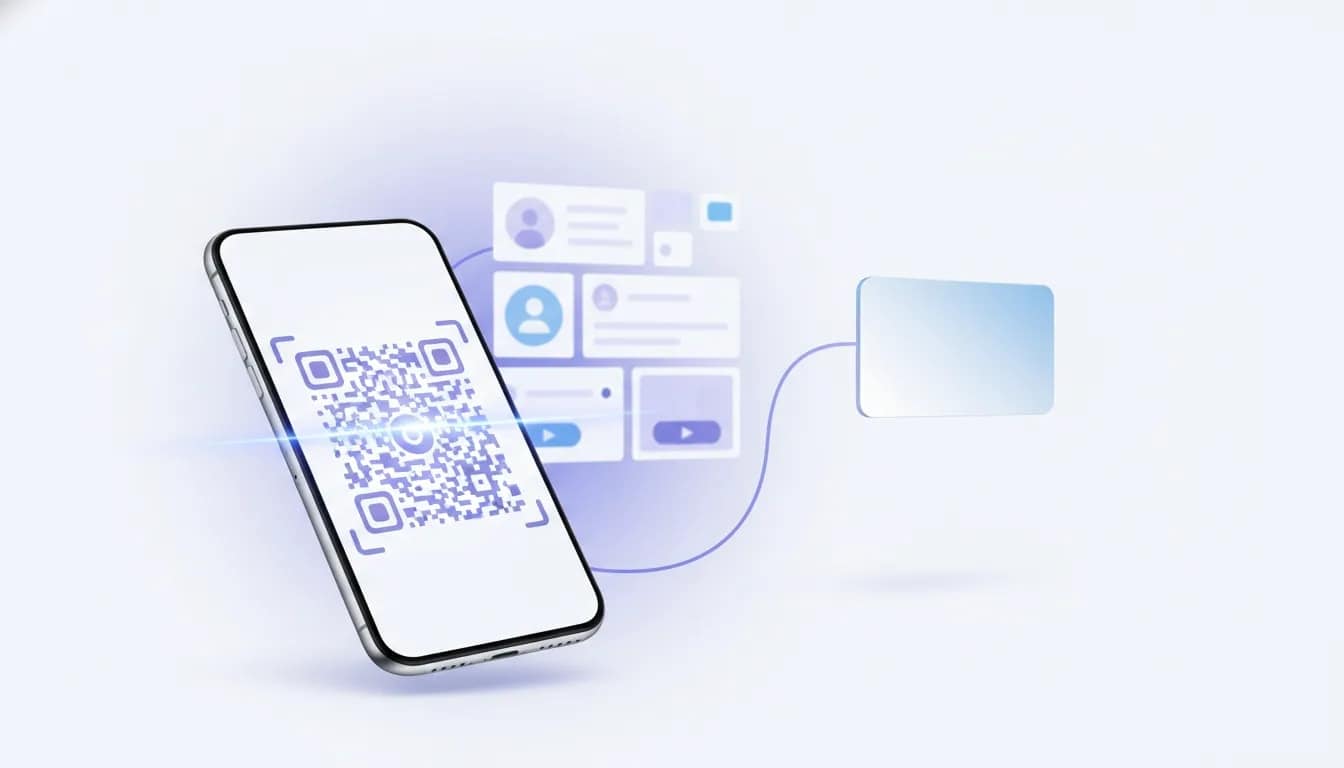
- A wallet card (Apple Wallet and Google Wallet supported) that uses a QR code so someone can scan and either add you to contacts or jump to your landing page.
- Lead capture options so people can submit details through a built-in form, and you can review submissions in your dashboard.
Think of it as a replacement for paper business cards that works across phones, email-free networking, and quick follow-ups.
Who should use Wisery?
Wisery is a strong fit for people and teams that need fast, consistent sharing of contact info.
- Freelancers and consultants who want clients to book time or request information immediately.
- Sales and real estate where lead capture and quick routing to schedules matter.
- Small teams that want separate cards per staff member, without mixing contacts.
- Events and conferences where scanning a QR code is faster than exchanging paper.
Key Wisery features you should know
1) Online card with customizable blocks
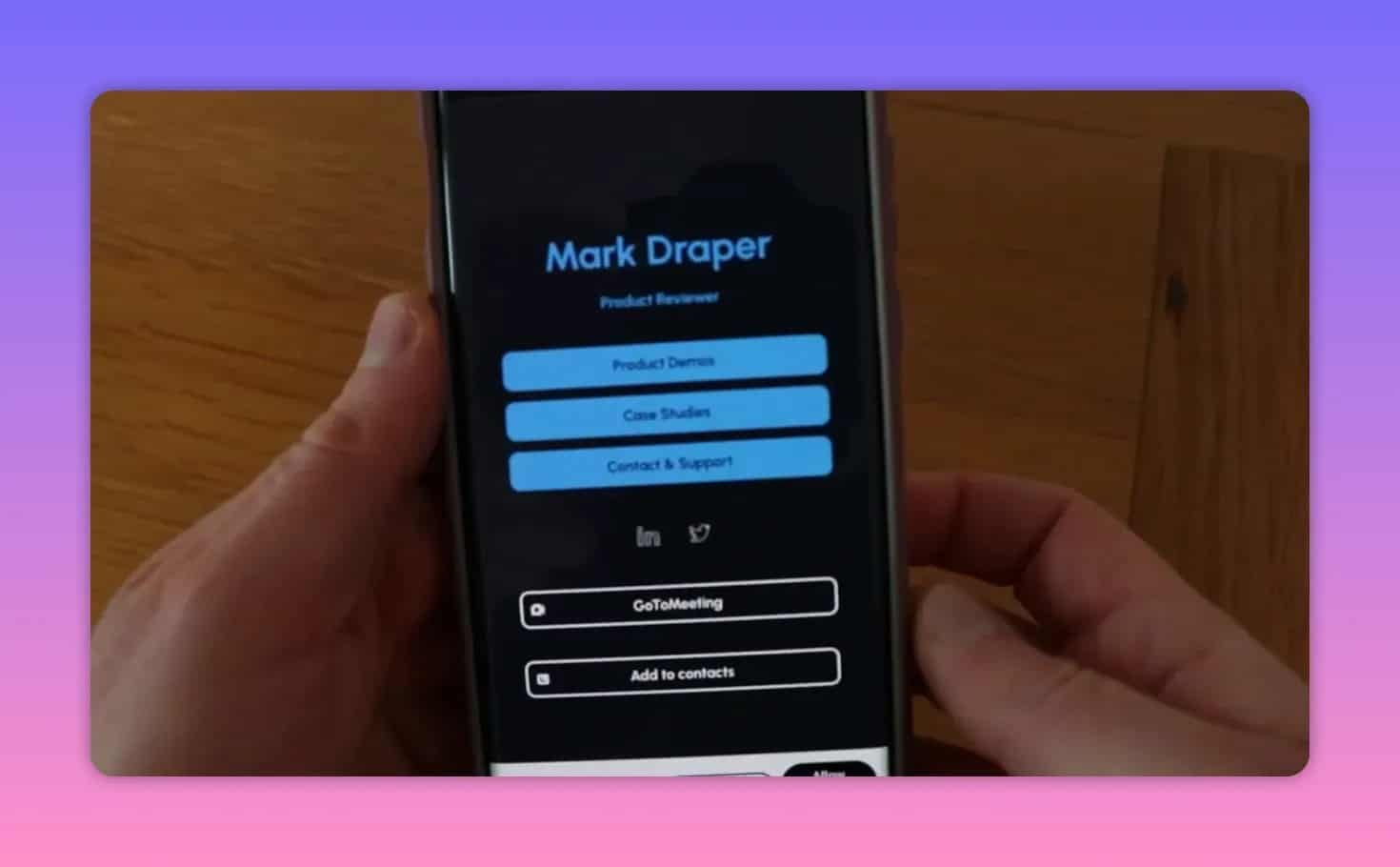
The online card is designed around “blocks” you can stack and rearrange. Common block types include:
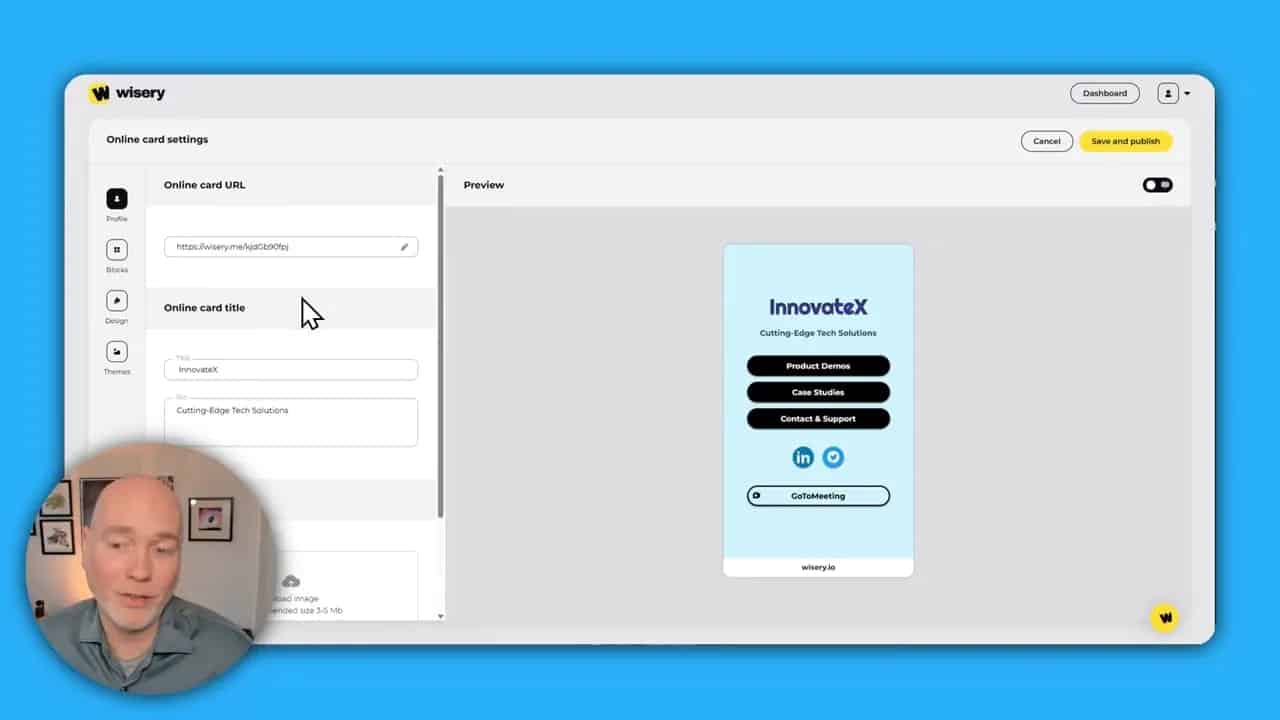
- Button-style links (for example, product/demo, case studies, support, and contact actions).
- Social icon links (useful for LinkedIn and other networks).
- Messaging and contact options (for example, WhatsApp, Messenger, Telegram, and direct contact details).
- Meeting booking link to route visitors to your scheduling page.
- Marketplace links like App Store and Google Play.
- Optional embed support in some cases, depending on security compatibility.
Blocks can be reordered so the most important actions appear first.
2) Wallet card (Apple Wallet and Google Wallet)
The wallet card lets someone scan your QR code from their phone. Depending on how it is configured, scanning can either:
- Redirect to your online landing page so people can immediately access links and booking.
- Enable “add to contacts” so the person can save your details directly to their contacts app.
For sharing, this is extremely convenient in-person because it is designed around mobile QR scanning.
3) QR code driven sharing
Because the wallet card is QR-driven, your exchange becomes simple:
- You share your QR or open your wallet card.
- They scan.
- They land on your desired next step (contacts, booking, or your link hub).
4) Lead capture form and per-card contact separation
Wisery can include a lightweight micro form that allows people to submit their details. A helpful implementation detail is that submissions are kept separate per card, which matters if you manage cards for multiple staff members.
Step-by-step: How to set up a Wisery online card
Getting started is typically fast. Use the following workflow to build a card that works for both networking and follow-ups.
Step 1: Create a new online card
- In the dashboard, choose to create an online card.
- Start from a template or begin from scratch.
Step 2: Select a template that matches your branding
Templates may include different visual treatments. If a template relies on a photo-style background, make sure you can supply a strong image or pick a simpler option with logos or neutral styling.
Step 3: Add your identity content
- Title (for example, job title or brand role)
- Bio (a short professional summary)
- Images if available in the template (upload or replace if supported)
Step 4: Configure blocks and prioritize your “next action”
Arrange blocks so visitors see what to do immediately. A practical order for most professionals is:
- Primary action (book a meeting or contact support)
- Credibility (case studies, product demo)
- Social proof and channels (social links, messaging)
- Secondary extras (app links, marketplace, other resources)
Use the block controls to reorder sections and swap button/icon styles.
Step 5: Apply theme settings and publish
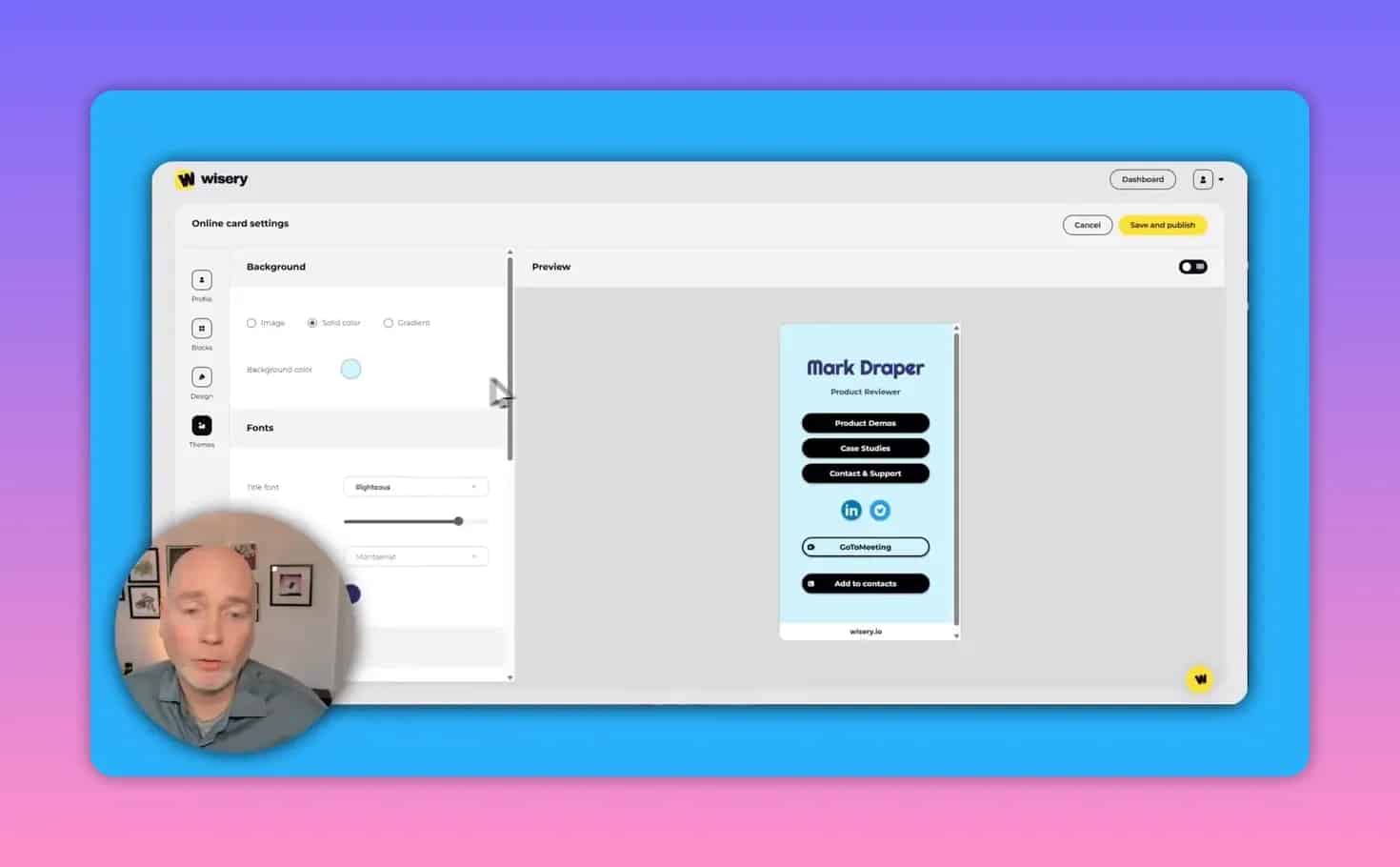
In theme settings, adjust things like:
- Background color
- Fonts
- Button or social icon styles (depending on the template)
After saving, publish so your landing page is live and ready to share.
Step-by-step: Set up the Wisery wallet card
A wallet card is what makes the networking flow feel instant. Follow these steps to create one based on your online card.
Step 1: Create a new wallet card
- In the dashboard, choose to create a wallet card.
- Select the online card details to reuse so you do not rebuild everything.
Step 2: Confirm contact fields
Review and update:
- Phone number
- Email address
- Other labeled fields (for example, you can rename a field if your “address” is actually a website)
Step 3: Choose what happens after scanning the QR code
Most setups should pick one of these behaviors:
- Add to contacts: best when you want people to save you first.
- Redirect to landing page: best when you want visitors to immediately see links and booking options.
Step 4: Add to Apple Wallet or Google Wallet
Wisery supports adding the wallet card to:
- Apple Wallet
- Google Wallet
- Or download a file (depending on your setup)
How to structure your Wisery links for better conversions
A digital business card only helps if it drives the right next step. Here are practical link structures that tend to work well.
Option A: Book a meeting focused card
- Top button: Book time
- Second button: Case studies / proof
- Then: Social links (LinkedIn, etc.)
- Optional: messaging app buttons
Option B: Fast contact save card
- Configure wallet scan to Add to contacts
- Landing page then offers: booking, resources, and portfolio
Option C: Multi-channel community card
- Landing page uses stacked blocks with multiple channels
- Social icons and messaging blocks appear near the top
- Booking stays available but not necessarily first
Domain and embed limitations: common issues to plan for
Domain mapping limitations
Some digital card platforms restrict custom domain usage. If custom domains are important for your branding or SEO strategy, verify whether Wisery supports showing the card on your own domain. At times, platforms require traffic to stay on their managed domain or a subdomain.
Practical tip: If you need your own domain for trust, use it in your marketing materials (for example, your email signature) only if custom domain mapping is confirmed. Otherwise, route to your Wisery landing URL.
Embed code restrictions
Embed code functionality may be sensitive due to security rules. Some third-party embeds might not load properly even if they work elsewhere.
Workaround: Prefer direct links to your scheduling page, form page, or resource page instead of embedding them inline. This usually produces more reliable results.
Pricing tiers and what changes
Wisery uses tiered plans that affect mainly how many cards you can create. The typical structure is:
- Tier 1: $19, includes 1 seat (commonly 1 online card plus 1 wallet card)
- Tier 2: $99, includes 10 seats
- Tier 3: $100 (as listed on the offer), includes 100 seats
- Tier 4: $200, includes 200 seats
On the stated offer, the platform features are not restricted by plan. The main difference is the number of sites or cards you can create. Always double-check the current offer page for the latest tier details, since pricing and seat rules can change over time.
Checklist: Launch your Wisery card in one hour
- Create a new online card from a template
- Add title and bio
- Upload images only if the template expects them
- Set your primary button (book, contact, demo, or support)
- Add social and messaging blocks (keep it relevant)
- Configure meeting link to your scheduling page
- Publish the landing page
- Create the wallet card and select redirect behavior
- Add the wallet card to Apple Wallet or Google Wallet
- Test scanning on another phone or via QR scan
Frequently asked questions
Can a Wisery card be used for multiple people on a team?
Yes. Higher tiers support multiple cards. Lead submissions are kept separated per card, which helps when multiple staff members use their own digital card profiles.
What is the difference between the online card and the wallet card?
The online card is your branded landing page with links and blocks. The wallet card is a mobile wallet integration that uses a QR code. Scanning the QR code can add you to contacts or route to the online landing page.
Do I need an embed code for booking?
No. If embeds are blocked or unreliable due to security restrictions, direct links to your booking page are typically the better option.
Is Wisery good for in-person networking?
Yes. Wallet cards with QR codes are designed for quick scanning at events. They reduce friction compared to exchanging paper business cards and chasing contact details later.
Takeaway
Wisery combines an interactive online landing page with a wallet-ready QR contact card. With a template-driven setup, customizable blocks, and lead capture options, it is a practical alternative to paper business cards for anyone who wants faster follow-up and a modern networking experience.