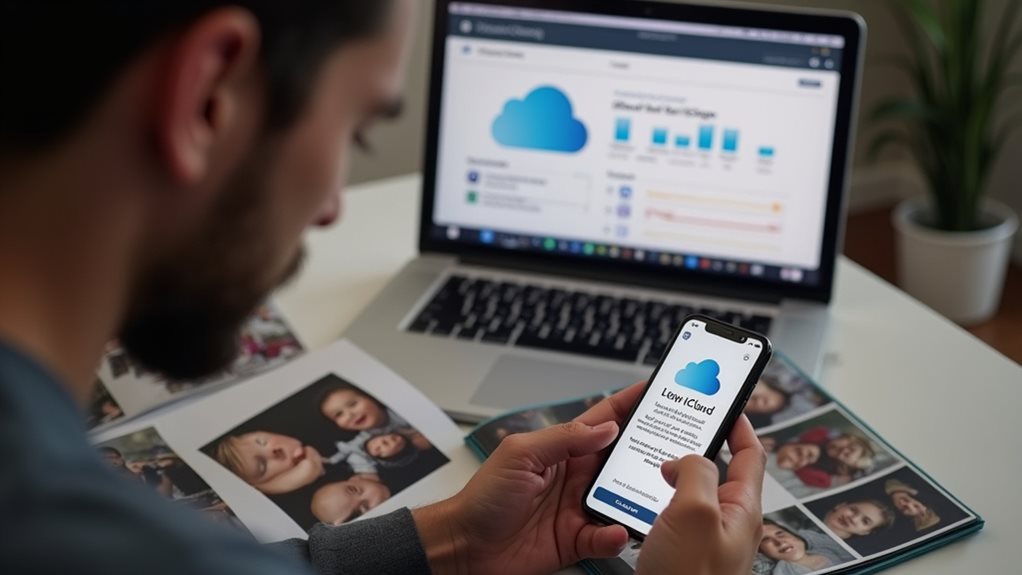
If you cancel your iCloud subscription, you won’t immediately lose your photos. Apple provides a 30-day grace period where you’ll maintain full access to all your content. After this period, your storage reverts to the free 5GB limit. Any photos exceeding this limit will become inaccessible, though they’re not permanently deleted for 180 days. To prevent losing access, download your complete photo library to a computer or external drive before your subscription ends. The following sections explore preservation options in detail.
Understanding How Icloud Photos Storage Works
When you sign up for iCloud, Apple provides you with 5GB of free storage space that works across your Apple devices. This initial storage is often insufficient for users who take numerous photos and videos.
iCloud Photos is a feature that automatically uploads and stores your entire photo library in the cloud. When enabled, your original, full-resolution photos and videos are stored in iCloud while device-optimized versions remain on your device to save space.
If you’ve turned on iCloud Photos, your images aren’t stored locally on your device in the traditional sense. Instead, they exist primarily in Apple’s cloud servers, with your device displaying thumbnails or optimized versions that take up less space.
Understanding this storage mechanism is essential when considering canceling iCloud storage, as your access to these photos depends on your subscription status.
What Actually Happens When You Cancel Your Icloud Subscription
After canceling your iCloud storage plan, your account immediately begins a changeover period that lasts for 30 days.
During this time, you’ll still have full access to all your data stored in iCloud, allowing you time to download important files to local storage.
When the 30-day period ends, your storage will revert to Apple’s free 5GB tier.
Any data exceeding this limit won’t be deleted immediately, but Apple will stop updating and syncing it across your devices.
If you remain above the 5GB threshold, you won’t be able to back up your device to iCloud, send or receive emails on your iCloud account, or store new photos in iCloud Photos.
Your existing content becomes inaccessible until you either reduce your storage usage or purchase a new plan.
How to Download and Safeguard Your Photos Before Cancellation

Given the time-limited access to your iCloud photos after cancellation, you’ll want to back up your images to guarantee they aren’t lost.
Apple provides several methods to download your photo library to local storage devices before you cancel your subscription.
The simplest approach is using the Photos app on your Mac or PC. Connect to your Apple ID, select all images, and export them to your hard drive.
Back up your entire photo library with just a few clicks using the Photos app on your Mac or PC.
- Use the Download option in iCloud.com to save original, full-resolution photos directly to your computer.
- Consider external hard drives or SSDs for large libraries, as they provide portable, reliable storage.
- Explore alternative cloud services like Google Photos or Dropbox as secondary backup options.
Always verify your downloads are complete before canceling your subscription to prevent any data loss.
Alternative Storage Options for Apple Users
While canceling iCloud storage might seem limiting, numerous alternatives exist for Apple users seeking different photo storage solutions.
Google Photos offers 15GB of free storage across Google services, with reasonably priced upgrades if you need more space. The app automatically backs up photos from your iPhone and provides intelligent search capabilities.
Amazon Photos provides unlimited full-resolution photo storage for Prime members, making it an excellent value if you already subscribe to Amazon’s service.
Dropbox and OneDrive are versatile options that work seamlessly across devices, offering 2GB and 5GB free storage respectively, with paid tiers available.
For local backups, external hard drives or NAS (Network Attached Storage) systems allow you to maintain complete control of your data without recurring subscription costs.
Managing Storage Space Without Losing Important Memories

Before canceling your iCloud storage, you’ll need a strategy to preserve your cherished photos. When your subscription ends, Apple gives you 30 days to download your content before potentially deleting files that exceed the free 5GB limit.
Consider these approaches to manage your photo collection:
- Transfer photos to your computer using the Photos app on Mac or iCloud for Windows, creating a complete backup of your visual memories.
- Use selective downloading to prioritize your most meaningful images first, focusing on irreplaceable family moments.
- Compress large photo libraries into smaller file formats to maximize storage efficiency without compromising quality.
Regular maintenance of your photo library helps prevent storage issues.
Delete duplicates, screenshots, and blurry images to free up space while keeping what truly matters.
Frequently Asked Questions
Will Canceling Icloud Affect Photos on My Physical Apple Devices?
No, canceling iCloud won’t delete photos already stored on your iPhone, iPad, or Mac. However, you’ll lose access to any photos only stored in iCloud and not downloaded to your physical devices.
Can I Recover Photos After My Icloud Storage Subscription Expires?
Yes, you can recover photos after your iCloud storage subscription expires. Apple gives you a 30-day grace period to either renew your subscription or download your content before it becomes inaccessible.
Do Screenshots and Screen Recordings Count Toward Icloud Storage Limits?
Yes, your screenshots and screen recordings do count toward iCloud storage limits. They’re treated like any other photos or videos in your library and will consume space in your iCloud account when synced.
What Happens to Shared Photo Albums When I Cancel Icloud?
When you cancel iCloud, your shared photo albums will remain accessible to others you’ve shared with, but you won’t be able to add new photos or make changes until you resubscribe to iCloud.
Can I Selectively Download Only Certain Photos Before Cancellation?
Yes, you can selectively download specific photos before cancellation. Simply open the Photos app, select the images you want to keep, and tap the share icon to save them to your device.
Final Thoughts
If you cancel your iCloud storage, your photos will remain on Apple’s servers for 30 days before deletion. During this time, you can download everything to your devices or transfer them to alternative storage services. To protect your memories, always create backups before cancellation. Consider other cloud options or external hard drives as permanent solutions. With proper planning, you’ll maintain access to your cherished photos regardless of your iCloud subscription status.