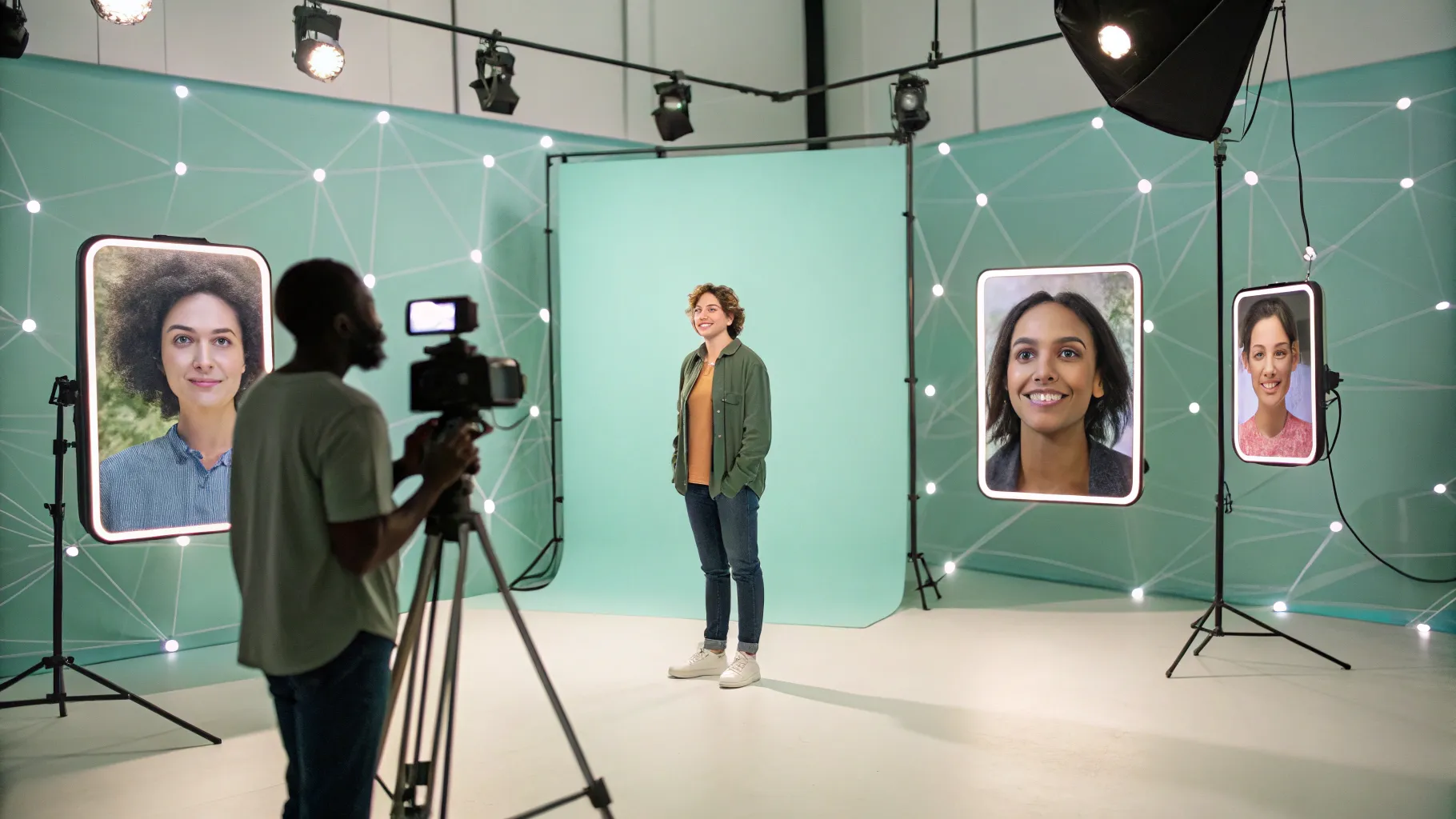
Creating thumbnails used to be the part of content creation I dreaded. Either I was fiddling in Photoshop or trying to rig a quick selfie that never looked quite right. PhotoGPT changed that for me. It turns a set of selfies into a reusable model of yourself so you can generate consistent, on-brand photos with simple prompts.
Why PhotoGPT is a thumbnail game-changer
PhotoGPT removes two of the biggest obstacles to good thumbnails: time and technical skill. Instead of setting up lighting, posing and Photoshop edits every time, you upload a handful of selfies, train a model and then generate new images in the poses and styles you need. For me, that meant far fewer stressful photoshoots and more time actually creating content.
How it works: upload, train, generate
The setup is straightforward. Upload a set of selfie photos, follow the prompts to train a personalised model (man, woman, etc.), then use plain-language prompts to generate new images. Credits are consumed when creating or retraining models and when generating edits.
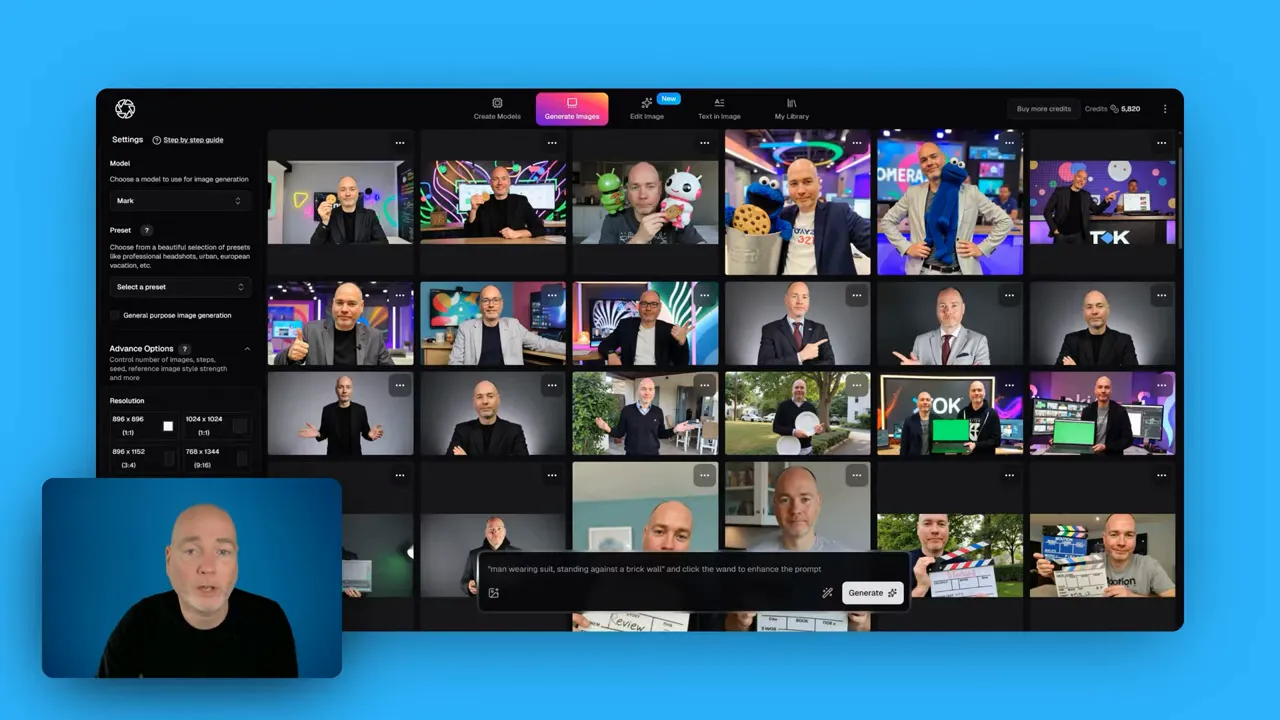
The interface keeps everything simple and visual. You can see your saved models, how many images you’ve generated, and the presets that influence the final output.
Presets and prompts: big impact from small changes
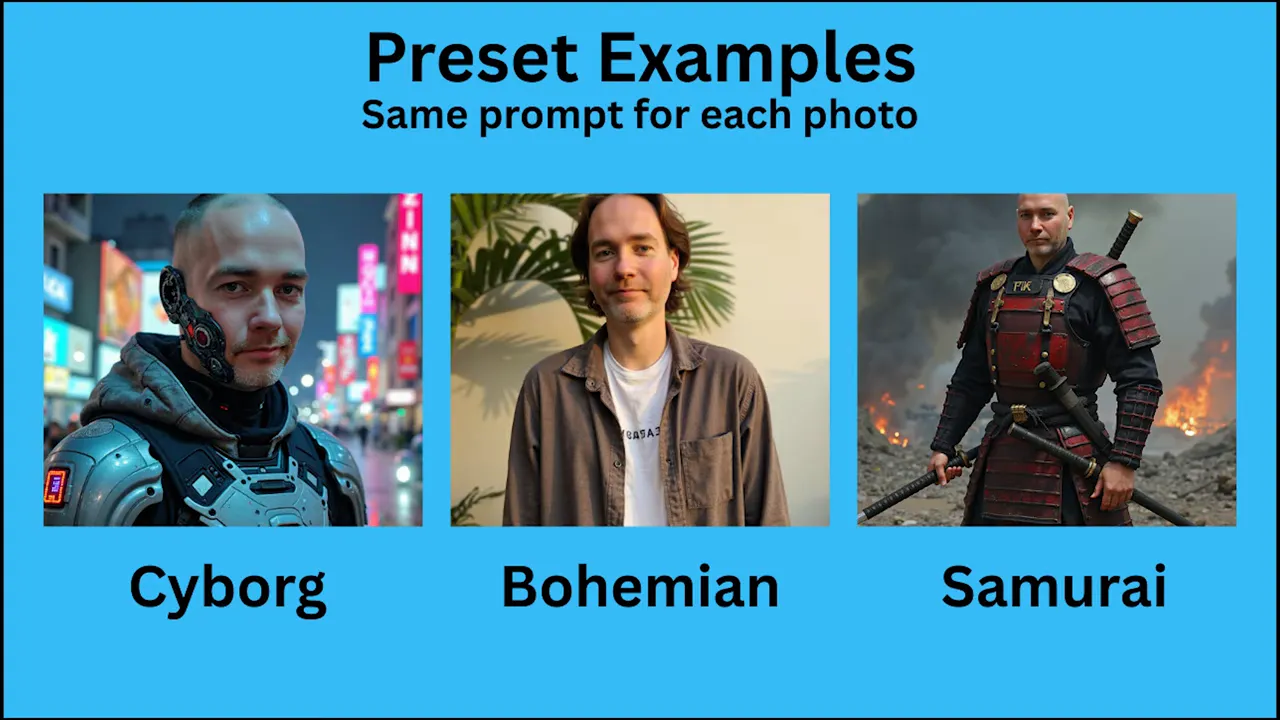
One of the nicest things is how a tiny prompt plus a preset can produce very different results. There are presets for glamour, cinematic, portrait and more. Generate the same short prompt a few times with different presets and you’ll quickly see varied looks to choose from.
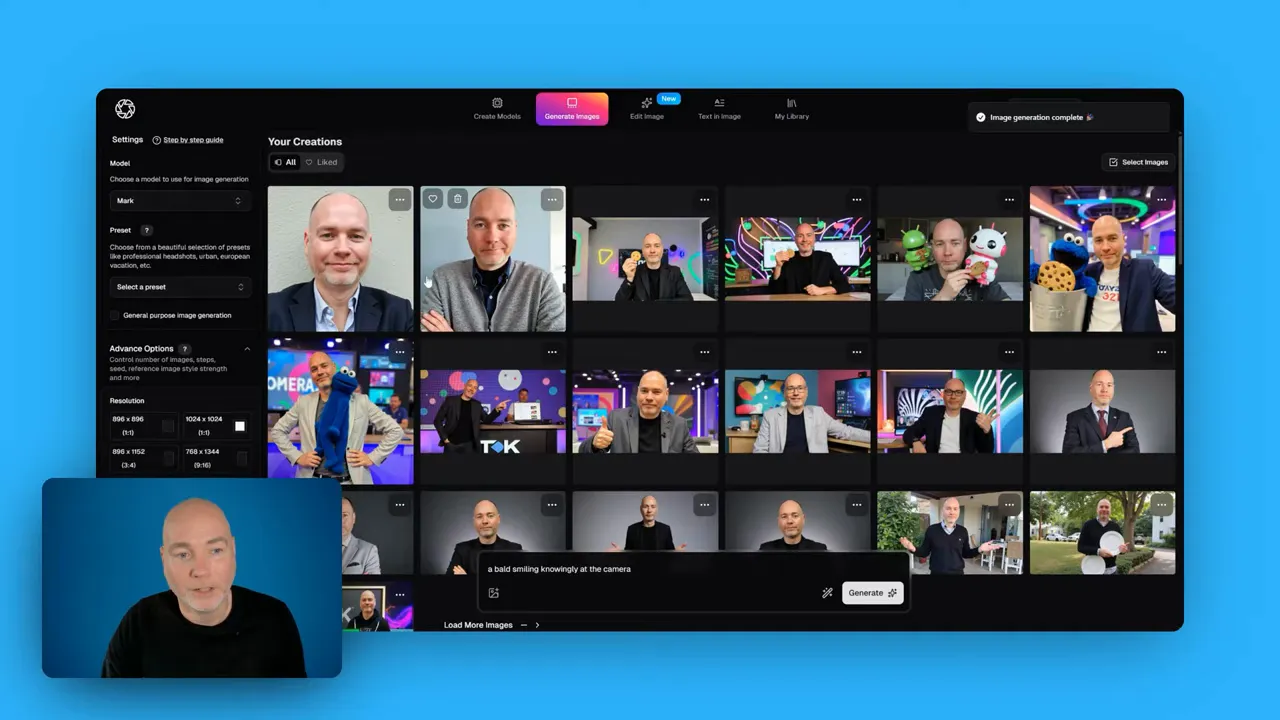
Not every preset is available to every user; some are locked behind tiers or lifetime plans. Even with the available set, though, you get a lot of variety. My usual workflow is to generate multiple images at 16:9 for thumbnails and pick the best one to polish.
New editing features that actually matter
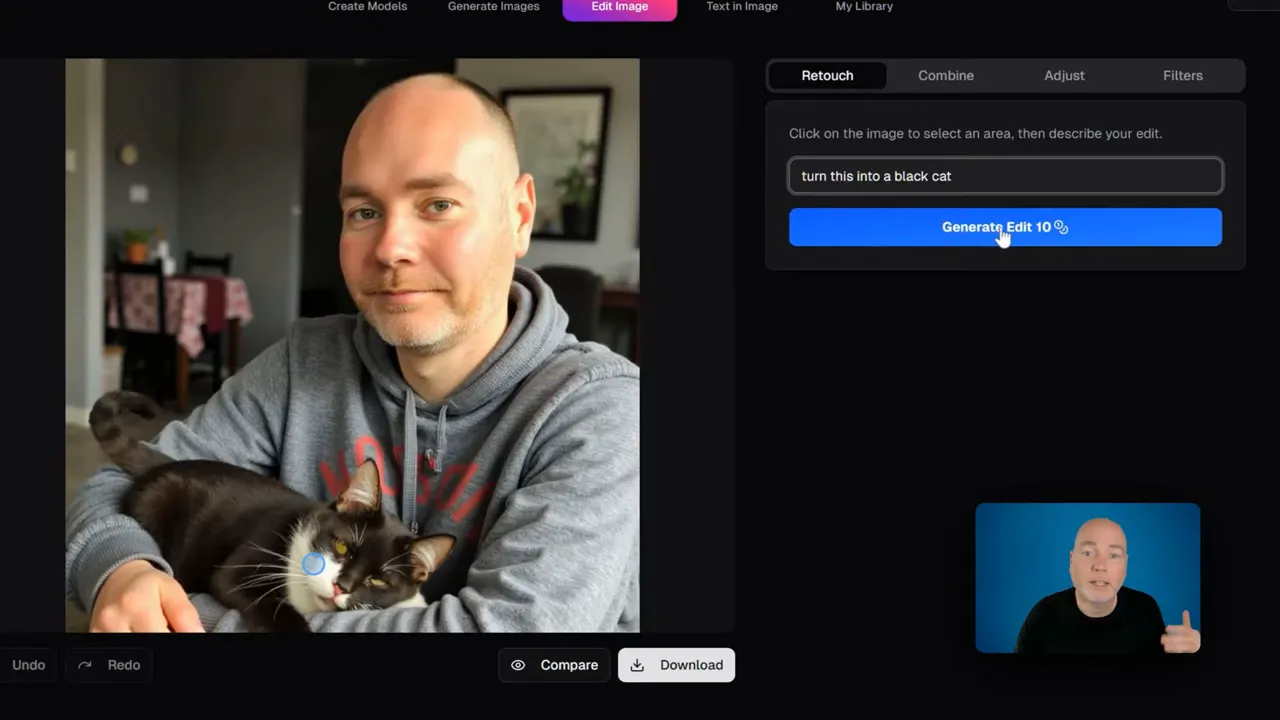
PhotoGPT recently added a built-in editor that elevates it from a neat generator to a practical thumbnail tool. The main options are:
- Retouch — quick fixes and cosmetic edits.
- Combine — merge two subjects into a single image.
- Adjust — tweak colours, brightness and more.
- Filter — apply stylistic filters to suit your brand.
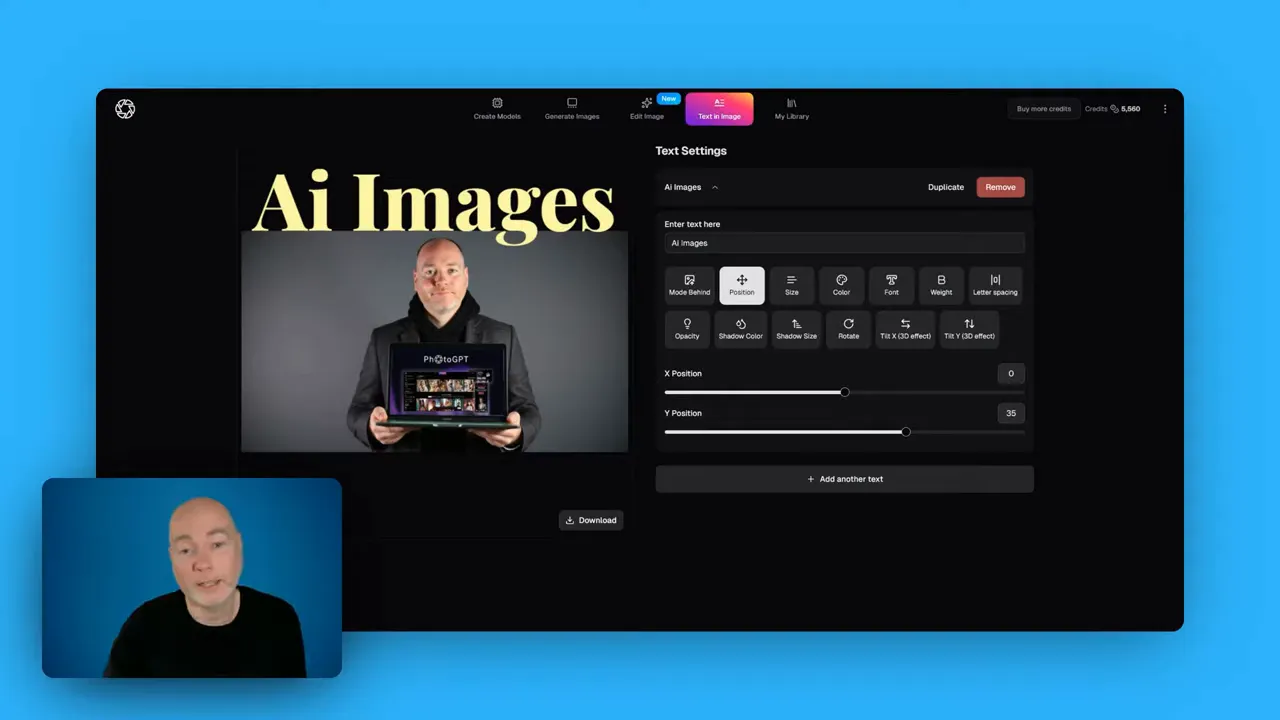
- Text in image — add and position text directly on the picture.
For example, I clicked an image of my (rather judgmental) black cat and used retouch to make small changes. The editor charges credits for edits, but it’s fast and practical for thumbnail work.
Text on images: quick headline placement
The text-in-image feature analyses the photo and generates text that sits naturally in the composition. You can resize and adjust the text size quickly before exporting. For me, that means creating a near-finished thumbnail inside PhotoGPT and then bringing it into Canva for final layout tweaks.
Credits and tiers: pick the right plan for your workflow
Credits are the backbone of the system. They’re used for creating models and generating images or edits. My experience suggests:
- Tier two is the sweet spot for most creators — comfortable monthly credits for regular use.
- Tier three makes sense if you plan to churn out a lot of images or maintain multiple models.
- Tier one may feel restrictive if you generate images frequently.
If you want to create an Instagram persona, multiple thumbnail styles, or keep retraining different models, higher tiers give you the buffer you need.
Recommended workflow for thumbnails
- Upload a variety of selfie photos to train a solid model.
- Generate multiple versions at 16:9 using different presets.
- Use the retouch and combine tools to fix any issues and merge poses if needed.
- Add headline text with the text-in-image tool and export.
- Final polish in a design tool such as Canva for branding, overlays and CTAs.
Final thoughts
PhotoGPT is one of those tools that feels like a real time-saver. It takes the friction out of thumbnail creation and lets you focus on the creative decisions rather than technical details. If thumbnails are part of your content growth strategy, investing in a higher tier pays off quickly by giving you more credits and flexibility.
“It takes the stress out of thumbnails and lets you get consistent, on-brand images without endless Photoshop tweaks.”
Try building a small library of generated images and use them as your base for thumbnails. Over time you’ll have a fast, repeatable system that keeps visuals consistent and dramatically reduces time spent on edits.