
Finetuning AI is an AI music generator designed to help you create music tracks quickly using simple inputs like genres and descriptive prompts. It also includes more advanced controls like BPM, musical key, time signature, and the ability to base new generations on a “seed” from a track you like. If you create content, need audio for video projects, or want to automate track generation through an API, this walkthrough explains how to use the tool effectively.
What Finetuning AI is (and who it is for)
Finetuning AI is a web-based AI music creation tool that generates tracks from text prompts and settings. It supports:
- Quick track creation by choosing a genre.
- Prompt-based generation using “vibes,” sounds, or feelings.
- Lyrics assistance (you can provide lyrics or ask for help writing them).
- Advanced music parameters like BPM, key, and time signature.
- Iterating on a style using a seed copied from a previously generated track you liked.
- AI enhancement that expands simpler prompts into more detailed descriptive tags.
- Team and creator workflows through plan tiers, a branding profile section, and an API option.
For example if I take the above and paste it into Finetuning and get to to create a song, this is what we get: https://finetuning.ai/share/VQ7BY9
Getting started: the dashboard, browsing, and presets
After logging in, you can use the Quick Create panel to generate a track quickly. Instead of building everything from scratch, you select a genre and the system creates a track for you.
The interface also provides browsing and inspiration features such as:
- Featured tracks from other users.
- Public sharing so your tracks can be checked out by others.
- Browsing by mood.
- Recently played items.
- Trending now tracks.
If you have used other AI music creators, the workflow will feel familiar. In most cases, you provide the general direction you want using prompts, tags, or preset-style inputs.
Using presets and tags
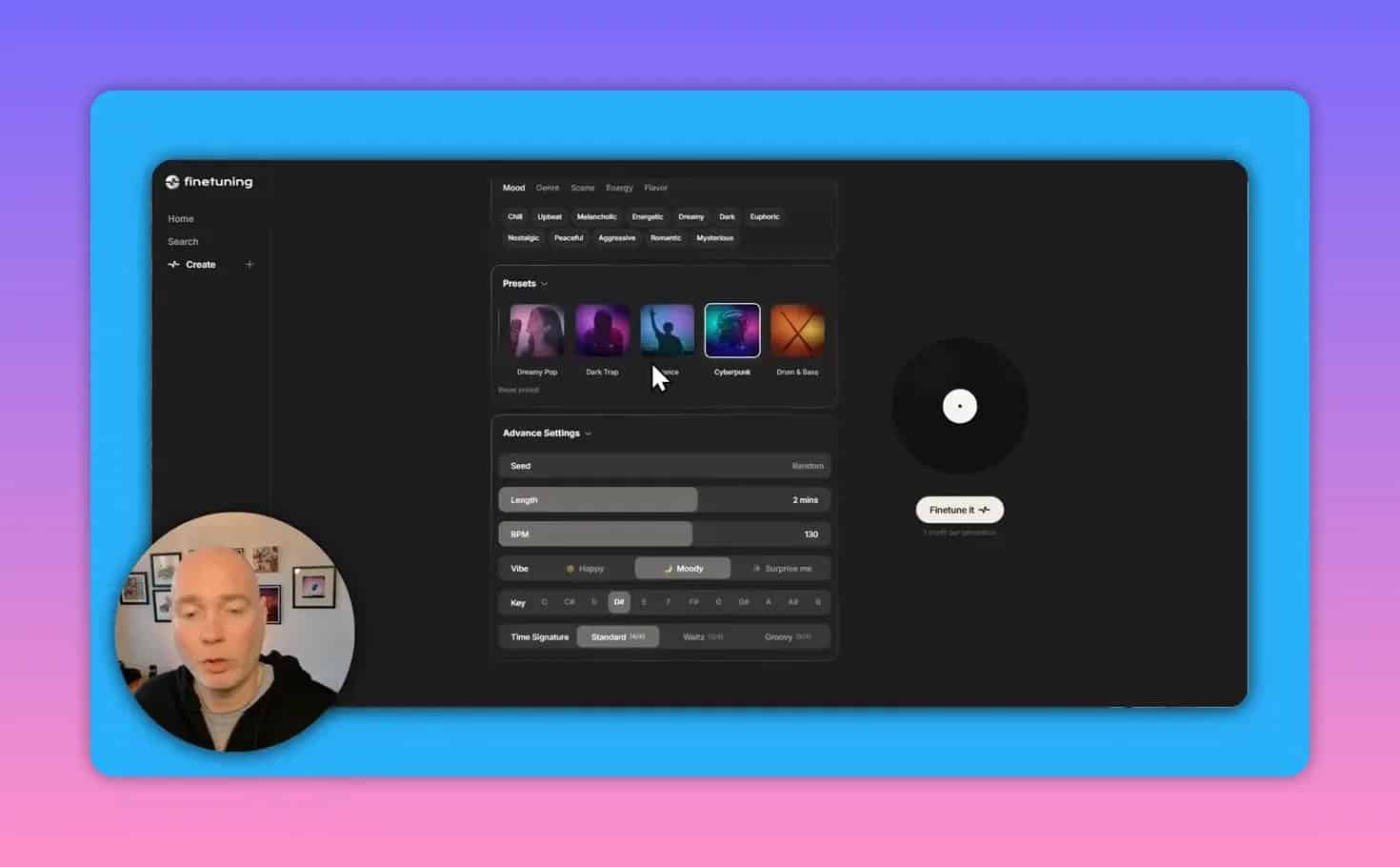
Finetuning AI includes prompts-related options such as tags and presets. If you are unsure how to describe your music, start by using a preset or choosing a genre, then refine from there with advanced settings.
Creating a track with “Quick Create” and prompt inputs
There are two common ways to generate:
Option 1: Choose a genre for fast results
- Open the Quick Create panel.
- Select the genre you want.
- Generate the track.
Option 2: Type descriptive keywords (“vibes,” sounds, feelings)
- Enter words related to the vibe you want (for example, a style or atmosphere).
- Optionally add more direction using tags or preset-like guidance.
- Generate the track.
When you want to iterate, it can help to keep prompts consistent while changing only one or two variables (like BPM or key) to see how the output changes.
Advanced settings that control the music
Finetuning AI’s advanced controls help you move beyond broad “vibes” and steer the output with concrete music parameters. You can adjust multiple elements before generating.
Seed from a track you like
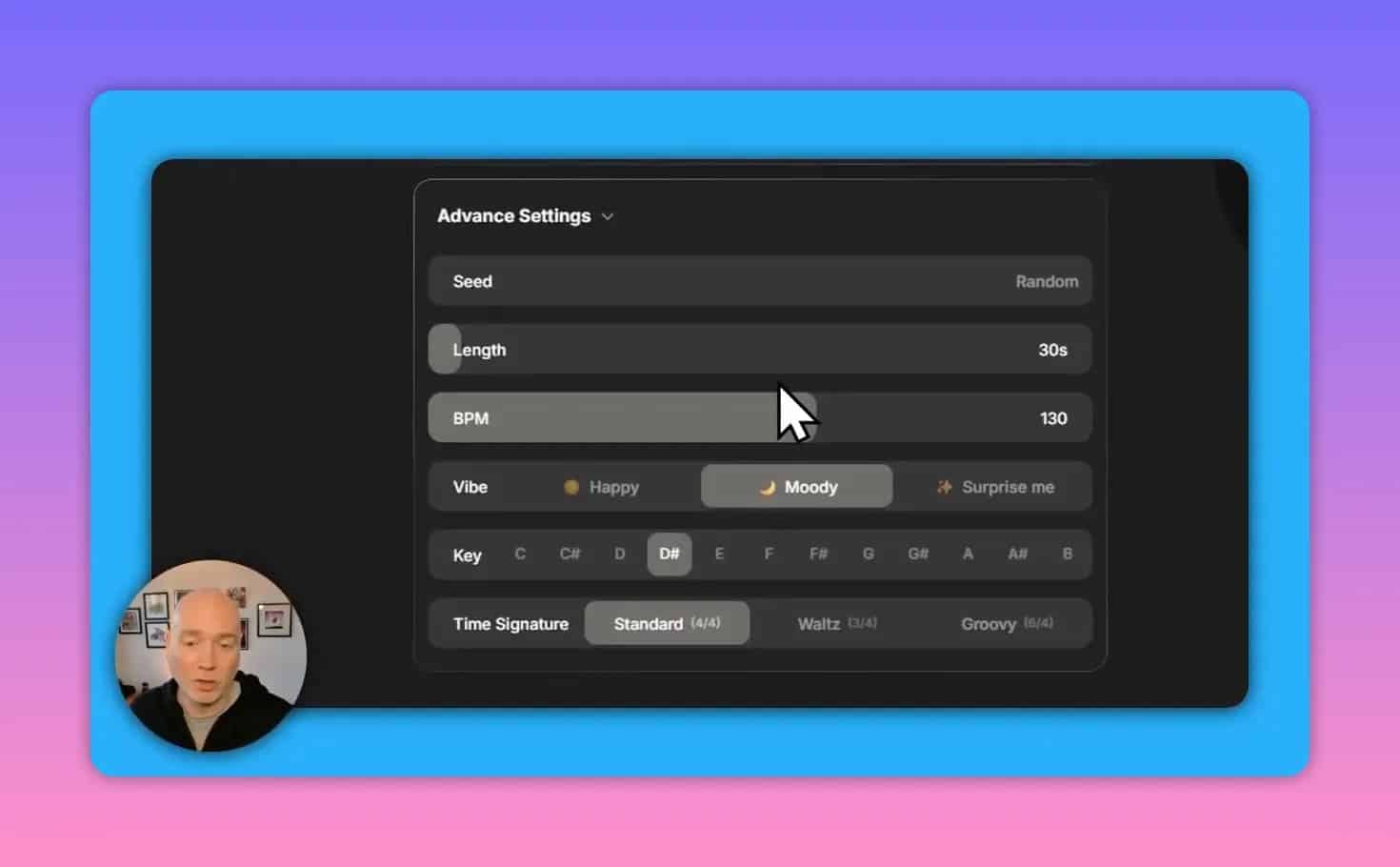
If you previously generated a track and liked its overall style, you can use its seed. In practice, that means copying the seed value from your preferred generation and pasting it into the seed field for your next attempt.
Length control
You can adjust track length within these ranges:
- Up to 3 minutes
- Down to 30 seconds
BPM (beats per minute)
You can set tempo using BPM limits:
- From 60 BPM to 180 BPM
Vibe and musical structure
The advanced vibe options include presets like:
- Happy
- Moody
- Surprise me
You can also control key and the time signature. These parameters are useful if you want your track to match a specific musical feel or align with a beat structure you are using elsewhere.
Fine-tune generation
After setting your seed (optional), length, BPM, vibe, key, and time signature, you run the generation using the fine tune action. This creates a brand new track based on your selected direction.
How to use AI Enhance for better prompts
If you start with a short or rough idea, the enhance feature can help. The idea is simple: you type a minimal prompt, and the system uses AI to generate additional descriptive tags intended to “fill out” the track details.
When to use Enhance
- You know the general vibe but not the right wording.
- You want the tool to add more detail automatically.
- You want to keep your input short while still getting richer output.
Practical workflow
- Type a simple phrase describing the sound or mood (for example, a direction like “upbeat” plus a couple of elements).
- Select enhance to generate additional descriptive tags.
- Use those enriched inputs with fine tune to produce the final track.
Iterate quickly without waiting
Generating music does not have to slow down your workflow. You can begin other actions while a previous generation is still running, allowing you to test multiple prompt variations efficiently.
Plans, generation credits, and adding more capacity
Finetuning AI uses a generation-based pricing model. Different tiers provide different monthly generation counts, and if you run out, you can purchase additional credits.
Example: a Lifetime Pro tier
One mentioned plan tier provides 5,000 generations per month. If you are on a lower tier and hit the limit, you can buy extra generations.
Extra generation packs
Extra credit packs shown include:
- $10 for 600 generations
- $50 for 3,500 generations
Branding options (profile customization)
There is also a branding option that depends on the plan. It allows customization of theme elements like a logo and banner. The branding area also includes a bio and social links, and it is intended for making a public profile more complete.
API access: automate music generation
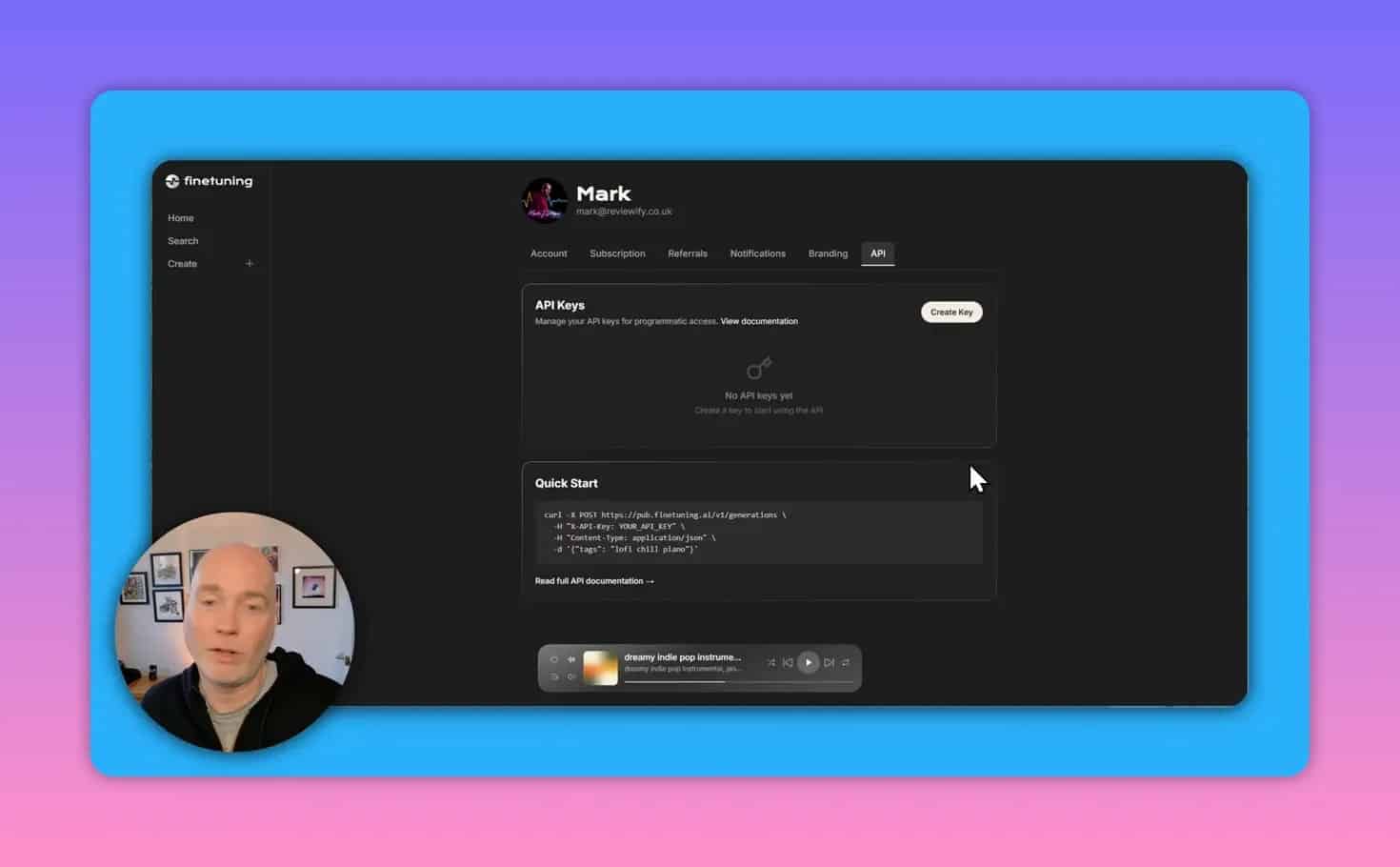
If you want to generate tracks programmatically, Finetuning AI includes an API. The workflow involves creating an API key and then using it to generate tracks from automated systems.
Automation use cases mentioned include creating audio for videos where tracks are generated automatically as part of a pipeline.
Mobile and browser-based workflow
Finetuning AI is accessible from a phone through a browser workflow. After logging in, you can generate tracks, download the resulting audio, and then bring it into whatever editing app you are using.
Common mistakes to avoid
- Overwriting everything at once: when iterating, change one variable at a time (like BPM or key) so you understand why a result improves or worsens.
- Using vague prompts only: if results are inconsistent, try Enhance first to expand into more descriptive tags.
- Skipping the seed when style matters: if you find a track style you like, reuse the seed for more consistent follow-ups.
- Forgetting length constraints: set length early when your track must fit a specific video segment or production timeline.
- Hitting generation limits unexpectedly: if you plan to create many tracks, confirm your monthly generation count and know how extra credit packs work.
Next steps: a simple repeatable setup
To get reliable results, use this repeatable workflow:
- Start with Quick Create by selecting a genre, then generate once to get a baseline sound.
- Refine with prompt keywords using vibes, sounds, and feelings.
- Use Enhance if your prompts are too short or you want richer descriptive tags.
- Lock structure in Advanced settings (length, BPM, key, and time signature).
- Reuse a seed from a track you like to keep the style consistent across new attempts.
- Scale with API or mobile if you are building automation or working on the go.
Frequently asked questions
Can I generate tracks from my own lyrics?
You can provide lyrics or request help writing lyrics as part of the music creation workflow.
What does “seed” mean in advanced settings?
A seed lets you base a new generation on the style of a previously generated track you liked. You can paste the seed value into the advanced seed field before generating again.
How do I get more generations if I run out?
Lower tiers may require buying extra credits. Shown credit packs include options for 600 or 3,500 additional generations.
Is there a way to generate music automatically?
Yes. Finetuning AI provides API access. Create an API key, then use it within an automated workflow to generate tracks.
Can I download the music for editing?
Generated tracks can be downloaded and then added to your editing app. This workflow is supported through mobile browser access as well.
Takeaway
Finetuning AI combines fast genre-based creation with practical advanced controls like seed-based iteration, BPM, key, time signature, and length. Add AI Enhance when prompts are minimal, and use the plan credits and API features when you need scale or automation.