AI image tools can make thumbnail production faster, but a useful result depends on more than entering a vague prompt. A stronger workflow separates the parts of a thumbnail that matter most: the product, the person, the setting, the visual style, and the text treatment.
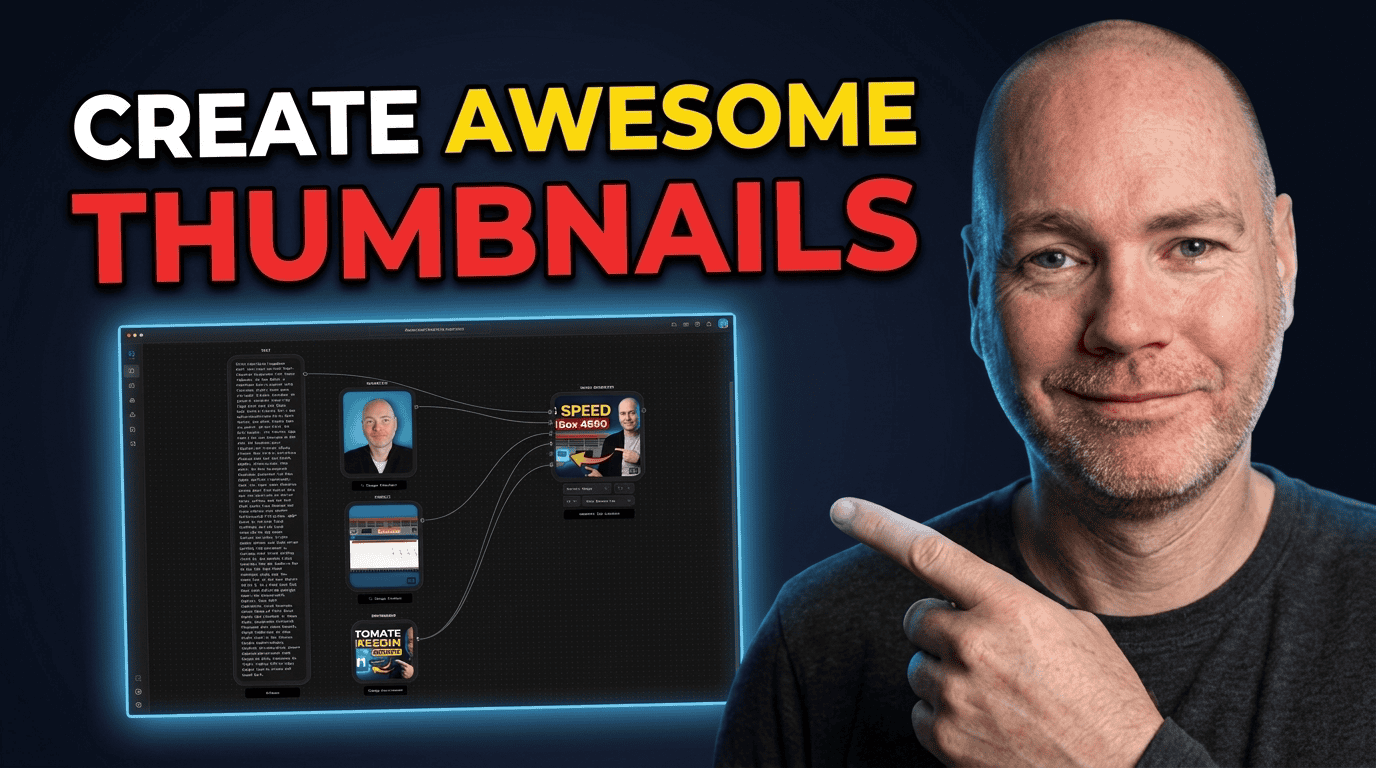
Rainfrog AI uses a node-based workflow to combine those inputs into a generated image. This makes it a practical option for creators who need consistent thumbnails for YouTube content, product reviews, or Amazon product videos without building every design manually in Photoshop.
What Makes an AI Thumbnail Useful?
A thumbnail has one job: make the topic understandable and visually compelling at a very small size. For a product-focused video, that usually means the image should quickly show:
- The product: Clearly visible and recognisable.
- A person or reaction: Useful where a personal review or hands-on perspective is part of the content.
- A relevant environment: A desk setup, travel location, workshop, home office, or other setting that supports the topic.
- A simple message: Large, high-contrast wording that remains readable on mobile.
- A consistent style: Repeated colors, composition, lighting, and typography that help establish channel recognition.
AI is most effective when it assists with the visual composition and variations, rather than replacing basic creative direction. You still need to decide what the video is about, what needs emphasis, and which output is credible enough to publish.
How a Node-Based Thumbnail Workflow Works
Rainfrog organizes image generation through connected nodes rather than one long prompt alone. In a thumbnail workflow, the nodes can represent a text prompt, product image, environment reference, and character image. The connected output uses those ingredients to build a new composition.
This approach is useful because each input can be changed independently. Keep the same character and product, for example, while swapping the background reference and style instructions. That gives you a repeatable system instead of rebuilding every concept from scratch.
Core inputs to prepare
- Product image: Upload a clean image of the item you are reviewing or featuring. A well-defined product image gives the generator a stronger reference point.
- Character image: Use a clear photo if the thumbnail should feature you or another consistent on-screen personality.
- Environment reference: Choose an image that conveys the type of location, lighting, depth, and visual energy you want.
- Style prompt: Describe composition, product placement, lighting, colors, text direction, background blur, outlines, and other visual priorities.
The resulting thumbnail is influenced by every element. If the setting says one thing and the prompt says another, the output may become inconsistent. Treat the workflow as a creative brief that the AI needs to interpret.
A Practical Workflow for AI Product Thumbnails
1. Start with the video promise
Before uploading images or generating anything, identify the clearest visual angle. A camera review, chair review, comparison, tutorial, or travel test should not all use the same composition.
For example, a product review thumbnail may need a close, clearly recognizable product and a short question such as “Is It Worth It?” A comparison thumbnail may need two products with an obvious visual separation. The generated image should reinforce the topic rather than force the topic to fit a generic design.
2. Choose a relevant product photo
Upload the actual product when possible. This helps retain details that matter to buyers, including its shape, color, and recognizable features. It also reduces the risk that the final thumbnail depicts a generic or incorrect-looking version of the item.
Check the generated product carefully before using it. AI can distort proportions, alter controls, or make an item too large relative to the person holding it.
3. Add a character only when it supports the concept
A character can make a review thumbnail feel more personal and help establish a consistent identity across a channel. However, the person should not compete with the product. Use instructions about position, clothing contrast, and pose to keep the subject readable.
For a dark background, avoid dark clothing that blends into the scene. A high-contrast top, rim light, or outline can create cleaner separation.
4. Use environment references for a proven visual direction
Search relevant existing thumbnails to understand common visual patterns in your topic. Look for the general composition, not material to copy exactly. An environment reference can help identify useful traits such as a blurred workspace, bright outdoor setting, dramatic contrast, or a close-up product scene.
If you want to use a reference image in an AI workflow, make the new result your own. Retain your product, character, title concept, and brand style rather than replicating another creator’s exact image or wording.
5. Generate multiple versions and compare at small size
A generated thumbnail can look impressive at full resolution but fail in a browse feed. Reduce the image size and ask a few practical questions:
- Can the product still be identified immediately?
- Is the main text readable without zooming?
- Does the person stand out from the background?
- Is there one dominant idea, rather than several competing ideas?
- Does the composition match the actual content?
Download only the variations that meet that test. Generating choices is useful, but publishing the strongest choice is what matters.
How to Write Better AI Thumbnail Prompts
The prompt text node carries strong influence over the generated result. Treat it as a detailed design instruction, not a collection of random adjectives.
A reliable thumbnail prompt usually addresses these categories:
- Subject: Who or what must appear?
- Product placement: Where should the product sit, and how prominent should it be?
- Composition: Close-up, side-by-side comparison, desk scene, outdoor scene, or reviewer holding the item.
- Background: Specify the location, level of blur, lighting direction, and visual simplicity.
- Contrast: Explain how the person and product should stand apart from the backdrop.
- Text: Define short wording, large type, high contrast, and placement where appropriate.
- Restrictions: State what should not happen, such as an oversized product, overly busy background, or low-contrast clothing.
Example prompt structure
A useful structure is: “Create a bold product review thumbnail featuring [character] with [product] in [environment]. Keep the product accurately proportioned and clearly visible. Use [lighting and color direction], shallow depth of field, and strong separation between subject and background. Add short, large, high-contrast text that communicates . Keep the layout clean and readable at small size.”
This is a framework, not a fixed template. The more specific your intended outcome, the easier it is to spot which variable needs changing after a weak generation.
Use ChatGPT to Build a Reusable Style Prompt
If you can describe what you want visually but struggle to turn that into a detailed prompt, an AI writing tool such as ChatGPT can help analyze a reference image and draft an image-generation prompt. Upload an example and ask for a prompt describing the composition, lighting, subject placement, background depth, colors, and typography style.
For a reusable workflow, ask for a generic prompt rather than one tied to a specific product. Then replace the product name, environment, and headline for each new thumbnail.
Always proofread the generated prompt. It can contain instructions that are appropriate for the reference but wrong for your new product. One overlooked phrase can produce an unintended result.
Common AI Thumbnail Problems and How to Fix Them
The product looks unnaturally huge
This is often caused by prompt language such as “large object,” “giant product,” or “dominant foreground item.” Remove those phrases and replace them with direct proportion guidance, such as “realistic scale in the person’s hand” or “accurate product proportions.”
The background does not match the intended style
Check for conflicts between the environment reference and prompt. If the prompt calls for a dark studio backdrop but the reference uses a bright room, the model has mixed directions. Align both inputs around the same visual concept.
Text is too plain or does not stand out
Give instructions about the text treatment, not just the words. Specify high contrast, large type, a clear location, and an outline or glow if it fits your style. Keep the phrase short enough to read quickly.
The person blends into the scene
Use contrast deliberately. Ask for a brighter or differently colored shirt, an outlined silhouette, more directional lighting, or a simpler background behind the person. Avoid placing black clothing against a black or heavily shadowed scene.
The image is technically good but not publishable
Generated images can meet the prompt while still feeling visually awkward. The product may be correct but poorly framed, or the person may have an unconvincing pose. Revise one or two instructions at a time, then generate again. This makes it easier to learn what caused the issue.
Build Consistency Without Making Every Thumbnail Identical
A repeatable node setup can help retain the elements that define your visual identity. Keep a preferred character photo, color direction, text treatment, and base prompt. For every new upload, change the product, topic message, and environment.
This gives the channel a cohesive appearance while allowing the image to fit the individual video. A camera review can have a different backdrop from an office chair review, yet both can share comparable contrast, subject placement, and text styling.
Can AI Thumbnails Be Used for Amazon Product Videos?
AI-generated thumbnails can also support product video listings where a stronger cover image may help communicate the subject before someone opens the video. The thumbnail should accurately represent the product and should not imply hands-on use, features, or results that are not actually shown.
For product reviews, authenticity remains important. Use AI to improve presentation and visual clarity, while keeping the actual review and product assessment grounded in real experience.
Rainfrog’s Talking Video Workflow
Beyond image generation, Rainfrog includes a talking-video workflow that uses connected nodes to build a character, generate a full-body image, and turn that result into a video. The workflow includes a prompt area for instructions such as approaching the camera and speaking a chosen phrase.
Reusable example workflows can be cloned and then adapted by replacing the character or other inputs. This may be useful for experimenting with animated character-led creative assets, but it requires the same care as thumbnail generation: review the output closely and ensure it fits the purpose of the content.
Final Checklist Before You Publish an AI Thumbnail
- Does it accurately show the featured product?
- Are the product’s scale and key visual details believable?
- Can the thumbnail be understood on a phone screen?
- Is the headline short, clear, and high contrast?
- Does the visual style match the topic and your existing branding?
- Is the character separated clearly from the background?
- Does the thumbnail make a promise the content actually delivers?
Key Takeaway
Rainfrog AI can provide a structured way to create thumbnail concepts by combining product images, character images, environment references, and detailed style prompts. The best results come from treating each node as a deliberate creative decision, reviewing outputs for accuracy, and refining prompts when the composition, scale, contrast, or text treatment misses the mark.
For those interested in the current offer, the available Rainfrog AppSumo deal provides the relevant details.