When a page from your website is shared on Facebook, X, Instagram, WhatsApp, or another platform, the link preview can determine whether people understand and click it. A generic featured image, a cropped logo, or an incomplete description can make an otherwise strong page look unprofessional.
Open Graph images, often called OG images, are the images and metadata used to build those social media link previews. Optimizing them gives every shared page a clearer message, a more consistent brand appearance, and a better chance of earning attention.
What Is an Open Graph Image?
An Open Graph image is the main visual attached to a web page for social sharing. It works alongside metadata such as the page title and description to create the preview card that appears when someone posts a URL.
For a blog post, product page, landing page, or homepage, the OG image should quickly communicate:
- Who the page is from, usually through a logo or recognizable brand styling.
- What the page offers, such as a product, service, article topic, or promotion.
- Why the link matters, using a concise benefit, supporting visual, or call to action.
A featured image may sometimes work as an OG image, but it is not always designed for a compact social preview. A dedicated social share image gives you more control over cropping, hierarchy, messaging, and branding.
For broader technical background, see the Open Graph protocol documentation.
Why Website OG Images Matter
Social previews are often the first encounter someone has with a page. If the preview is vague, incorrectly cropped, or missing important context, the link may be ignored even when the page itself is valuable.
A purposeful OG image can help you:
- Make shared links instantly recognizable as part of your brand.
- Explain the subject of a page before someone opens it.
- Keep campaign pages, articles, and product pages visually consistent.
- Avoid relying on automatically selected page images that do not make sense out of context.
- Identify metadata problems before sharing links in important campaigns.
How to Check Your Current Social Media Preview
Before redesigning anything, scan the page URL and review the current result. A practical Open Graph workflow starts with an audit rather than guessing which image or text a platform will use.
1. Scan the page URL
Enter the URL of the page you want to check. A dedicated OG image tool can retrieve the currently assigned image and the accompanying page data.
2. Compare platform-specific previews
The same page can appear differently across platforms. Review the preview variations for the channels where you regularly share links. Look closely at whether the image remains clear when displayed at a smaller size.
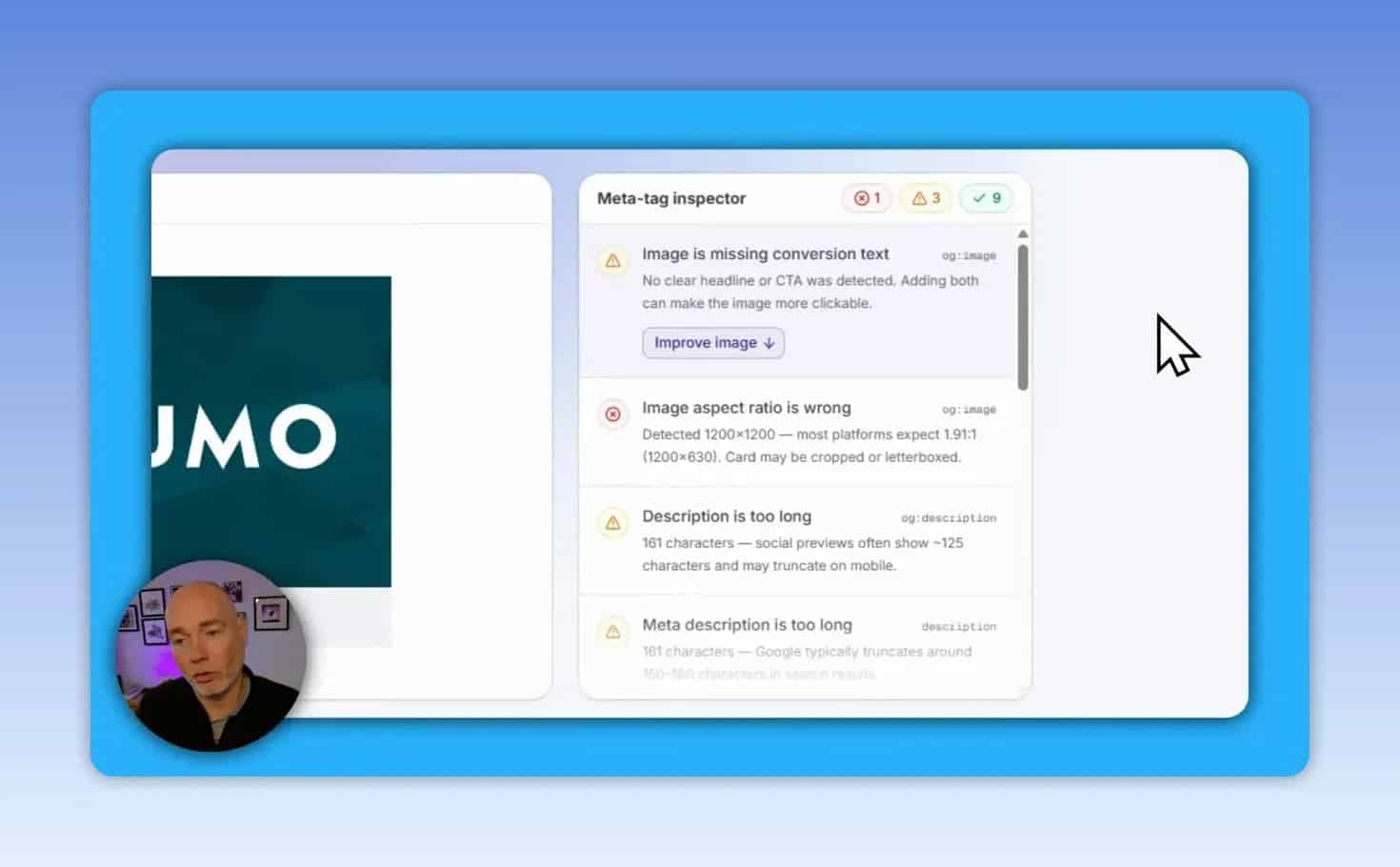
3. Inspect the metadata warnings
A meta tag inspector can flag issues that are easy to miss, including:
- An image aspect ratio that may not suit the selected platform.
- A missing image alt text field.
- A meta description that is too long.
- A title that falls outside the recommended length.
- Other incomplete or problematic page metadata.
These checks do not replace editorial judgment. An image can pass technical checks yet still be ineffective if it contains tiny text, unclear imagery, or a message that does not match the destination page.
A Better OG Image Workflow for Every Page
For websites with more than a handful of pages, consistency matters as much as individual design quality. Use a repeatable process so every important URL has an intentional, shareable preview.
- Prioritize important URLs. Start with the homepage, core service pages, best-performing articles, product pages, lead magnets, and active campaign pages.
- Review the current preview. Identify whether the main weakness is the image, title, description, or image format.
- Choose an appropriate template. Select a layout that supports the content type and keeps the key message readable.
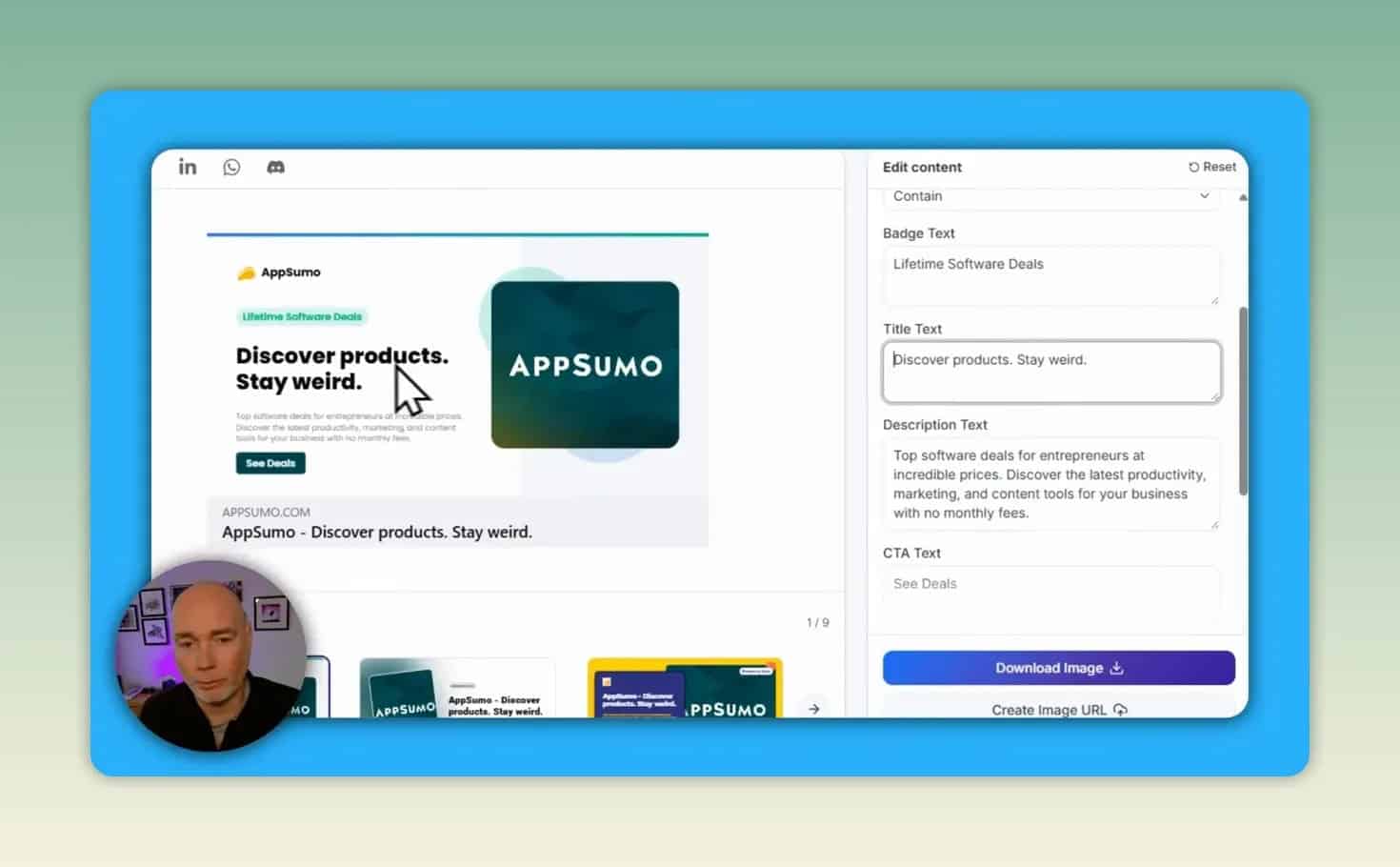
- Use page-specific information. Populate the design with the correct logo, title, short description, visual, and CTA.
- Apply brand styling carefully. Use familiar colors and type treatments without reducing legibility.
- Preview again across platforms. Check how the new asset holds up in each available preview format.
- Repeat with a reusable template. Reuse the visual structure across similar pages while changing the content for each URL.
How to Design an OG Image That Is Clear at a Glance
A strong social preview should not try to replicate an entire landing page. It needs one clear message and a visual structure that still works at small sizes.
Use a simple content hierarchy
Place the most important information first. In many cases, this means a prominent title or benefit, a relevant image or product visual, and a recognizable logo. Supporting copy should remain short.
Keep text concise and readable
Long blocks of copy are hard to read inside a shared-link card. Rather than repeating the full page description, use a short message that explains the value of clicking through.
Match the brand without forcing every element in
Brand colors, a logo, and recognizable visual elements can make previews feel cohesive. However, a heavily branded design still needs enough contrast and whitespace to remain understandable.
Choose a useful call to action
A CTA can add context when it matches the page goal. For example, a product offer may use “View deal,” while an educational resource may use “Learn more.” Avoid generic CTA text if it does not explain the next step.
Use Templates to Create Consistent Social Share Images
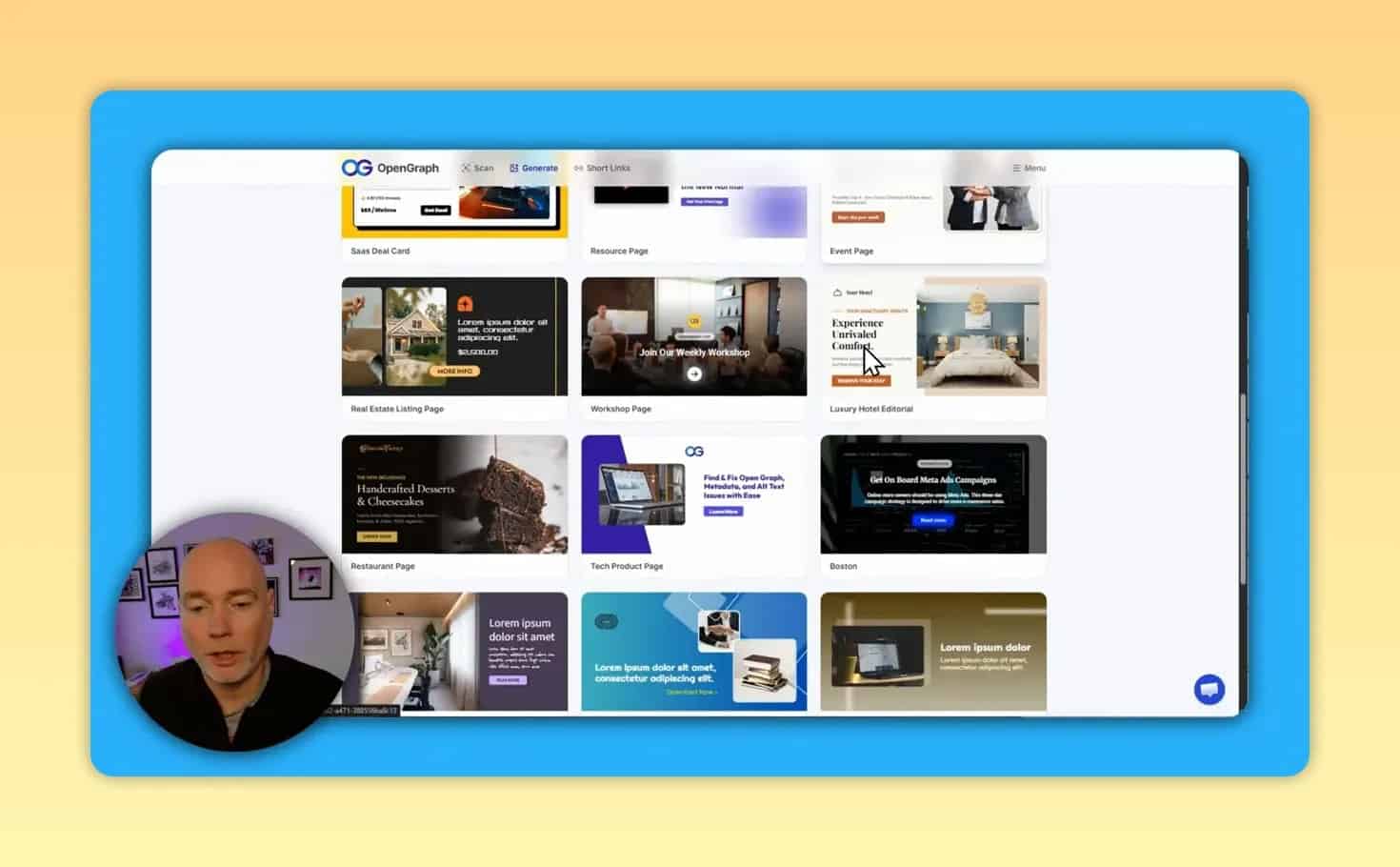
Templates are especially useful when you publish regularly or manage several page types. Instead of building each OG image from scratch, select a structure that already has a practical balance of text, visuals, branding, and calls to action.
A template library can provide a starting point for different needs, including article-style graphics, product promotions, portfolio visuals, and campaign assets. When evaluating a template, ask:
- Does the title stay readable in a small preview?
- Is there space for the logo without overpowering the message?
- Does the layout fit the type of page being shared?
- Can its colors and text be adjusted to fit the brand?
- Will the composition remain useful when reused for other URLs?
Creating Custom OG Templates With AI or a Blank Canvas
Ready-made templates are efficient, but they are not the only option. A custom template can make sense when your site has distinct brand requirements or a recurring content format that needs a specialized layout.
Generate a starting template from a URL
AI-assisted generation can use a website URL as the basis for a new template. You can also provide optional details, such as the desired title, description, or visual direction, when you need more control.
The generated result should be treated as a first draft. Review the output for message accuracy, image choice, brand alignment, and readability before using it across your website.
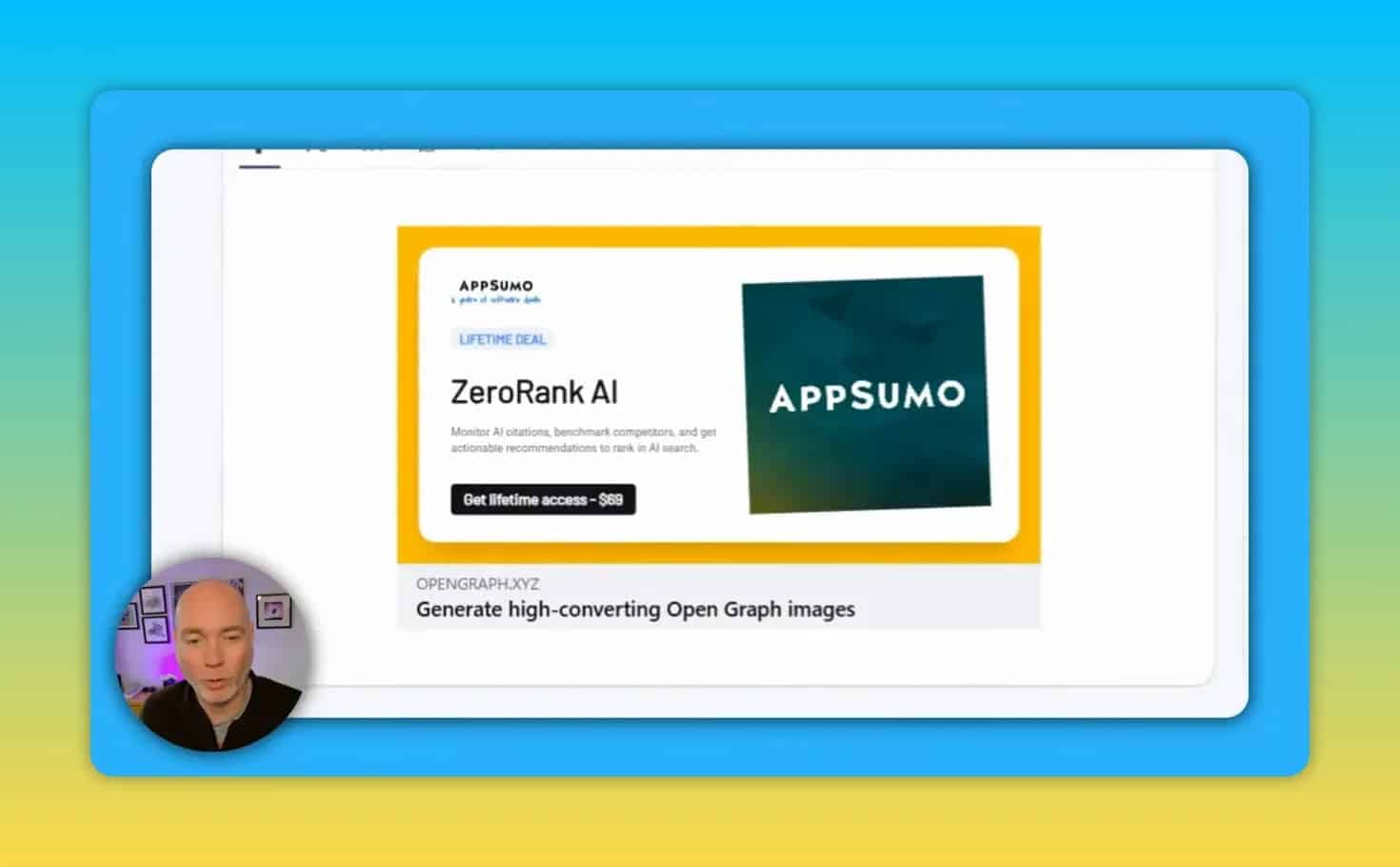
Build from scratch when precise control matters
A blank canvas approach lets you assemble a template from individual elements such as text blocks, images, shape layers, backgrounds, and logos. This can be useful for design-led brands or teams that already have established social graphic systems.
Keep custom designs practical. The goal is not to add every available element. It is to create a repeatable image that communicates a page’s value quickly and accurately.
WordPress and Sitewide OG Image Management
Manual image creation becomes tedious when a site publishes frequently. A WordPress plugin workflow can reduce repetitive work by connecting the design system to your pages, rather than requiring individual image handling every time.
For WordPress sites, review the available setup documentation before making changes. The key advantage of a connected workflow is the ability to reuse a template across relevant pages so social previews maintain the same visual language while reflecting page-specific content.
Common Open Graph Image Mistakes to Avoid
Using the default featured image for everything
Featured images are often selected for on-page layout, not for social sharing. They can be overly abstract, poorly cropped, or disconnected from the page title when displayed in a preview.
Designing only for one platform
A preview that appears acceptable in one social feed may have an awkward crop or weak layout elsewhere. Always check the available platform previews before treating the asset as complete.
Making text too small
Dense copy and small type can look fine in an editor but fail in real sharing contexts. Prioritize a short, readable headline over lengthy explanatory text.
Ignoring title and description quality
The OG image is only one part of the preview. A long meta description, unclear title, or missing metadata can weaken the result even if the visual is strong.
Using a template without editing the placeholder content
Templates should accelerate production, not leave generic text behind. Replace placeholder titles, default CTAs, logos, and colors before publishing.
Creating inconsistent campaign assets
When every social card uses a different layout, color treatment, or message style, it becomes harder to build recognition. Reusable templates solve this problem while still allowing page-specific information.
Short Links and Analytics for Shared Pages
Some OG image platforms also include short-link creation. A short link can be configured with a destination URL, title, description, and image, and may support a custom domain.
This is useful when you want a cleaner sharing URL and a way to monitor performance through link analytics. Before relying on short links, confirm that the available plan includes the monthly volume, domains, and analytics access your campaigns require.
Open Graph Image Checklist
Use this checklist before publishing or sharing an important page:
- Image: Does the graphic clearly relate to the page?
- Branding: Is the logo or brand identity visible without dominating the design?
- Headline: Can it be understood in a small card preview?
- Supporting copy: Is it concise and accurate?
- CTA: Does it make sense for the page goal?
- Aspect ratio: Has the design been checked for social preview compatibility?
- Metadata: Are the title, description, and image details complete and appropriate?
- Platform preview: Have you compared how the shared URL appears in the relevant channels?
- Consistency: Does the design align with other social previews from your site?
Final Takeaway
Fixing website OG images is a practical way to improve how every shared URL represents your business. Start by scanning your highest-value pages, resolve the metadata warnings, and replace generic visuals with focused, branded images that communicate the page’s purpose.
For ongoing content, reusable templates and a WordPress-connected workflow can make social preview optimization much easier to maintain. If AI-assisted template generation, preview checking, and short-link analytics fit your needs, explore the available Open Graph deal options.