VistaCreate is a practical Canva alternative for creating YouTube thumbnails, blog headers, social media graphics, and other everyday marketing visuals. Its appeal is straightforward: editable templates, a large stock asset library, background removal, and AI tools in one design workspace.
For anyone trying to reduce recurring software costs, a VistaCreate AppSumo lifetime offer can be especially interesting. The buying decision depends on both the design tools and the deal terms, however. A Black Friday promotion should not be treated as a permanently available offer, and a one-time purchase is only worthwhile if it covers the work you actually do.
Is VistaCreate a Good Replacement for Canva?
VistaCreate is worth considering if your main needs are template-based graphics, photo cutouts, branded content, and straightforward animated designs. It supports starting from a ready-made layout or building a design from a blank canvas.
Its strongest use cases include:
- YouTube thumbnails: Combine a portrait, headline, background, and attention-directing elements.
- Blog headers and covers: Adapt a wide-format template with your own images and text.
- Social media content: Use layouts designed for different post formats rather than arranging every element yourself.
- Brand graphics: Use brand kits to support a consistent visual identity.
- Simple motion content: Work with stock footage, music, and animated elements, then export an appropriate format.
This does not establish feature-for-feature parity with Canva. The useful comparison is whether VistaCreate can complete your recurring design tasks without leaving you dependent on a second paid tool.
Before switching, recreate three real projects: a typical thumbnail, a blog header, and a social post. Check the editing experience, available assets, and final exports before cancelling an existing subscription.
What Is VistaCreate, and Is It the Same as Crello?
VistaCreate is the graphic design platform formerly known as Crello. The name change did not represent a completely separate product: an older Crello purchase continued to provide usable access after the rebrand in the long-term account experience described here.
That history is relevant when evaluating a lifetime deal. The platform has remained useful across roughly six years of use, rather than serving only as a short-lived purchase. It is still important to distinguish that track record from a guarantee about future access, features, or plan entitlements.
The core experience remains focused on everyday design work. AI tools expand what can be done inside the editor, but the main value is still the ability to assemble and export useful graphics efficiently.
A Practical Workflow: Create a Branded Header or Thumbnail
A good way to assess VistaCreate is to follow an entire project through the editor. This tests more than the appearance of its template gallery.
1. Choose the format before the layout
Start with the type of graphic you need, then select a suitable template or a blank canvas. A wide header and a square social post have different layout requirements, so choosing the format first avoids unnecessary rearranging later.
Once a template loads, its individual elements can be edited. You can replace the text, move images, adjust colors, and remove elements that do not fit your message.
2. Replace the stock subject with your own image
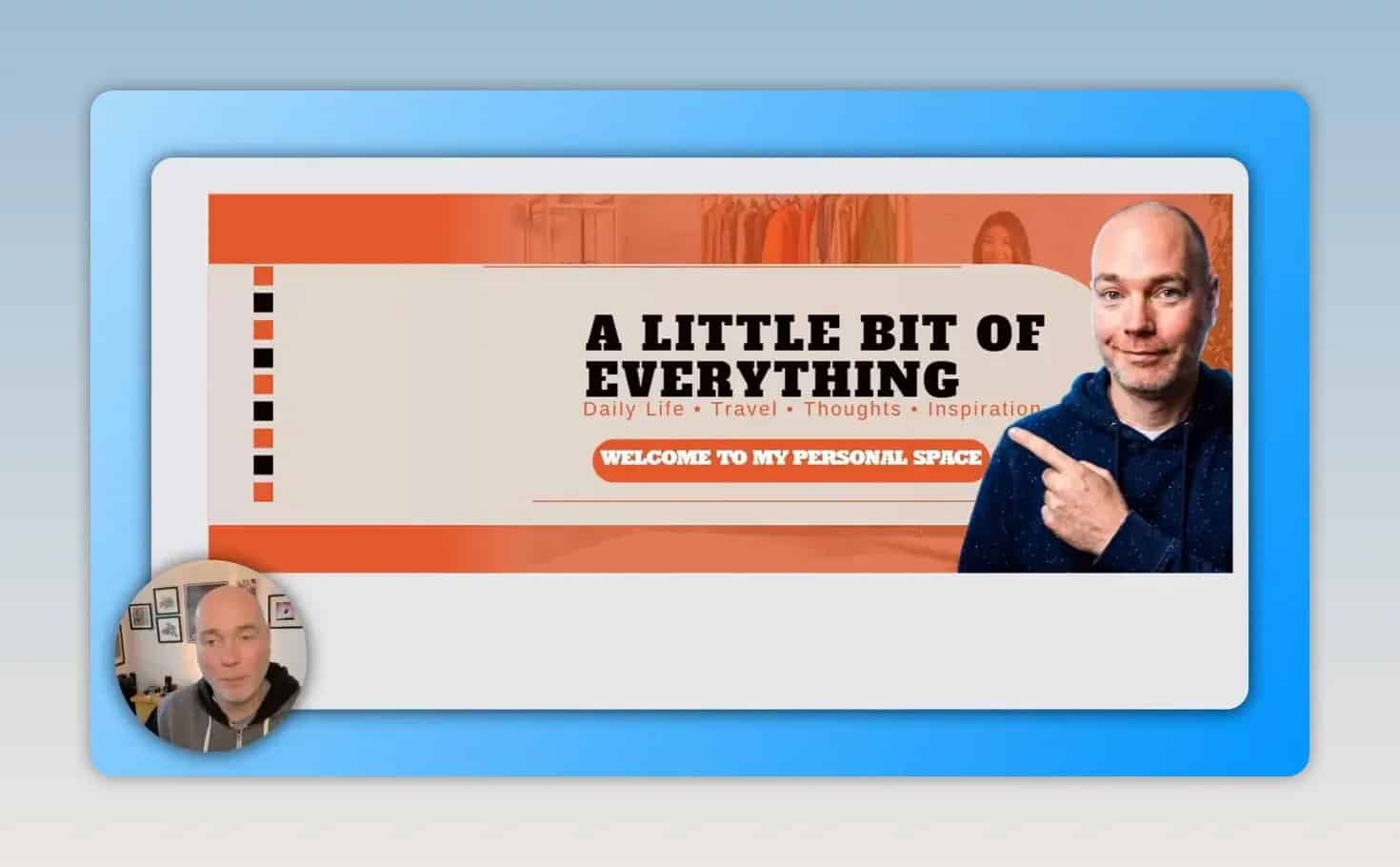
Upload or select an image, place it on the canvas, and use background removal to isolate the subject. This is particularly useful for thumbnails and covers where a person needs to sit cleanly over a designed background.
Then resize and reposition the cutout so it supports the headline rather than obscuring it. Replacing the main image can make a generic template much more relevant without rebuilding the entire layout.
3. Adjust text, backgrounds, and visual accents
VistaCreate includes text tools, graphic objects, and background options. You can use a plain color, choose another background treatment, or add footage when the project calls for motion.
Arrows and other shapes can help direct attention. Sticker-style outlines can also separate a portrait from the background. Treat their initial colors as a starting point: a bright default outline may need changing to fit the rest of the design.
For a cleaner result, check that:
- The main headline remains easy to read.
- Portraits and decorative objects do not cover important words.
- Background colors provide enough contrast.
- Outlines and arrows have a clear purpose rather than adding clutter.
4. Check the finished export
Do not stop at an attractive canvas preview. Download the project in the format you intend to use, then inspect the file. Export quality, dimensions, and transparency can matter just as much as the editing tools.
Templates and Stock Assets: What You Get
VistaCreate is promoted with more than 200,000 templates and 70 million assets. These are advertised library figures, not a promise that every asset is included in every account or offer.
The template selection spans subjects such as travel, real estate, weddings, and artificial intelligence. That breadth is useful when you need a relevant starting point rather than a blank page.
Photography and the Depositphotos connection
The asset library includes photography associated with Depositphotos. This makes VistaCreate useful for people who prefer real photographs to generated imagery.
Do not assume that VistaCreate includes the entire Depositphotos catalog. Access to a selection of stock photography is different from unrestricted access to a separate stock service. If particular images are essential to your work, check their availability and licensing before purchasing.
For current product guidance, the VistaCreate Help Center is a useful place to check account, asset, and feature questions.
Stock footage and music
VistaCreate also includes stock footage and music. These extend its usefulness beyond static graphics, allowing you to build simple motion-based content within the same workspace.
The practical benefit is having templates, photography, graphic elements, footage, and audio available together. The size of the library matters less than whether it contains suitable material for your niche.
AI Tools: Useful Edits, With Some Cleanup Required
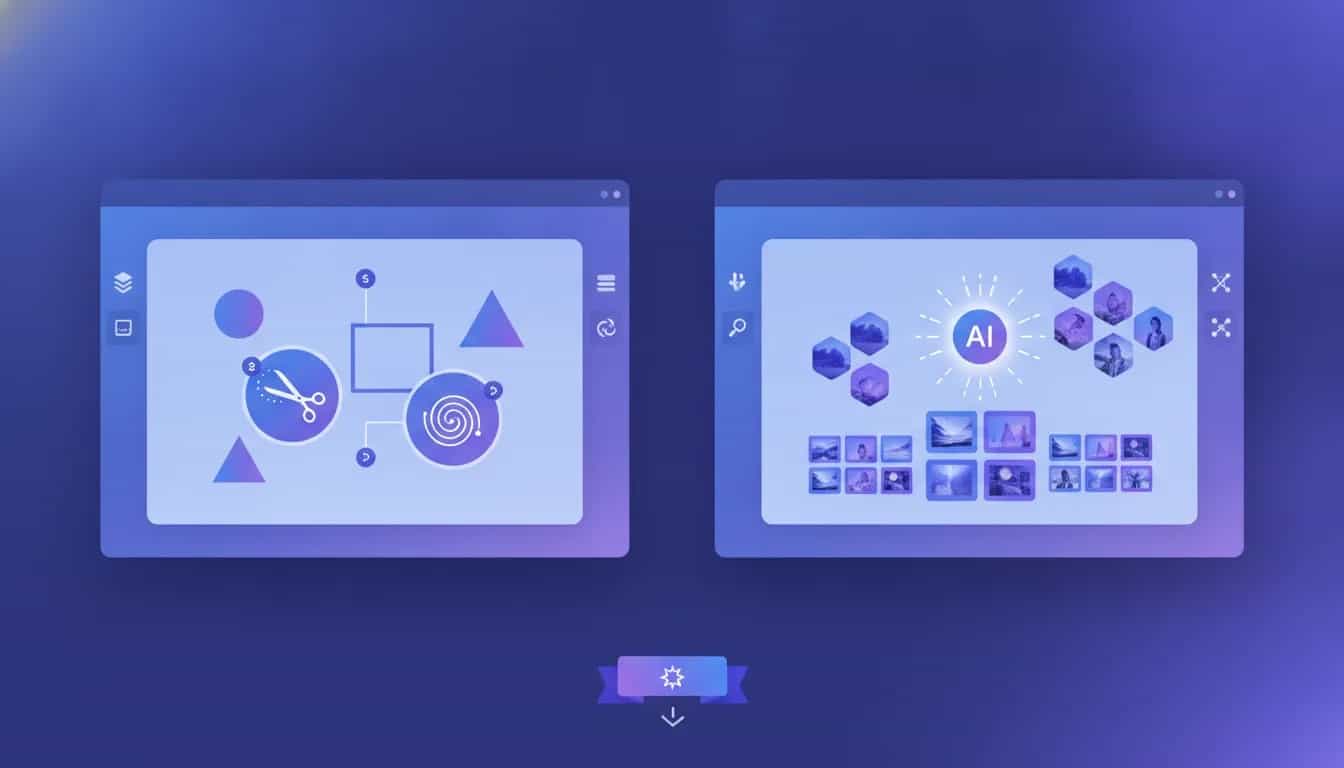
VistaCreate includes AI Image Generator, AI Edit, Object Remover, and AI Writer alongside its background removal tools. These offer different ways to create or modify content without leaving the editor.
Change clothing color with AI Edit
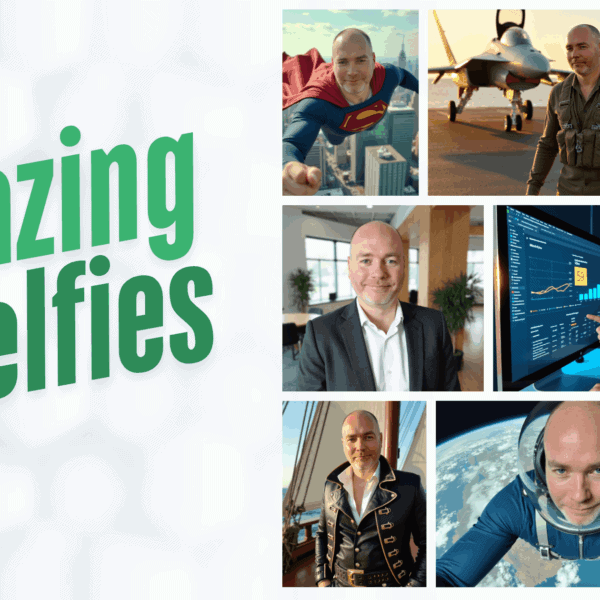
One concrete use for AI Edit is changing the color of clothing in a portrait. For example, a dark hoodie can be changed to red using a short instruction.
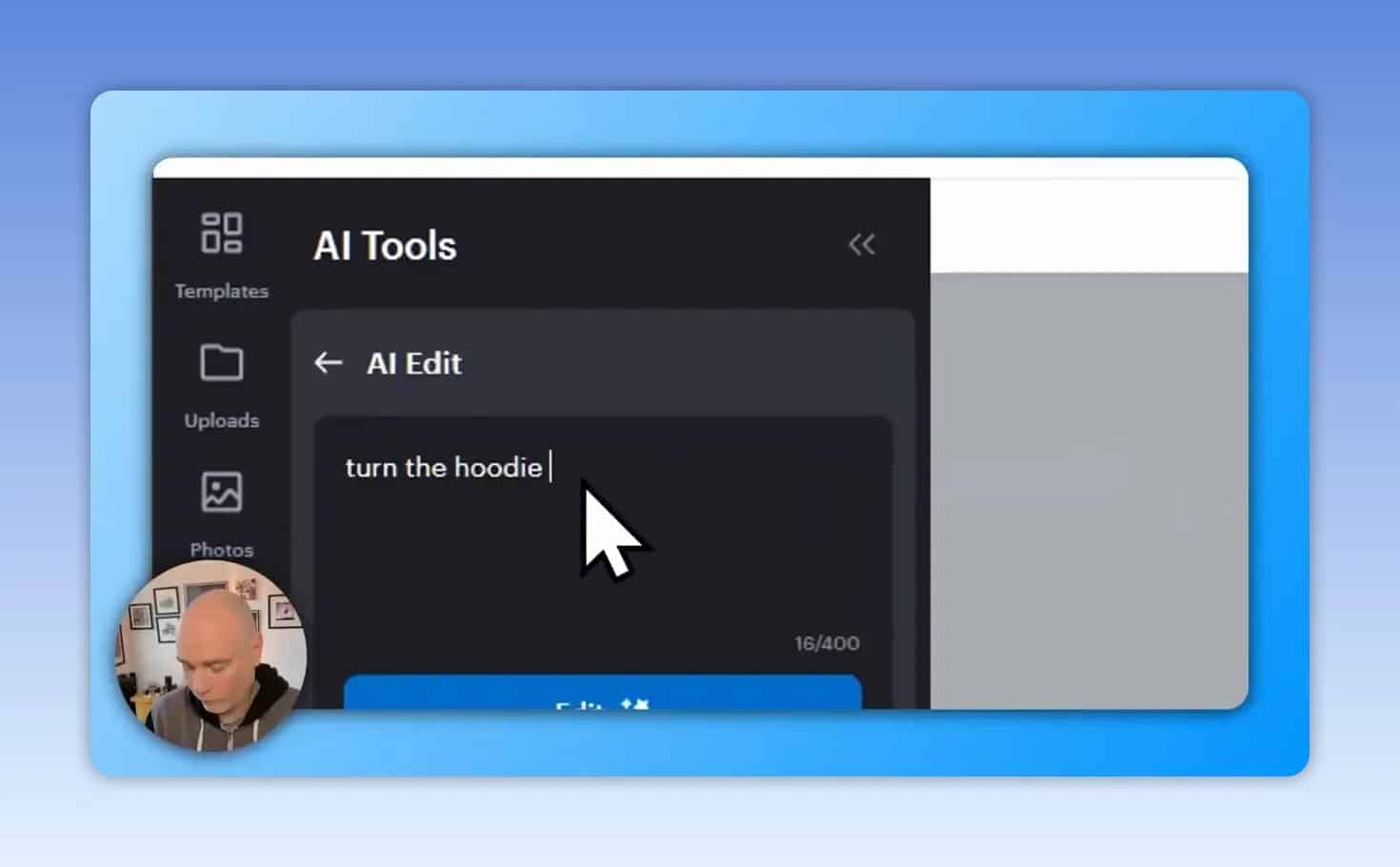
This can help adapt an existing image to a different design. It also illustrates an important limitation: an AI edit may require another cleanup step. A clothing-color edit can introduce a background around a previously isolated subject, making it necessary to run background removal again.
A sensible workflow is:
- Select the image you want to modify.
- Enter a specific instruction describing the change.
- Inspect the result rather than assuming only the requested detail changed.
- Remove the background again if necessary.
- Return the edited subject to the composition and check its placement.
Generate new images from a prompt
The AI image generator accepts a written description and provides style choices, including automatic and photography-oriented options. Generated results can then be added to the canvas.
It is useful as another source of design material, but the result still needs review. When generating promotional artwork containing text, inspect the lettering carefully before publishing. A visually striking result is not automatically a finished, accurate advertisement.
Keep AI features in perspective
Object Remover and AI Writer broaden the toolkit, but their presence alone is not a reason to replace an established workflow. Test the specific tools you expect to use and check any limits attached to the offer.
For many creators, reliable templates, good photography, and clean background removal will provide more day-to-day value than occasional image generation.
Export Formats and Social Sharing
VistaCreate provides several export choices, including JPG, PNG, transparent PNG, PDF, MP4, and GIF. The download options also include image-quality settings.
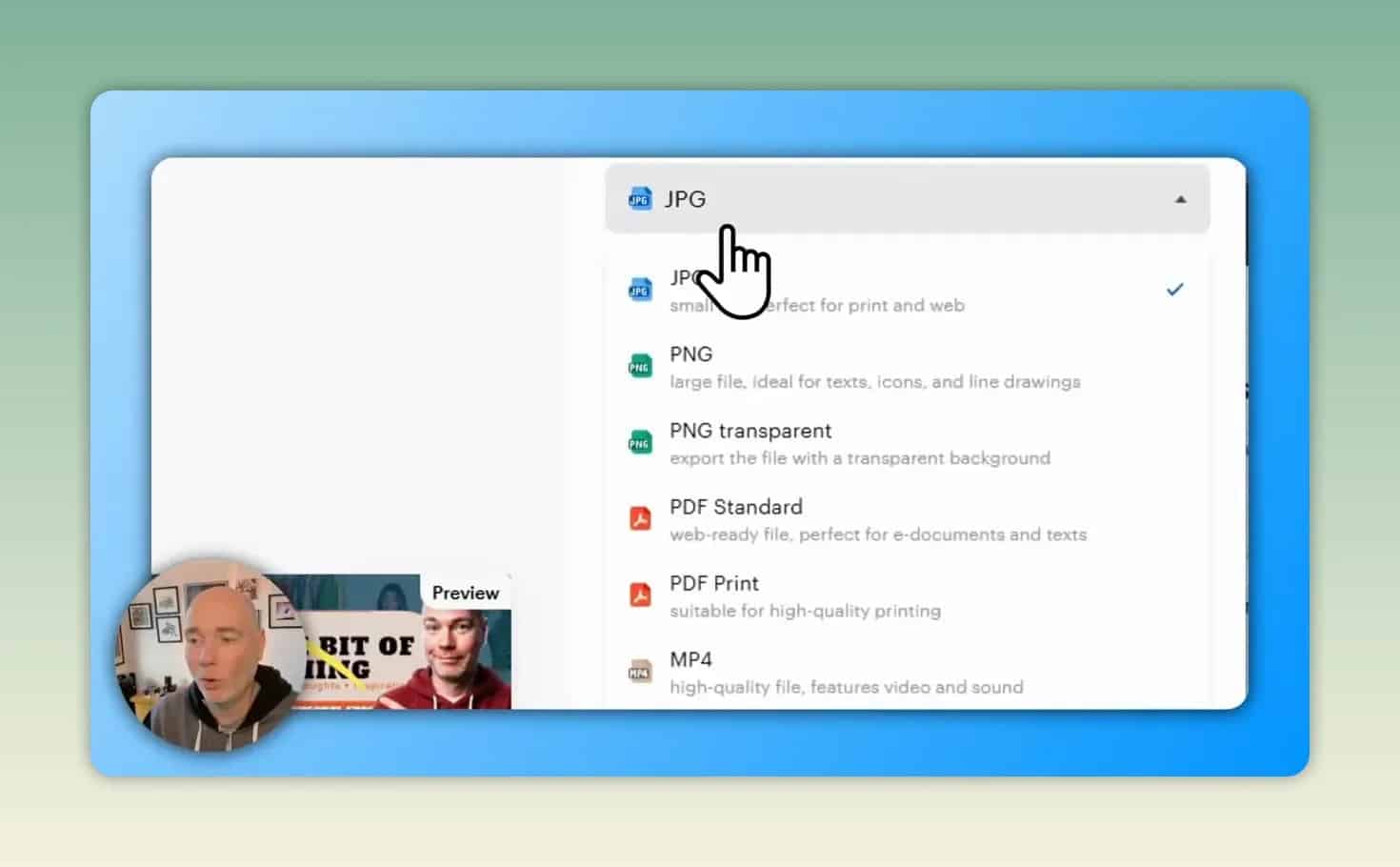
Match the export to the job:
- Static graphics: Check JPG or PNG output for your thumbnail, header, or social post.
- Cutouts without a background: Use the transparent PNG option when transparency is required.
- Document output: Review the available PDF choices.
- Motion designs: Choose MP4 or GIF as appropriate for the destination.
Check image quality each time you download. The interface includes Standard Definition and High Definition choices, so do not assume that the selected setting is the one you want for every project.
Can you publish directly to social platforms?
The sharing panel includes options for Facebook pages and groups, Instagram business publishing and Reels, and Pinterest boards. It also provides link-sharing and embedding options.
These can reduce the steps between design and distribution. However, the presence of a sharing option does not establish that it supports every account type or publishing requirement. Test the connection you need before relying on it for routine posting.
Brand Kits and Mobile Access
Brand kits are relevant if you repeatedly create content for the same business or identity. They help make brand consistency part of the workflow rather than something you reconstruct for every project. Confirm the brand-kit allowance included in the specific plan or deal you are considering.
VistaCreate also has Android and Apple mobile apps, providing account access away from a desktop. Existing projects can be opened on a phone, and new work can be started there.
This is useful for checking a design or making changes while away from your main computer. If mobile editing is essential, test your own project on the app rather than assuming that desktop and mobile interactions will feel identical.
What to Check Before Buying a VistaCreate AppSumo Deal
The AppSumo offer discussed here was promoted around Black Friday as a one-time-cost alternative to a recurring design subscription. Current availability, price, and included features must be checked on the listing. An older promotion does not establish what is available today.
You can check the VistaCreate AppSumo offer for the applicable terms. This is an affiliate link.
Before purchasing, verify:
- Plan coverage: Which templates, stock assets, and editing tools are included?
- AI allowances: Are there usage limits or separate conditions?
- Brand requirements: Does the offer include enough brand kits for your needs?
- Exports: Are your required formats and quality settings available?
- License terms: Are the assets suitable for your intended use?
- Purchase conditions: What redemption deadlines and refund terms apply?
- Existing access: If you already own Crello or VistaCreate, would another purchase add anything useful?
To assess potential savings, divide the one-time cost by the monthly subscription cost you would actually eliminate. That gives a simple break-even point in months, but only if VistaCreate fully replaces that expense.
Common Questions About VistaCreate
Can VistaCreate replace Canva for YouTube thumbnails?
It has the core tools for that workflow: templates, uploaded images, background removal, text, graphic elements, and static-image exports. Whether it replaces Canva for you depends on the layouts, assets, and other features you regularly use.
Does VistaCreate include all Depositphotos images?
No. Its stock photography access should not be interpreted as access to the entire Depositphotos catalog. Check the particular assets and license conditions you need.
Is VistaCreate always available for a one-time payment?
A one-time payment is associated with the promoted AppSumo offer, not a guarantee about VistaCreate’s standard pricing or permanent deal availability. Read the current listing before buying.
What is the main drawback to check?
The main practical risks are assuming that every stock asset is included, overlooking export-quality settings, and expecting AI edits to need no cleanup. Also, if rapid feature expansion is your priority, assess the current product rather than buying on the expectation of future additions.
The Bottom Line
VistaCreate is a credible Canva alternative for creators whose work centers on thumbnails, blog graphics, social posts, and simple motion designs. Its combination of templates, stock content, background removal, and AI editing covers a useful range of everyday tasks.
Test the workflow first and evaluate the deal second. If VistaCreate produces the files you need, includes suitable assets, and genuinely removes a recurring expense, a suitable AppSumo lifetime offer can make sense. If it leaves important gaps, a low purchase price alone is not enough reason to switch.