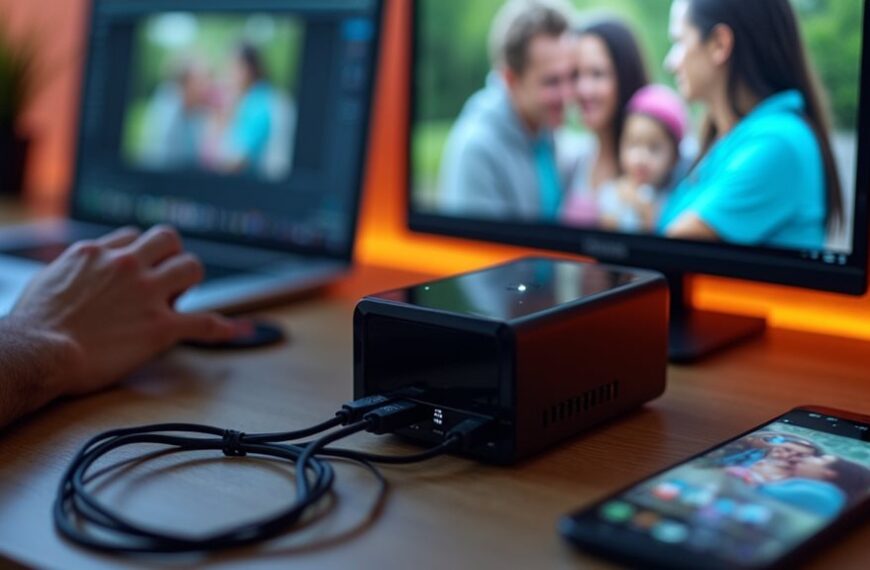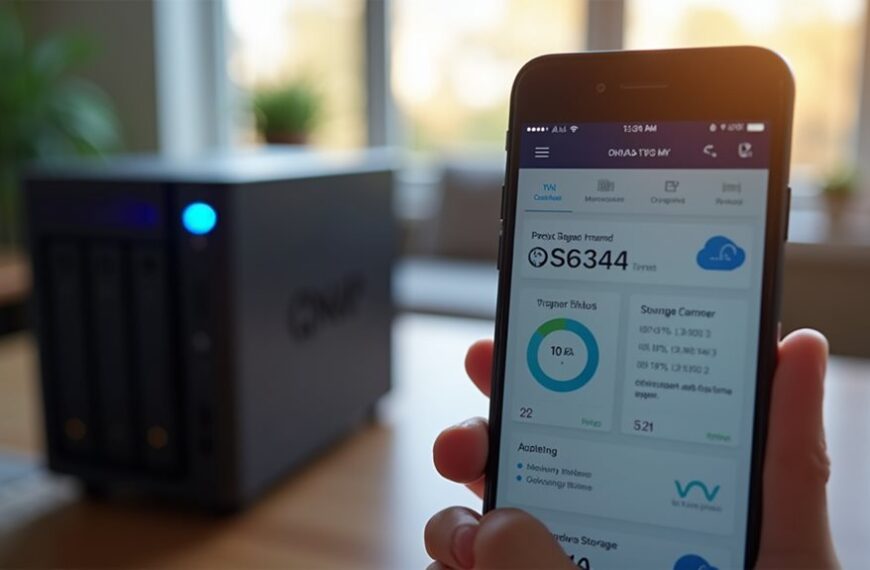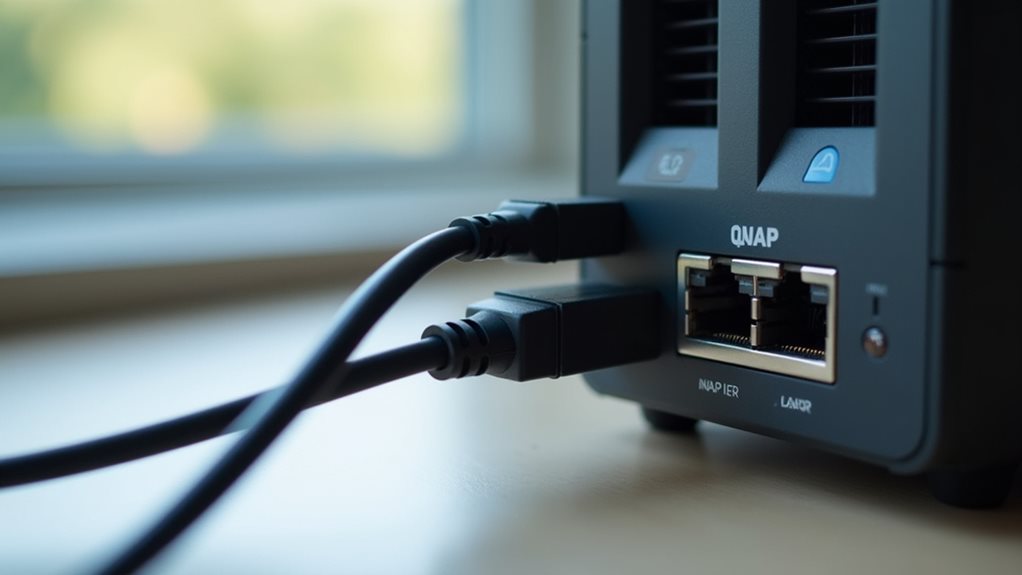
Yes, you can connect your QNAP NAS directly to a PC using an Ethernet cable without a router or network switch. This point-to-point connection requires configuring compatible static IP addresses on both devices (like 192.168.1.100 for PC and 192.168.1.101 for QNAP). Direct connections offer faster transfer speeds up to 1 Gbps with reduced latency, making them ideal for large file transfers, backups, or accessing files during network outages. Proper setup guarantees peak performance for your specific needs.
Understanding Direct Connection Options for QNAP Devices
When you need to connect your QNAP NAS directly to your PC, several reliable methods are available.
The most straightforward approach is using an Ethernet cable to create a direct connection between your QNAP’s network port and your computer’s Ethernet port.
Direct Ethernet connections offer the simplest way to link your QNAP NAS to your PC without additional hardware.
You’ll need to configure static IP addresses on both devices to guarantee they can communicate properly. For instance, set your PC to 192.168.1.10 and your QNAP to 192.168.1.20, with matching subnet masks.
Another option is connecting through a crossover cable, which is designed specifically for direct device-to-device connections without a router.
Some newer QNAP models also support USB direct connections, though this method typically offers lower transfer speeds compared to Ethernet connections.
Hardware Requirements for PC-to-QNAP Direct Connection
To establish a direct connection between your PC and QNAP NAS, you’ll need compatible network interfaces on both devices, typically supporting at least 1Gbps Ethernet.
You should use a Cat5e or Cat6 Ethernet cable for ideal data transfer, with crossover cables being necessary for older equipment lacking auto-sensing capabilities.
Your QNAP device requires stable power through its included adapter, while your PC should remain connected to power during large file transfers to prevent interruptions.
Network Interface Requirements
Since direct connections between your PC and QNAP NAS require specific hardware components, you’ll need to guarantee your setup meets the necessary requirements.
Both your PC and QNAP NAS must have compatible network interfaces, typically Ethernet ports supporting speeds of at least 1 Gbps. For ideal performance, look for devices with 2.5GbE, 5GbE, or 10GbE interfaces when transferring large files regularly.
Your PC should have an integrated Ethernet port or a PCIe network adapter that matches the speed capabilities of your QNAP device. If your computer only has USB ports, you can use a USB-to-Ethernet adapter, though this may limit transfer speeds.
Ensure both devices support the same network protocols. Modern QNAP systems and PCs typically use TCP/IP, which facilitates seamless communication between devices.
Ethernet Cable Specifications
Selecting the right Ethernet cable forms a crucial part of establishing a direct connection between your PC and QNAP NAS system. For direct PC-to-QNAP connections, you’ll need a crossover Ethernet cable rather than a standard straight-through cable.
Crossover cables have their transmit and receive wire pairs crossed, allowing direct communication between two devices without a switch or router intermediary. Most modern QNAP devices and computers support Auto-MDI/MDIX, which can automatically detect and accommodate either cable type.
For peak performance, use at least Cat5e or preferably Cat6 cables, which support gigabit speeds. The maximum recommended cable length is 100 meters, though shorter lengths minimize signal degradation.
Ensure your cables have proper RJ45 connectors that lock securely into both devices’ Ethernet ports.
Power Supply Considerations
Both your QNAP NAS and PC require proper power connections before you can establish a direct link between them.
The QNAP NAS typically comes with an external power adapter that must be connected to a stable power outlet. Check that the voltage rating matches your local power supply to prevent damage to your device.
Your PC should be properly powered as well, especially during the initial connection process. If using a laptop, verify it has sufficient battery charge or is connected to its power adapter.
Power fluctuations can interrupt data transfer or potentially corrupt files during the connection process. Consider using an uninterruptible power supply (UPS) for both devices if you live in an area with unstable electricity.
Never disconnect the power from either device during active data transfers.
Step-by-Step Guide to Connect QNAP Directly to Your PC
Connecting your QNAP NAS directly to your PC requires two primary connection methods: Ethernet cable or USB direct access, depending on your specific model.
You’ll need a Cat5e or Cat6 Ethernet cable for network connections, while USB connections require a compatible USB Type-A or Type-C cable that matches your device’s ports.
For the most reliable connection, you should also have a static IP configuration ready on your PC, which will guarantee consistent access to your QNAP’s management interface.
Direct Connection Methods
When you need direct access to your QNAP NAS without going through a network router, several methods can establish a reliable connection between your device and PC.
The most common approach is using an Ethernet cable to create a direct connection. Simply connect one end of the cable to your QNAP’s LAN port and the other end to your computer’s Ethernet port. Your PC should detect the QNAP device automatically.
You can also use QNAP’s Qfinder Pro software to locate your NAS on your computer. After installation, launch the application and it will scan for connected QNAP devices, displaying their IP addresses.
For advanced users, configuring static IP addresses on both devices guarantees a consistent connection. Assign compatible IP addresses in the same subnet to maintain proper communication between your PC and QNAP NAS.
Required Hardware Items
Three vital hardware components are needed to establish a direct connection between your QNAP NAS and PC.
First, you’ll need an Ethernet cable, preferably Cat 5e or Cat 6 for peak data transfer speeds. These cables have the necessary bandwidth to handle file transfers between your devices without bottlenecks.
Second, verify your PC has a functioning network interface card (NIC) with an available Ethernet port. Most modern computers come with built-in NICs, but you might need to check this on older systems.
Finally, your QNAP NAS device must be powered on and have at least one operational Ethernet port. Some QNAP models feature multiple ports, allowing for different connection configurations or redundancy options.
With these three components ready, you can proceed to establish a direct connection without requiring a router or switch.
Performance Comparison: Direct Connection vs. Network Connection
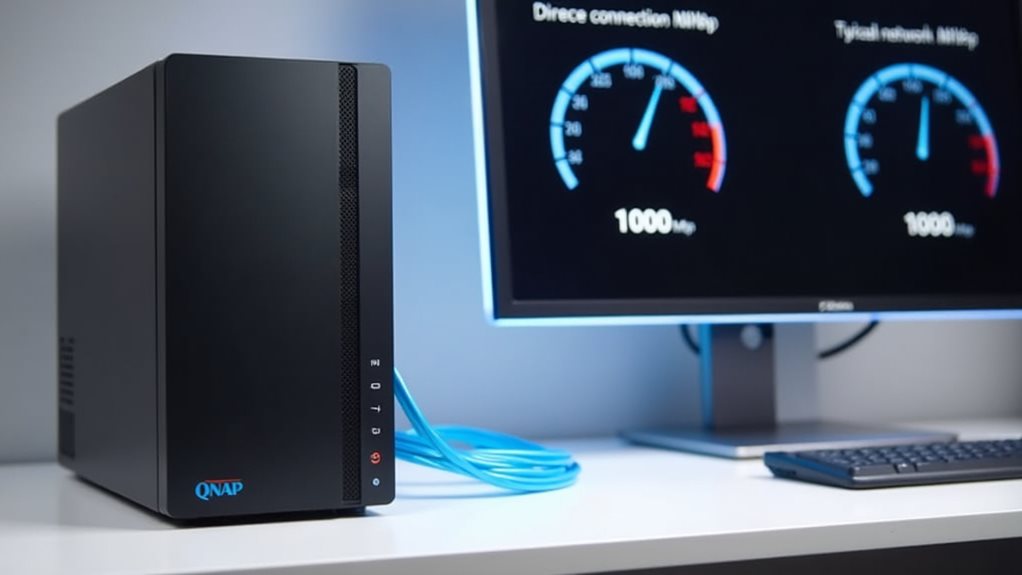
Understanding the performance differences between direct and network connections to your QNAP device can help you choose the best setup for your needs.
Direct connections generally offer faster data transfer speeds, with reduced latency compared to network connections. When connected directly through Ethernet, you’ll typically experience speeds of up to 1 Gbps without network congestion interference.
Network connections, while more versatile for multiple users, may experience reduced performance depending on your network configuration and traffic. Your transfer speeds will be limited by your router’s capabilities and overall network load.
For large file transfers or streaming high-definition media, direct connections provide more consistent performance.
However, network connections offer greater flexibility, allowing multiple devices to access your QNAP simultaneously from anywhere on your network.
Use Cases for Direct QNAP-to-PC Connections
Although network connections offer convenience for multiple users, direct QNAP-to-PC connections excel in several specific scenarios where performance and reliability are paramount.
Direct connections are ideal for large file transfers, such as when you’re backing up important data or moving video editing projects. You’ll experience faster transfer speeds without network congestion affecting performance.
For lightning-fast backup and media transfers, nothing beats a direct QNAP-to-PC connection that bypasses network bottlenecks.
Emergency data recovery situations also benefit from direct connections. When your network is down, you can still access critical files stored on your QNAP device through a direct link to your computer.
Testing and configuration scenarios work better with direct connections too. When initially setting up your QNAP or troubleshooting issues, a direct connection eliminates network variables that might complicate diagnosis.
For isolated environments without existing networks, direct connections provide a simple solution for accessing your QNAP storage without additional infrastructure requirements.
Troubleshooting Common Direct Connection Issues
When your QNAP refuses to connect directly to your PC, several common issues might be causing the problem.
First, check if both devices are powered on and the Ethernet cable is securely connected at both ends.
Incorrect IP configuration is a frequent culprit. Confirm your PC and QNAP are set to compatible IP addresses within the same subnet. For example, if your QNAP uses 192.168.1.100, your PC should have an address like 192.168.1.101.
Firewall settings often block NAS connections. Temporarily disable your firewall to test if this resolves the issue, then create appropriate exceptions if needed.
Outdated network drivers on your PC can prevent successful connections. Visit your computer manufacturer’s website to download and install the latest drivers for your network adapter.
Network Configuration and IP Settings for Direct Connection
To establish a direct connection between your QNAP NAS and PC, you’ll need to configure proper IP settings on both devices. This guarantees they can communicate without requiring a router or network switch.
First, connect an Ethernet cable directly between your PC and one of the QNAP’s LAN ports.
Begin with a direct Ethernet cable connection between your computer and any available QNAP LAN port.
Then, set your computer’s network adapter to use a static IP address, such as 192.168.1.100, with a subnet mask of 255.255.255.0.
Configure your QNAP with a compatible static IP in the same subnet, like 192.168.1.101. You can do this through the QNAP control panel under “Network & Virtual Switch” settings.
After configuring both devices, you can access your QNAP by entering its IP address in your web browser.
This direct connection method works well for initial setup or when a network isn’t available.
Alternative Connection Methods for QNAP Systems
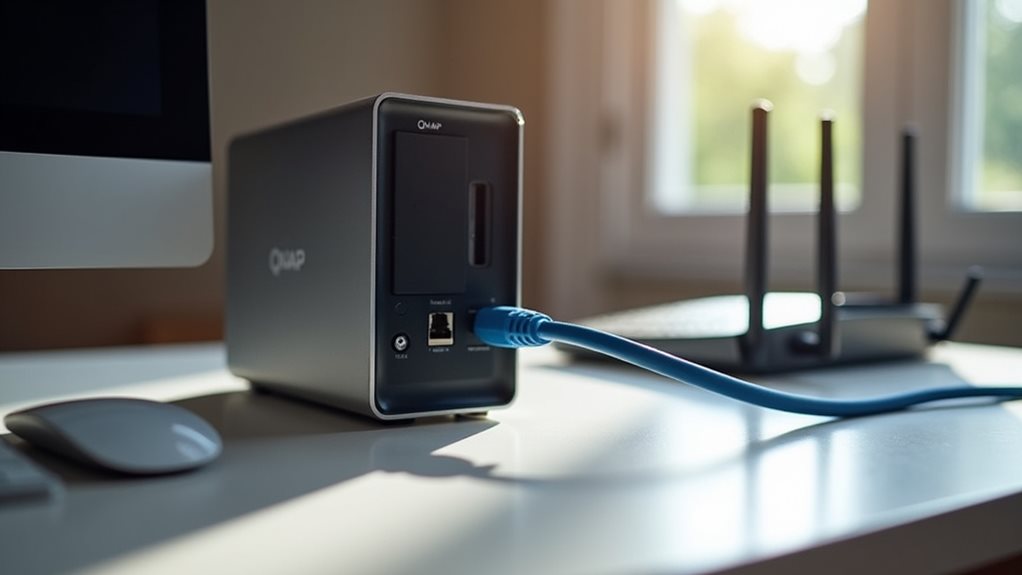
Beyond direct Ethernet connections, your QNAP NAS offers several alternative methods for accessing your system.
USB direct connections provide a simple option for transferring files between your PC and NAS without network configuration. Simply connect a USB cable to both devices and use the QNAP’s file management interface.
Wi-Fi adapters can enable wireless connectivity for compatible QNAP models, eliminating the need for Ethernet cables altogether. This setup requires a compatible USB Wi-Fi dongle and proper configuration in the QNAP control panel.
Cloud connectivity through QNAP’s myQNAPcloud service allows remote access to your NAS from anywhere with internet access. After creating an account and registering your device, you’ll be able to access files and services securely through a web browser.
VPN connections offer another secure method for accessing your QNAP remotely while maintaining privacy.
Security Considerations When Connecting QNAP Directly to PC
Security should be your top priority when connecting a QNAP NAS directly to your PC.
Direct connections bypass router firewalls and security features that normally protect your network devices.
When establishing a direct PC-to-QNAP connection, always change the default administrator password immediately.
Enable encryption protocols like HTTPS for web access and SSH for command-line connections.
Consider implementing IP filtering to restrict which devices can access your QNAP system.
You’ll want to disable unnecessary services that might create security vulnerabilities.
Keep your QNAP’s firmware updated regularly, as manufacturers frequently release patches for security issues.
Two-factor authentication adds an extra layer of protection for administrative access.
Don’t forget to encrypt sensitive data stored on your QNAP, especially if you’re using it in environments where physical access isn’t strictly controlled.
Frequently Asked Questions
Does Direct Connection Work With All QNAP NAS Models?
Direct connection works with most QNAP NAS models, but you’ll need to check your specific model’s manual. Newer models typically support this feature, while older or basic ones might have limitations with direct PC connections.
Will Data Transfer Affect My Qnap’s Normal Network Operations?
During direct PC connections, your QNAP’s normal network operations won’t be affected. You’ll still maintain access to all services while transferring data, as the direct connection works independently of your regular network functionality.
Can I Connect Multiple PCS Directly to One QNAP Simultaneously?
Yes, you can connect multiple PCs directly to one QNAP simultaneously. You’ll need a network switch between the QNAP and PCs, or a QNAP model with multiple Ethernet ports. This creates a small local network.
How Does Direct Connection Impact QNAP Warranty Coverage?
Direct connections won’t void your warranty as long as you’re using QNAP’s supported connection methods. However, any damage from improper cabling or power issues during direct connections might not be covered under warranty terms.
Can I Run QNAP Mobile Apps When Connected Directly to PC?
No, you can’t run QNAP mobile apps when directly connected to a PC. The mobile apps require your QNAP NAS to be properly networked, either through your local network or via the internet.
Final Thoughts
You’ve now learned how to connect your QNAP directly to your PC. While this setup works well for specific tasks like initial configuration or fast file transfers, a network connection remains more practical for daily use. Remember to restore your original network settings when you’re done with the direct connection. With the right cables and correct IP configuration, you’ll have a functional direct connection whenever you need it.