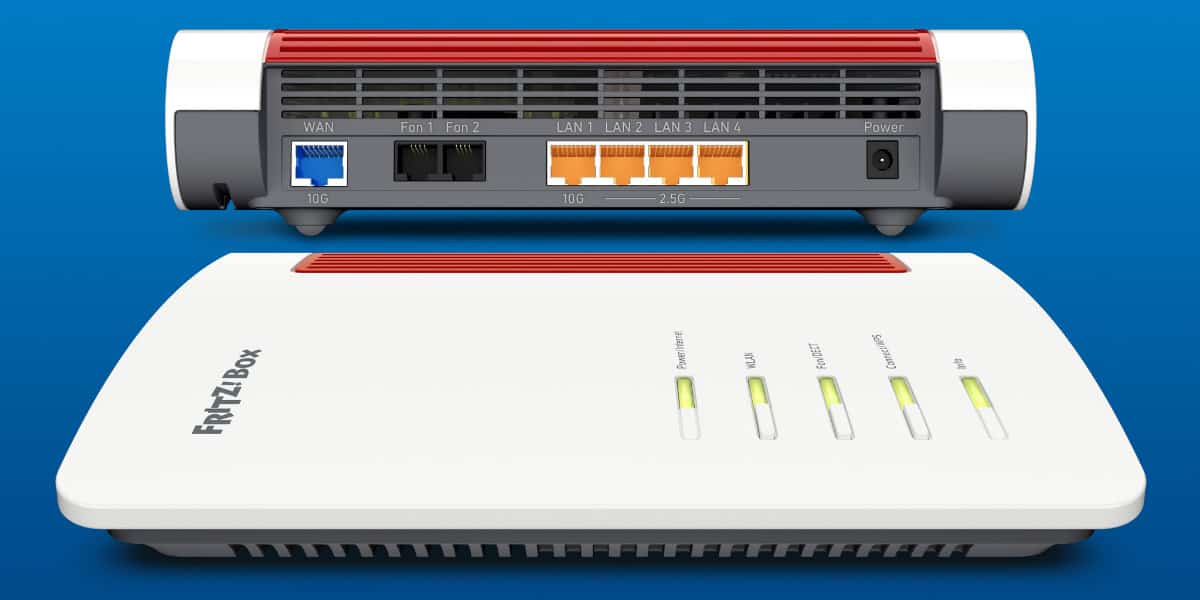
The FRITZ!Box 4690 is a Wi-Fi 7 router built for homes that already use an external broadband modem and want faster wired networking. Its standout hardware feature is a dedicated 10 gigabit WAN port and a 10 gigabit LAN port, alongside three 2.5 gigabit LAN ports.
That makes it a compelling option for a high-speed home network, but it is not automatically the best choice for every connection. The key question is whether your modem, internet service, Ethernet equipment, and connected devices can actually benefit from 10 gigabit networking.
Who Should Buy the FRITZ!Box 4690?
The Fritz!Box 4690 ships with a 10-gigabit LAN port and three 2.5G ports, which tells you immediately who this is for. This is not a router for someone plugging into a standard FTTC connection and hoping for the best. This is a router for someone who either already has 10G infrastructure at home or is actively building toward it.
The FRITZ!Box 4690 is best suited to people who:
- Already have an external modem supplied by their internet provider or bought separately.
- Want a router with Wi-Fi 7.
- Have, or plan to add, 10 gigabit capable networking equipment.
- Need fast local wired connections between compatible devices.
- Want a router interface with setup wizards, parental controls, USB storage support, mesh networking, and phone features.
It is less suitable if you need a router with an integrated DSL modem, or if a built-in Zigbee smart home controller is important to your setup.
Compare it to the 7690, which is the model it sits alongside rather than replaces, and the differences become instructive. The 7690 has an integrated modem and a Zigbee controller built in, making it a more complete all-in-one solution for people who want their router to handle smart home duties and connect directly to a DSL line. The 4690 has neither. No modem. No Zigbee. Just the router, the ports, and the wireless radios.
Product offers are temporarily unavailable.
FRITZ!Box 4690 vs 7690: The Important Differences
The FRITZ!Box 4690 and FRITZ!Box 7690 share much of the same overall approach, including Wi-Fi 7 and the FRITZ!OS management platform. Their biggest differences are how they connect to the internet and what they offer for wired networking and smart home control.
| Feature | FRITZ!Box 4690 | FRITZ!Box 7690 |
|---|---|---|
| WAN | 1× 10 Gbps (WAN/LAN) | 1× 2.5 Gbps (WAN/LAN) |
| LAN | 1× 10 Gbps + 3× 2.5 Gbps | 1× 2.5 Gbps + 2× 1 Gbps |
| DSL modem | No (router only — needs external modem) | Yes (VDSL incl. supervectoring, ADSL2+) |
| WiFi | Wi-Fi 7, 4×4 — 5.76 Gbps (5 GHz) + 1.2 Gbps (2.4 GHz, Wi-Fi 6) | Wi-Fi 7, 4×4 — 5.76 Gbps (5 GHz) + 1.38 Gbps (2.4 GHz, Wi-Fi 7) |
| Smart home | DECT ULE only | DECT ULE + Zigbee (Matter pending FRITZ!OS update) |
| Telephony | DECT base, 6 handsets, 2× a/b | DECT base, 6 handsets, 2× a/b |
| USB | 1× USB 3.0 | 1× USB 2.0 |
| Power draw | 13–14 W | 12–13 W |
Choose the 4690 for 10G networking and an external modem
The 4690 is the more logical fit when your broadband connection arrives through a separate modem and you want the option of a 10 gigabit uplink to the router. It can also provide a 10 gigabit LAN connection to a compatible switch, server, desktop computer, or other network device.
Choose the 7690 if you use DSL or Zigbee
The 7690 is a better match for a compatible DSL connection because its modem is built in. It is also the better choice for households that rely on the integrated Zigbee smart home hub. Moving from a 7690 to a 4690 means Zigbee smart home connections will not transfer because the 4690 does not include that controller.
What 10 Gigabit WAN and LAN Actually Mean
A 10 gigabit connection has four times the theoretical link speed of a 2.5 gigabit connection. On the FRITZ!Box 4690, the 10G WAN port connects to the modem, while the 10G LAN port can connect to a compatible device on the local network.
However, a 10G port does not make every internet connection run at 10 gigabit speeds. Your real-world result is constrained by the slowest part of the chain.
Here’s where honesty requires a small confession. Testing the 10G port properly means having a 10G-capable connection to test against, and my setup doesn’t allow for that. My ISP is Virgin Media, and the Superhub 5, which is their current modem, doesn’t have a 10G port. The maximum I can push through that connection to the 4690 is 2.5G, which the router handles without difficulty, but it’s not the headline feature being exercised.
This is a limitation worth naming rather than glossing over, because it’s probably more common than the marketing materials suggest. The UK’s full-fibre rollout is progressing, but 10G residential connections remain uncommon. Most people buying this router today will be in the same position: they have the hardware to support 10G, but their ISP hasn’t caught up yet. The 4690 is, in some respects, a router you’re buying for the network you’re building rather than the one you have right now.
That’s not necessarily a problem. Buying ahead of your current needs is a reasonable strategy when the hardware has a long useful life, and Fritz!Box routers have historically been well-supported for years after release. Fritz!OS updates continue long after a product launches, which means the software you’re running two years from now will be meaningfully better than what ships in the box. That kind of longevity changes the calculus on a premium purchase.
Check the full 10G chain before upgrading
- Internet service: Your broadband plan must offer speeds that justify the upgrade.
- Modem: The external modem must have a compatible 10G Ethernet port.
- Ethernet hardware: Switches and wired devices need suitable ports to benefit from higher local network speeds.
- Cabling: Your existing network cabling should be appropriate for the speeds you expect to use.
For example, a router connected to a 2.5G modem port will be limited by that 2.5G connection, even though the router itself has a 10G WAN port. Similarly, a computer connected at a lower speed cannot receive data faster than its own wired connection supports.
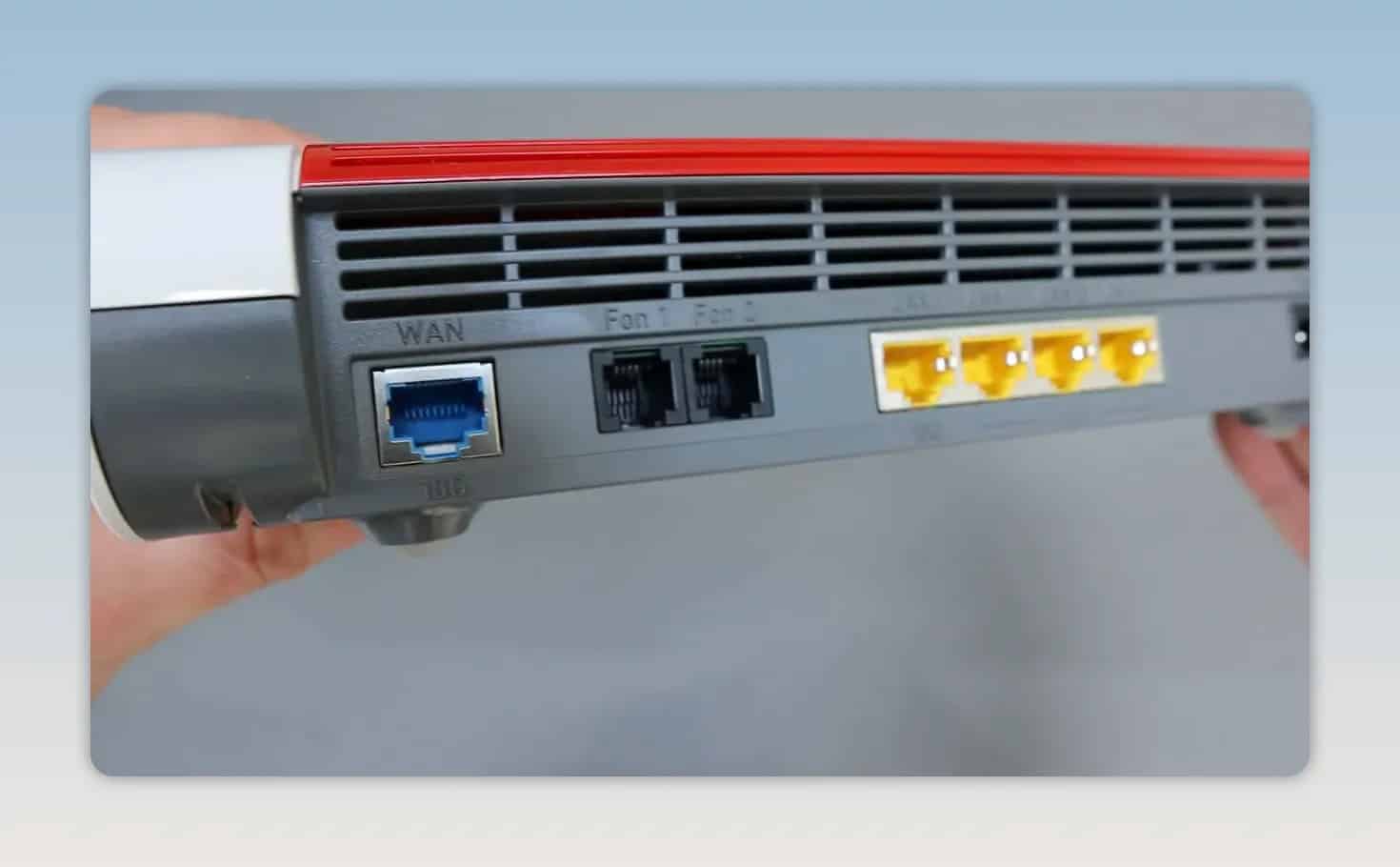
Ports and Physical Features
The UK edition includes a native UK power plug, avoiding the need for a separate European to UK plug converter. The router also has extensive ventilation around its casing.
Its main hardware connections and features include:
- 10G WAN port for the external modem.
- 10G LAN port for a high-speed local network connection.
- Three 2.5G LAN ports for additional wired devices.
- USB port for connecting USB storage.
- Phone ports for telephone functions.
- DECT support for compatible cordless telephone systems.
- Status lights and physical buttons on the chassis.
FRITZ!OS: Setup and Everyday Management
FRITZ!OS is the control panel used across FRITZ!Box routers. It provides setup wizards for common tasks, including internet configuration, telephone setup, network devices, and migration from an existing FRITZ!Box.
For a first-time installation, connect the external modem to the 10G WAN port, connect a device to the router, and follow the on-screen setup process for the internet line and home network. If you use VoIP, the router also provides options for configuring phone numbers and telephone devices.
How to transfer settings from an older FRITZ!Box
Existing FRITZ!Box owners can use the built-in transfer wizard to move settings from an older router to the 4690. The process involves connecting the two routers together while the migration is performed.
Transferring settings can preserve key details such as:
- Your Wi-Fi network name and configuration.
- Connected devices that use the existing Wi-Fi credentials.
- FRITZ! repeaters used in a mesh network.
- Telephone system settings.
Important: Check your smart home setup before migrating. Zigbee connections from a FRITZ!Box 7690 cannot be retained on the 4690 because the newer router does not include a Zigbee controller.
Use the USB Port for Network Storage
The FRITZ!Box 4690 can use a connected USB drive as network-attached storage. This lets devices on the home network access files stored on the USB drive.
A practical use is transferring photos or videos from a phone to the USB storage, then opening those files elsewhere on the network, such as a smart TV. This can be useful for simple shared media access without connecting the drive directly to every device.
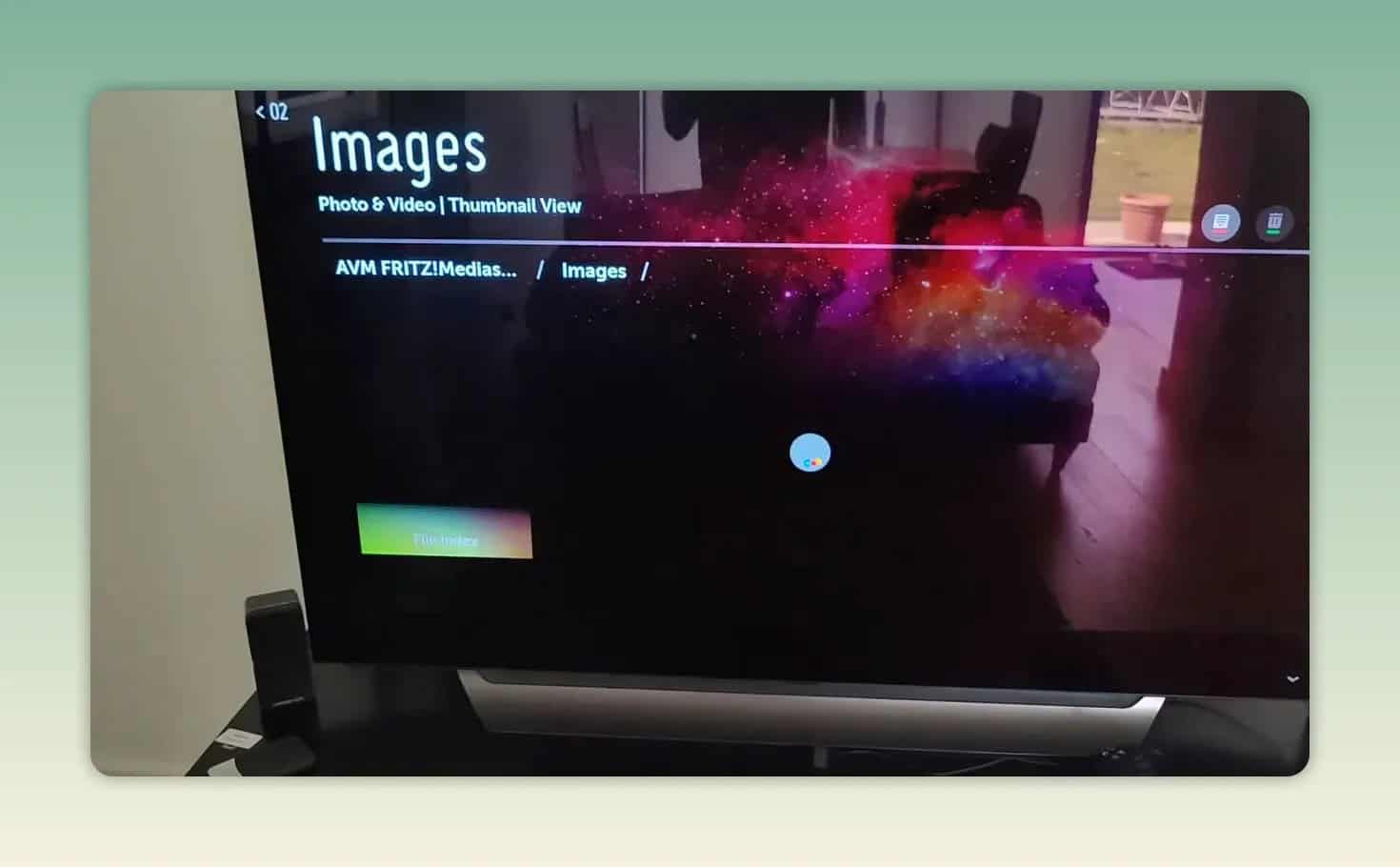
Think of this as convenient network-accessible storage rather than a replacement for a dedicated storage system. Its value is in making a USB drive available to the devices already connected to your home network.
There’s a broader point here about how AVM approaches the Fritz!Box lineup. The company consistently adds features that most routers in this price range don’t include, and those features are generally implemented well enough to be usable rather than just checkboxes on a spec sheet. The NAS functionality is a good example. It’s not class-leading, but it’s genuinely functional, and it’s there for free in a device you’re already buying.
Parental Controls: Schedules and Daily Time Budgets
Parental controls on routers tend to fall into two categories. There are the basic ones that block a list of websites and call it done, and there are the ones that give you actual control over how devices behave on your network. Fritz!OS is firmly in the second category.
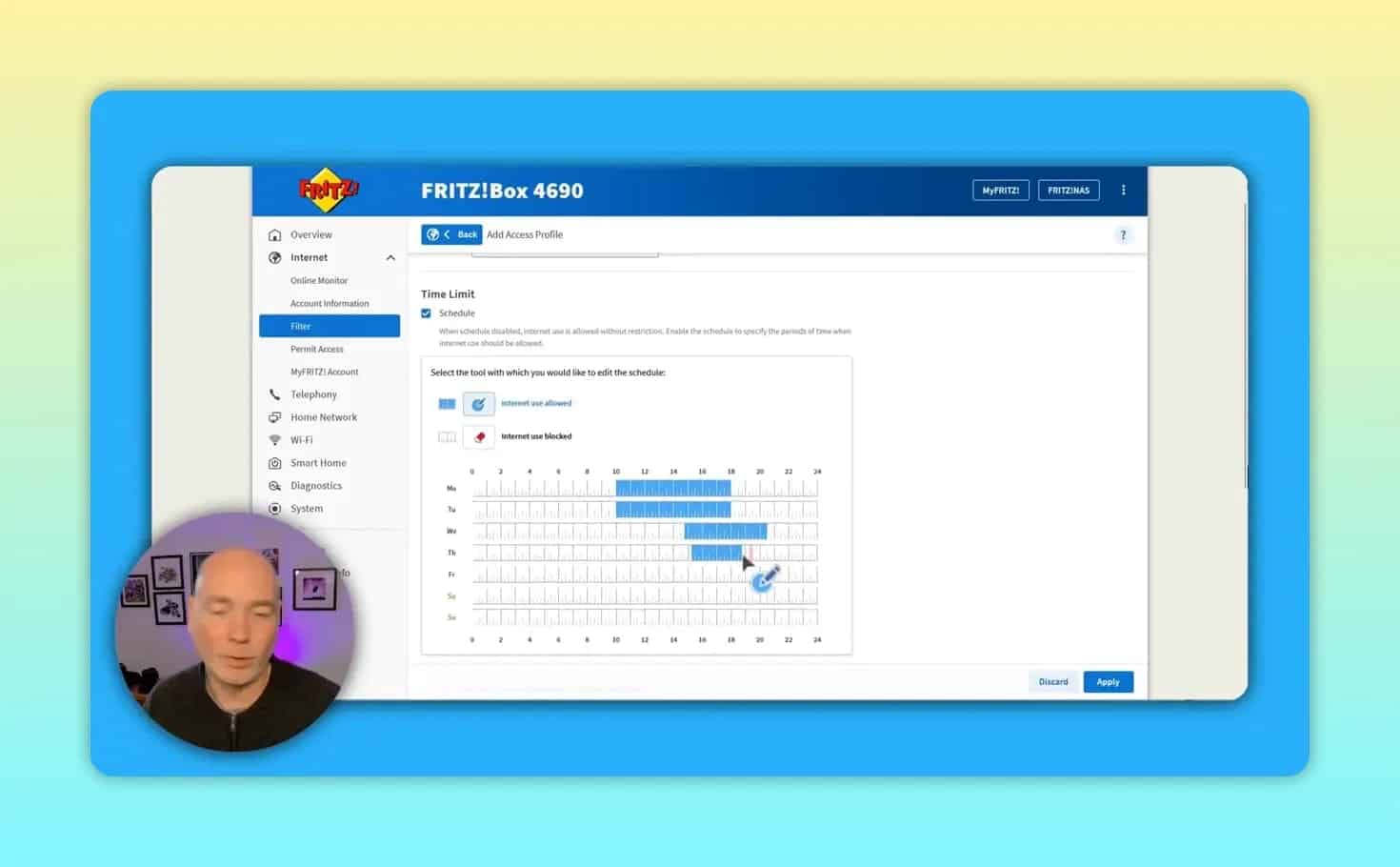
FRITZ!OS includes parental controls under the Filter settings. You can create an access profile, name it for a person or group, and assign devices to it.
The controls support two useful approaches:
1. Weekly internet access schedules
You can select the periods when assigned devices can access the internet. This makes it possible to set different access windows for different days of the week.
2. Daily time budgets
A daily time budget sets a total amount of internet access time. The budget can be shared across the devices assigned to the same profile, rather than applying separately to each device.
This combination gives households a flexible way to manage access. A schedule can prevent use during selected hours, while a time budget limits the total amount of use within the permitted window.
Mesh Wi-Fi With FRITZ!Repeaters
If you need broader Wi-Fi coverage, compatible FRITZ!Repeaters can be joined to the 4690 to create a mesh network. The pairing process uses the devices’ buttons and keeps the network managed through the FRITZ!Box ecosystem.
This is particularly useful where one router cannot provide strong coverage throughout the home. Existing compatible repeaters can also be carried across when settings are transferred from an older FRITZ!Box.
Telephone and Smart Home Features
The FRITZ!Box 4690 can act as a telephone system. It supports phone ports and can connect to an existing DECT phone system, so using the router does not necessarily require buying a dedicated FRITZ!Fon handset.
There is still a smart home area in FRITZ!OS for compatible FRITZ! devices. The distinction is important: the 4690 has smart home management options, but it does not have the Zigbee controller included in the 7690.
Common FRITZ!Box 4690 Buying Mistakes
- Assuming it includes a DSL modem: The 4690 is router only. It needs an external modem.
- Buying it solely for 10G without checking your equipment: A 10G WAN port is only useful when the modem and broadband setup can support it.
- Expecting faster Wi-Fi alone to solve every speed issue: Internet service, wired links, connected devices, and network layout still matter.
- Overlooking Zigbee migration: A 7690 owner using its Zigbee controller should not expect those smart home connections to move to the 4690.
- Forgetting the local network benefit: The 10G LAN port can be valuable for compatible local devices even when broadband speeds are lower.
FRITZ!Box 4690 FAQ
Does the FRITZ!Box 4690 have Wi-Fi 7?
Yes. The FRITZ!Box 4690 supports Wi-Fi 7.
Does the FRITZ!Box 4690 need a modem?
Yes. It is a router only, so it requires an external modem for the internet connection.
Does the FRITZ!Box 4690 have a 10G LAN port?
Yes. It has a 10 gigabit LAN port as well as a dedicated 10 gigabit WAN port.
How many additional LAN ports does it have?
It has three additional 2.5 gigabit LAN ports.
Can I use the FRITZ!Box 4690 with a USB drive?
Yes. A USB drive can be used to create network-accessible storage for devices connected to the home network.
Does the FRITZ!Box 4690 support Zigbee?
No. Unlike the FRITZ!Box 7690, the 4690 does not include a Zigbee smart home controller.
Can it work with cordless phones?
Yes. The router can connect to an existing DECT phone system and offers telephone system functionality.
Final Verdict: A Strong Router for the Right Network
The FRITZ!Box 4690 is a strong choice for households that want Wi-Fi 7, straightforward FRITZ!OS management, and a high-speed wired network built around an external modem. Its dedicated 10G WAN and 10G LAN ports are its clearest advantage, especially for people with compatible high-speed broadband hardware or 10G local network equipment.
The decision is simple: choose the FRITZ!Box 4690 when an external modem and 10G networking are part of your plan. Choose the FRITZ!Box 7690 instead when you need an integrated DSL modem or depend on the built-in Zigbee smart home controller.