MotionVid is an AI tool for creating motion graphics, infographics, animated maps, short explainer visuals, and image-based animations from prompts, templates, and reference images. If you want polished on-screen graphics without spending hours in complex animation software, it aims to make that process much faster.
This review covers what MotionVid does well, where it fits best, how its credit system works, and what to know before using it for regular video production.
What MotionVid Is and Who It’s Best For
MotionVid is designed for people who need video graphics that look professional but remain easy to customize. Its strongest use cases include:
- Infographics for educational and explainer content
- Maps for travel, history, documentary, or location-based storytelling
- Charts and graphs for data visualization
- Social media call-to-action graphics
- Image-to-video animation using a starting image and optionally an ending image
- Prompt-based motion graphics for short animated sequences
It is especially relevant for creators, editors, marketers, and agencies that want an alternative to building every animation manually in tools like After Effects.

Why MotionVid Stands Out
Many AI design tools can generate visuals, but they often lock key elements into a flattened result that is hard to reuse. One of MotionVid’s most practical strengths is that the generated content can remain editable after creation.
That matters for workflows where you need to:
- Correct titles or labels after generation
- Update counters and values
- Reuse the same style across multiple videos
- Match a brand’s fonts and colors
- Add logos, images, or QR codes before exporting
Instead of regenerating from scratch every time, you can treat the output more like a reusable graphic asset.
Core Features in MotionVid
1. Template Library
The template library is one of the easiest ways to understand what MotionVid can produce. It includes categories such as:
- Maps
- Infographics
- Charts and graphs
- Pie charts
- Social media graphics
Templates are useful for two reasons. First, they speed up production when you need a result quickly. Second, they help when you are unsure what prompt to write because they show the visual styles the platform can generate.

2. Prompt-to-Video Generation
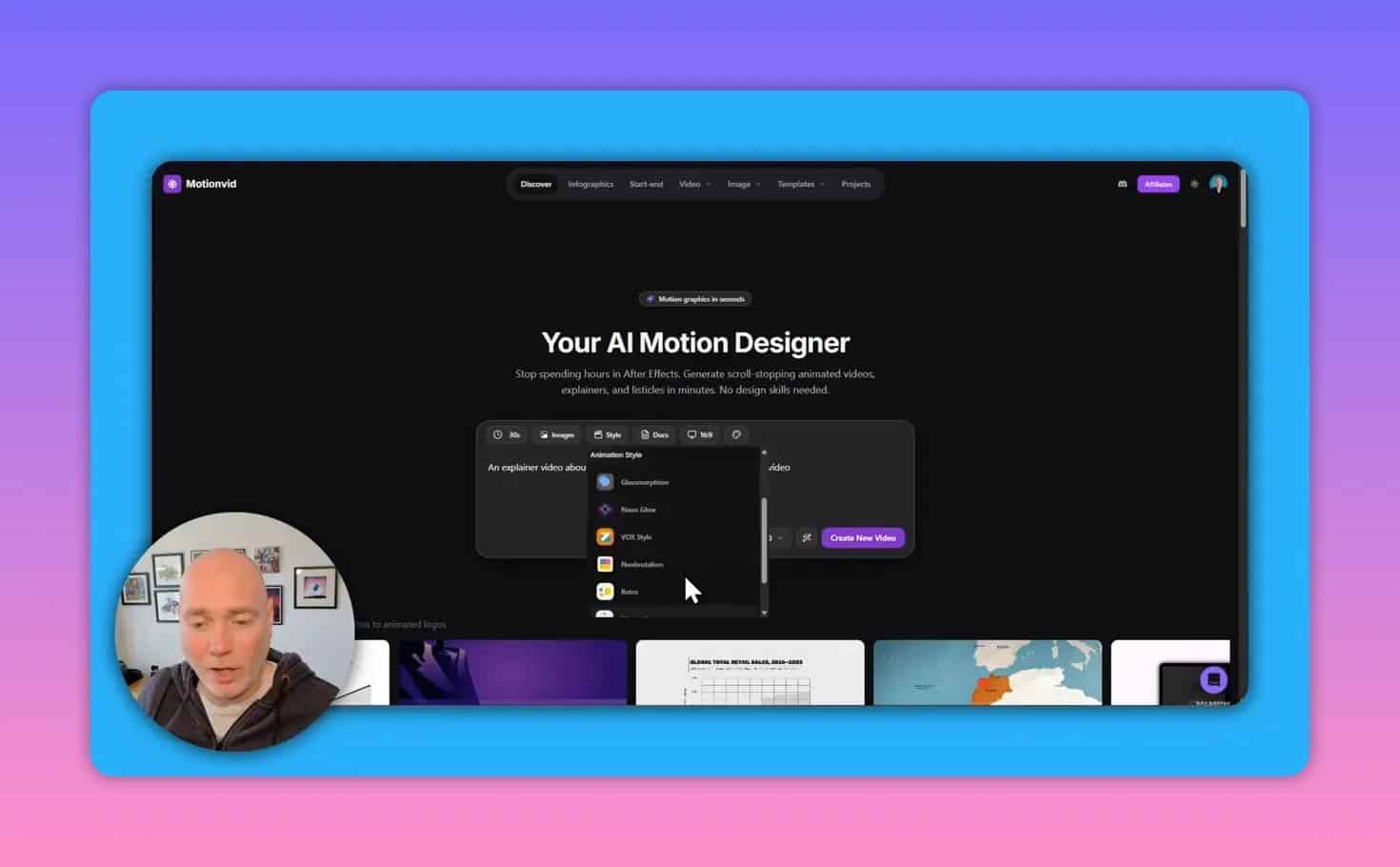
MotionVid lets you type a prompt describing the animation you want, then generates a motion graphic based on that request. During setup, you can adjust several inputs:
- Desired duration
- Reference images
- Visual style
- Document import for reports, notes, or data
- Aspect ratio, such as 16:9
- Brand kit for color consistency
There is also an AI prompt enhancement option that expands a rough idea into a more detailed instruction set before generation.
3. Editable Text and Values After Generation
This is one of the most useful features in the platform. If the generated graphic gets a title, label, or number slightly wrong, you can edit those fields in the side panel rather than starting over.
That makes MotionVid more practical for recurring production. For example, if you create a visual style for a stats segment, you can reuse it later and simply update the text and counters.
4. Style Referencing From an Existing Image
MotionVid can use a reference image to help guide the visual result. This can be useful when you have seen a graphic style you like and want to create something with a similar feel for your own project.
The key benefit is not just copying a look, but generating a new motion graphic that remains editable afterward.

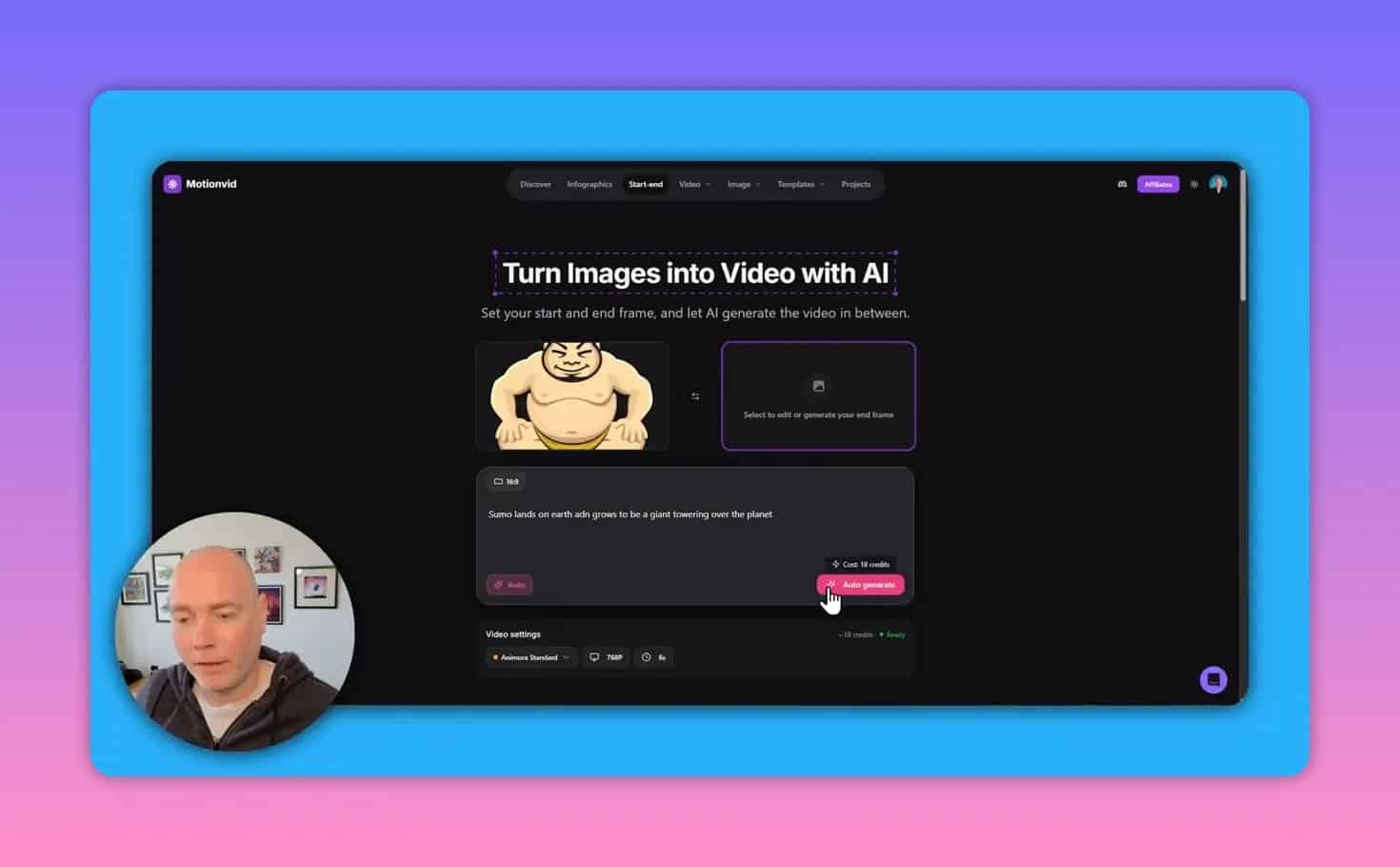
5. Image-to-Video Animation
Another feature is the ability to create an animation from a starting image and optionally an ending image. If an ending image is not provided, the system can auto-generate a result and animate between states.
This can be useful for:
- Logo animations
- Simple branded intros
- Map-based transitions
- Object reveals
- Short visual storytelling sequences
6. Export Options
When a graphic is ready, MotionVid supports export settings such as:
- Aspect ratio
- Quality settings up to 4K on supported outputs
- Frame rate
- Duration
It also supports link sharing, which is useful if a teammate or client needs to review the animation before final delivery.
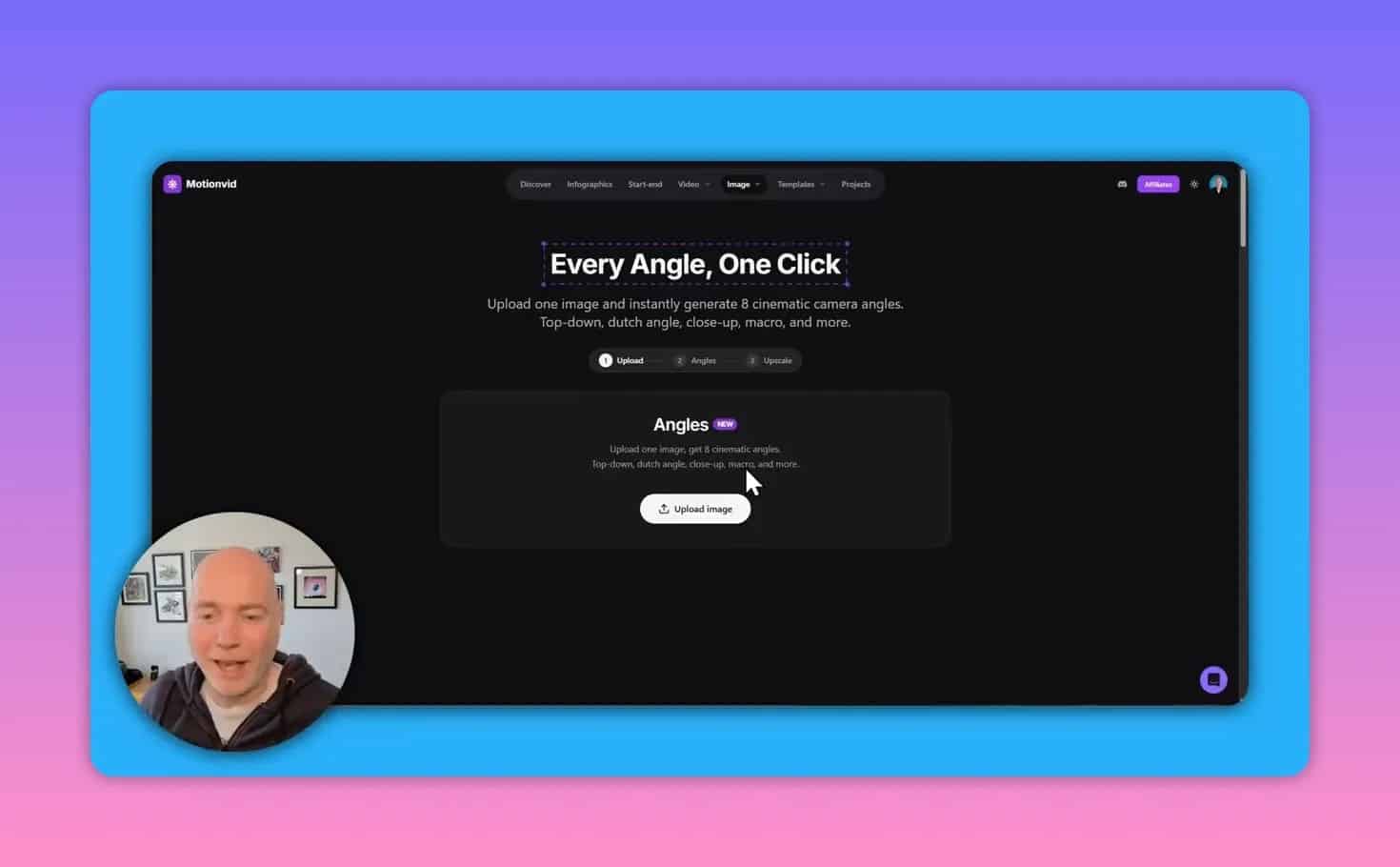
7. Additional Image Tools
Beyond motion graphics, the platform also includes image-focused tools. Based on the available interface shown, these include:
- General image generation
- A multi-angle camera tool that creates several cinematic angles from a single photo
- Upscaling selected images to HD
- A continuous-story style image feature
These tools extend MotionVid beyond pure animation and may appeal to users building supporting visuals alongside video graphics.
How MotionVid Works in Practice
A typical workflow looks like this:
- Choose a starting point by selecting a template or writing a prompt.
- Add context using reference images, style selection, a brand kit, or imported notes.
- Enhance the prompt with AI if needed.
- Generate the graphic and wait for processing.
- Edit the result by changing titles, counters, fonts, colors, or added elements such as logos and QR codes.
- Export in the right format and resolution for your project.
This workflow is much more approachable than building animations frame by frame, especially for people who only need motion graphics as part of a broader editing process.
Best Use Cases for MotionVid
Educational Videos
MotionVid looks particularly strong for educational content where you need to break up talking-head footage with visual explanations. Infographics, charts, and animated callouts can reinforce key points and make information easier to absorb.
Documentary and Travel Content
The map templates are a natural fit for route animations, location context, and journey visuals.
Marketing and Branded Content
Brand kits, color controls, logo additions, and editable text make it suitable for branded explainer segments and promotional clips.
Client Work
The ability to share by link and update text later makes the platform practical for agency or freelance workflows where revisions are common.
What MotionVid Does Well
- Reduces the complexity of creating motion graphics
- Provides strong template inspiration for common visual formats
- Keeps important elements editable after generation
- Supports reference images for style direction
- Allows branding controls with colors and design consistency
- Exports in high quality, including 4K in supported cases
- Includes extra image tools beyond core animation
Limitations and Things to Watch Out For
No AI design platform is perfect, and there are a few practical considerations to keep in mind.
Credit Usage Can Add Up Quickly
MotionVid uses a credit-based system, and different tools consume different amounts. Some generations are relatively inexpensive, while other image tools can use significantly more credits.
If you plan to experiment heavily, test multiple directions, or generate lots of client assets, a low-tier plan may feel restrictive.
Some Controls Could Be More Precise
At least one editing control for numeric values appears to rely on a slider, which can make small number adjustments harder than a direct text input would be.
Results May Vary Across Tools
The motion graphics and infographic features appear to be the strongest part of the platform. Some image-generation tools may require more experimentation to get consistently strong results.
Generation Is Not Instant
Prompt-based generation can take a few minutes. For quick-turn production, that is still far faster than building animations manually, but it is not real-time.
MotionVid Pricing and Credit Tiers
MotionVid is positioned with multiple plan tiers, and the number of monthly credits depends on the tier you choose. Based on the available information:
- Tier 1 includes 125 monthly credits
- Tier 3 includes 500 monthly credits
- Higher tiers provide more room for frequent generation and experimentation
The main question is not just price, but how often you will generate assets.
A lower tier may be enough if you:
- Create only a few graphics each month
- Use templates more than custom AI generation
- Do minimal experimentation
A higher tier is easier to justify if you:
- Publish regularly
- Create multiple graphics per project
- Handle client work
- Use both video and image tools
- Expect to iterate often before choosing a final version

Is MotionVid Better Than After Effects?
That depends on what you need.
MotionVid is better for speed and accessibility. It is a strong choice when you want good-looking motion graphics quickly without advanced animation skills.
After Effects is still better for deep manual control. If you need precise keyframing, advanced compositing, complex custom animation systems, or complete production flexibility, dedicated professional software still has the edge.
For many people, the real comparison is not feature parity. It is whether MotionVid produces results that are good enough to replace hours of manual work. For infographics, maps, explainer visuals, and reusable graphic sequences, the answer may be yes.
Common Questions About MotionVid
Can MotionVid create infographics from a text prompt?
Yes. It can generate infographic-style motion graphics from prompts and allows edits after generation.
Can you customize MotionVid templates?
Yes. Templates can be edited, including text changes and other visual adjustments.
Can MotionVid use brand colors?
Yes. It includes a brand kit option so graphics can better match your brand identity.
Does MotionVid support reference images?
Yes. Reference images can be added to guide the generated result.
Can MotionVid export 4K video?
Yes. Export settings shown include quality options up to 4K on supported outputs.
Can MotionVid animate a logo or static image?
Yes. It supports image-to-video generation from a starting image, with options around start and end states.
Tips for Getting Better Results in MotionVid
- Start with templates if you are unsure what style to ask for
- Use the prompt enhancement tool when your first description feels too vague
- Upload reference images for stronger stylistic direction
- Set your aspect ratio early so the composition fits the final platform
- Build a brand kit if you want consistency across multiple projects
- Plan your credit usage before testing high-cost image tools repeatedly
- Reuse editable graphics instead of generating fresh versions every time
Who Should Buy MotionVid?
MotionVid makes the most sense for people who need motion graphics often enough that time savings matter more than full manual control.
It is a good fit if you:
- Create educational, documentary, travel, or explainer videos
- Want professional graphics without learning complex animation software
- Need reusable infographic styles
- Work with clients and expect revisions
- Want a faster way to turn notes, reports, or data into visuals
It may be less suitable if you:
- Need highly custom animation sequences with exact timing and control
- Rarely use motion graphics
- Prefer one-time software over ongoing credit-based usage
Final Verdict
MotionVid looks strongest as an AI motion graphics tool for fast, editable, production-ready visuals. Its biggest strengths are the template library, prompt-based generation, brand controls, and the fact that text and counters can still be edited after the AI does the initial work.
The credit system is the main factor to evaluate carefully. If you only create occasional graphics, a lower tier may be enough. If you produce content regularly or work across multiple projects, a higher tier is more realistic.
For creators and editors who want infographics, maps, charts, and animated inserts without getting buried in traditional animation software, MotionVid is a compelling option worth serious consideration.