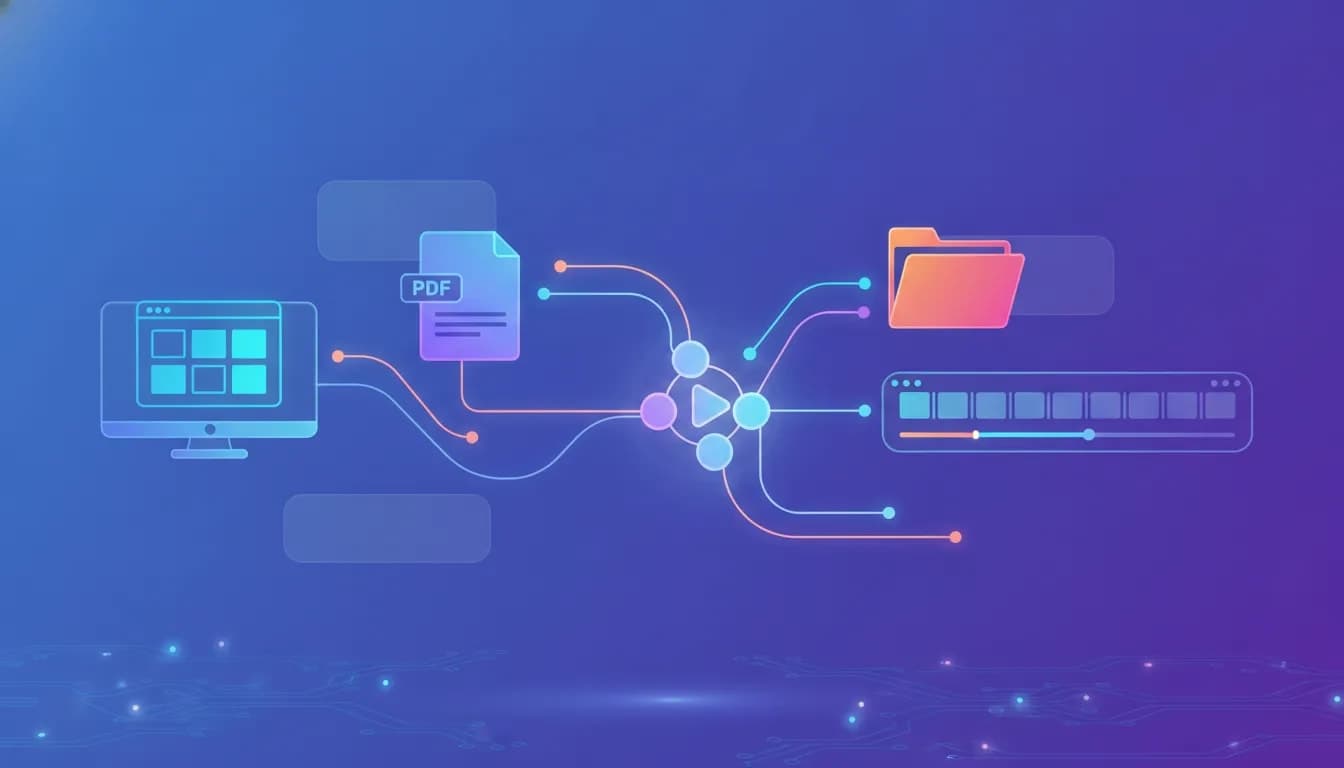
Poko Motion is a desktop app for generating animated videos from existing source material such as a website URL, PDF, PowerPoint, research paper, or project folder. It handles scriptwriting, scene creation, narration, and rendering in a workflow designed to reduce manual editing.
If you are comparing AI video tools, the key question is simple: does it actually save time while producing usable results? Based on the available examples and product behavior, the answer is yes, especially when the source material is detailed and well structured.
What Poko Motion does
Poko Motion takes a source input and turns it into a motion video with minimal setup. Instead of building a timeline by hand, you give it content and a prompt, then the app generates the structure for you.
Supported starting points include:
- Website URL
- Repository or local folder
- PowerPoint
- Research paper
The app then reads the source, drafts a script, creates animated scenes, and produces a preview. You can refine the result using text instructions instead of manually dragging layers around a traditional editor.
Who Poko Motion is best for
This tool looks most useful for people who already have content but do not want to build motion graphics from scratch.
Good fits include:
- Marketers creating promo videos from product pages
- Agencies turning client sites into ads or explainer assets
- Founders who need fast website videos for landing pages or social clips
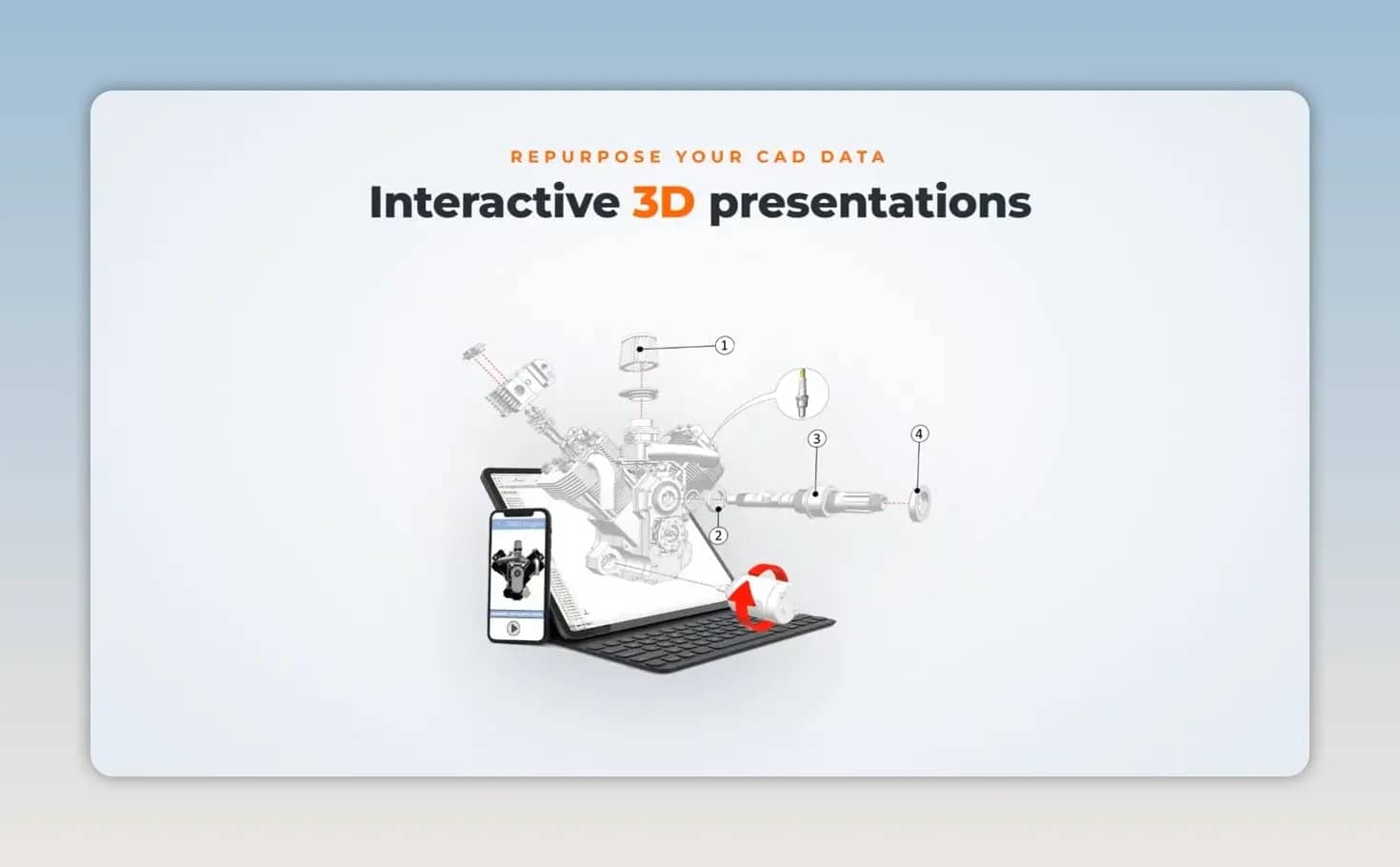
- Technical teams converting documentation, decks, or CAD-related messaging into visual summaries
- Researchers and educators turning complex PDFs into digestible visual explainers
If your main need is highly custom storytelling with frame-perfect control, a traditional editor may still be better. But if the priority is speed and first-draft generation, Poko Motion has a clear advantage.
How the workflow works
The process is straightforward.
- Choose a mode such as URL to video, PDF to video, or repo to video.
- Provide the source.
- Pick the output format or aspect ratio.
- Enter a prompt describing the style or goal.
- Let the app generate the video.
- Review the preview and request edits in chat.
- Export when the result is ready.
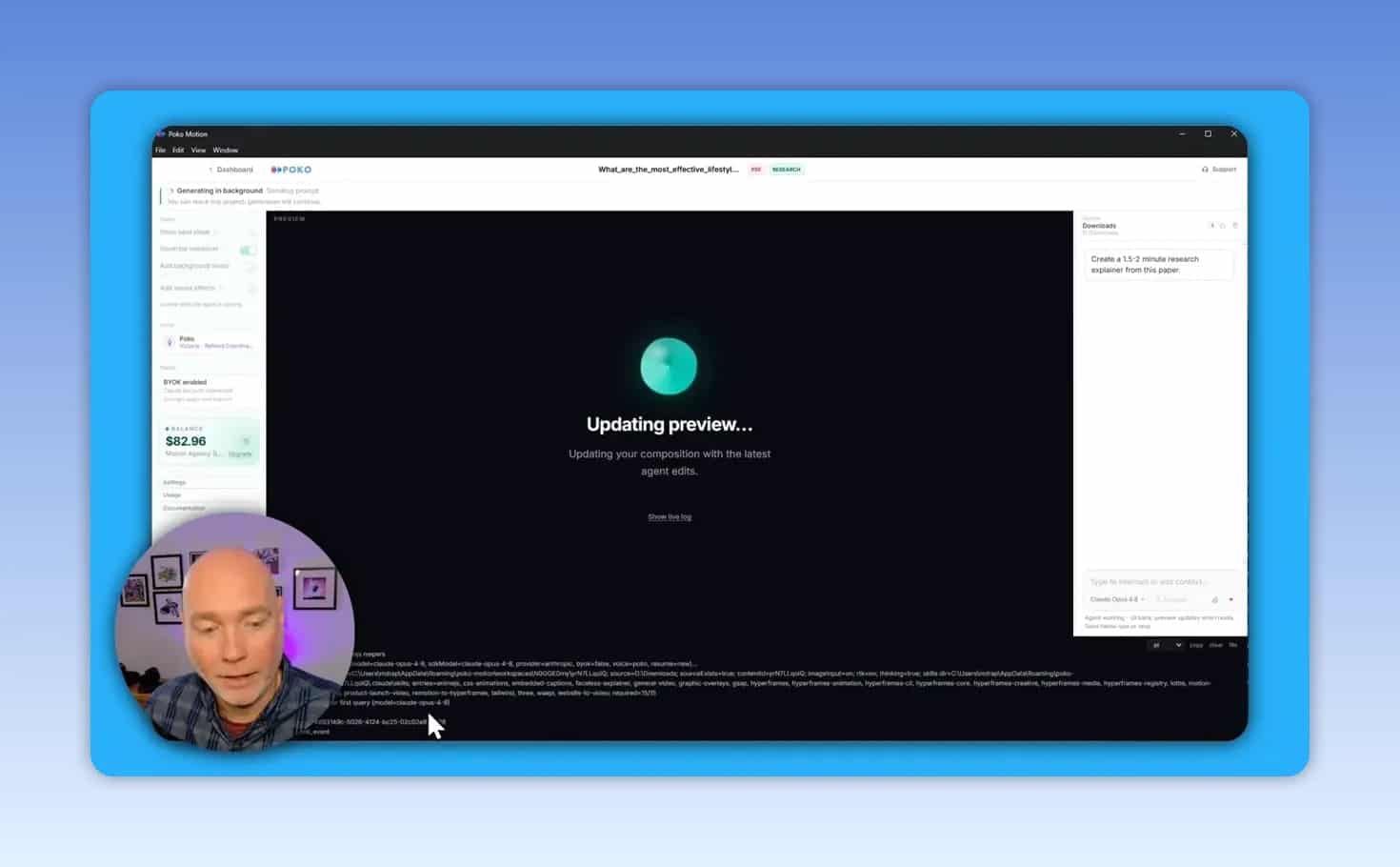
One practical detail matters here: when generation starts, the preview may remain blank until enough of the build is complete. There is also a live log view showing background activity, including multiple agents working through tasks.
Input modes explained
1. Website to video
This is likely the easiest way to get a usable explainer or ad quickly. Give the app a URL and it pulls in the page’s content, messaging, colors, and imagery.
This mode works best when the website already explains:
- What the product does
- Who it helps
- The problem it solves
- Key benefits and features
- Strong visuals or brand assets
When those ingredients are present, the generated output can reflect the site’s branding surprisingly well.
2. Repo or folder to video
This should offer the most control. Instead of relying on a public page to infer meaning, you can organize source files directly in a folder with images, scripts, text, and other assets. That makes it easier to get a more exact result.
If your site is thin on content or visually sparse, this is the safer option.
3. PDF, PowerPoint, and research paper to video
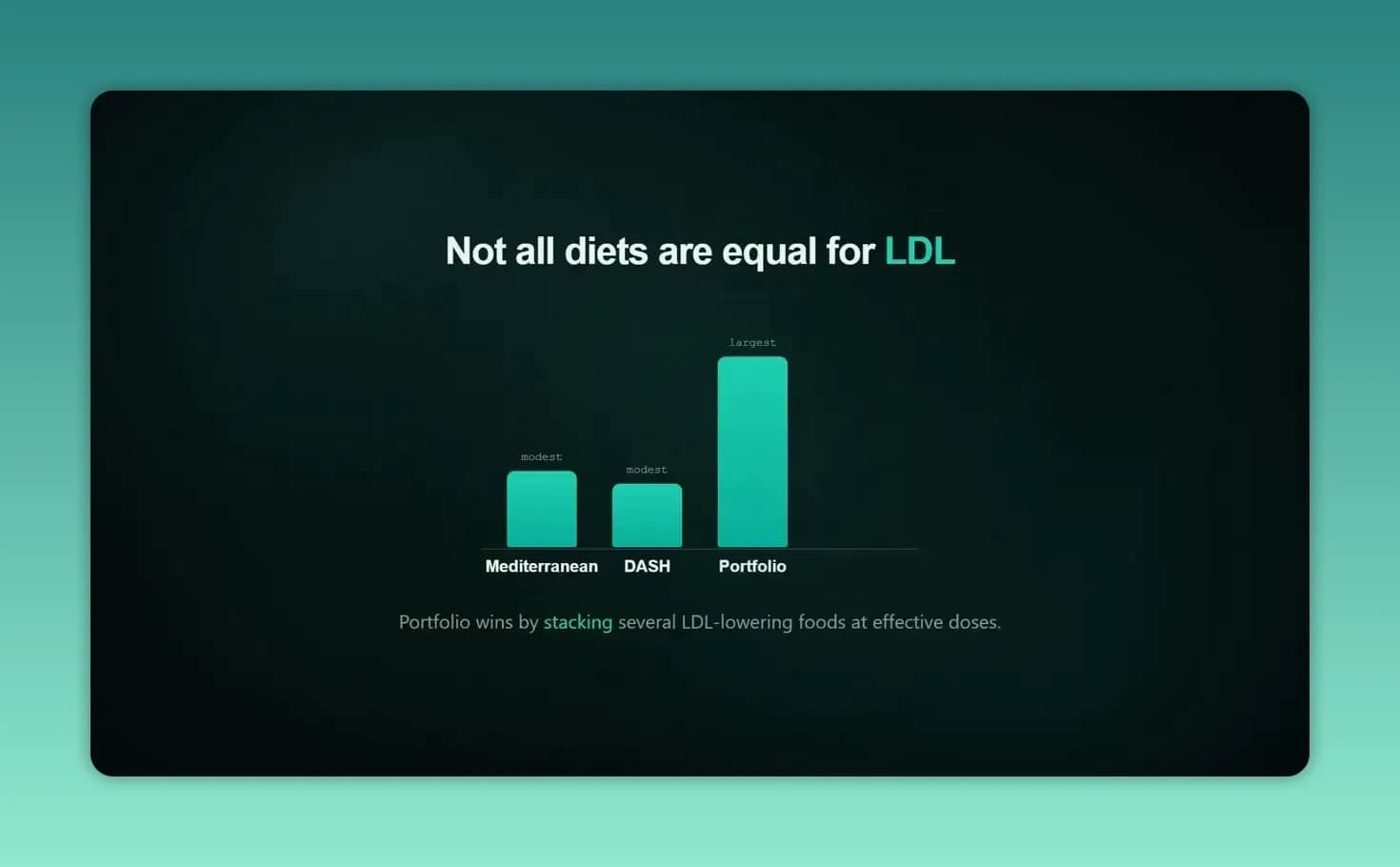
This is where the product becomes more than a marketing tool. It can turn dense documents into visual summaries, pulling out points, stats, and structure that would otherwise stay trapped in static pages.
That makes it relevant for:
- Pitch decks
- Internal explainers
- Research communication
- Educational summaries
- Client presentations
What stands out about Poko Motion
Automatic script and scene generation
The core appeal is that Poko Motion does not stop at producing a voiceover script. It also builds the visual scenes and motion structure automatically.
That matters because many AI tools can summarize content, but fewer can turn that summary into a coherent animated sequence.
Chat-based editing
Instead of manually editing every scene, you can request changes using natural language. Examples shown include changing pacing, colors, and zoom behavior.
This is a big usability win for non-editors. It lowers the learning curve and makes revisions faster.

Local rendering and privacy
A major differentiator is local rendering. Rendering happens on your machine rather than in a remote queue. The stated benefit is faster iteration without waiting for cloud render slots, and source files remain on your device.
The app’s privacy model is described as keeping files local while only model tokens travel over the network.
Parallel agents and queueing
The app can run multiple agents in parallel on a shared canvas with an automatic queue system. For users generating several projects, that should help throughput and visibility.
Voice features
Poko Motion supports narrated videos and offers a few audio paths:
- Use built-in credits for narration
- Bring your own provider keys
- Use voice cloning by uploading sample audio
- Toggle background music and sound effects on or off
This flexibility is useful if you already have your own stock music or external voice workflow.
Using Poco Credits vs bringing your own keys
Poko Motion supports more than one model and billing approach.
Your main options are:
- Poco Credits for an all-in-one workflow
- Bring your own API keys for providers such as Claude or OpenAI
- Local gateway if you have a powerful enough machine
In practice, the easiest path appears to be Poco Credits. Local model experiments were possible, but performance depended heavily on hardware and at least one larger model proved too slow on a modest machine.
That leads to a practical takeaway: if reliability and speed matter more than tinkering, the built-in credit system is probably the best starting point.
How good are the outputs?
The generated examples suggest Poko Motion is capable of producing several distinct video styles from a simple prompt.
Observed strengths include:
- Picking up brand colors from websites
- Reusing page imagery and visual tone
- Creating short explainer and ad formats
- Summarizing technical or research-heavy material visually
- Handling unusual product naming in narration reasonably well in at least one example
The outputs also changed style depending on the input site. One project leaned dark and high contrast, while another used a lighter, warmer visual language. That suggests the app is not forcing every project through a single template look.
Where results depend on your source material
This is one of the most important buying considerations.
Poko Motion can only work with the material it has access to. If your website is short, vague, or visually weak, the output will likely feel generic. Rich pages produce richer videos.
To get better results, your source should include:
- Specific problem statements
- Clear solution messaging
- Strong screenshots or visuals
- Feature descriptions
- Calls to action
If those are missing, consider using a repo, PDF, or deck instead of relying on a URL alone.
Editing and fixing issues
Generated videos are not always perfect on the first pass. One example showed overlapping on-screen elements. The benefit is that revisions can be made through prompts rather than manual timeline work.
That means the workflow is not really one-click final production. It is closer to one-click first draft, then guided refinement.
For most teams, that is still a huge time saver.
Best ways to improve a first draft
- Ask for faster pacing if scenes linger too long
- Request more zoom or stronger motion if it feels flat
- Change colors if brand matching is off
- Turn off built-in music if you plan to add your own soundtrack
- Rewrite the prompt to specify structure such as problem, agitation, solution
Cost: how much does Poko Motion cost per video?
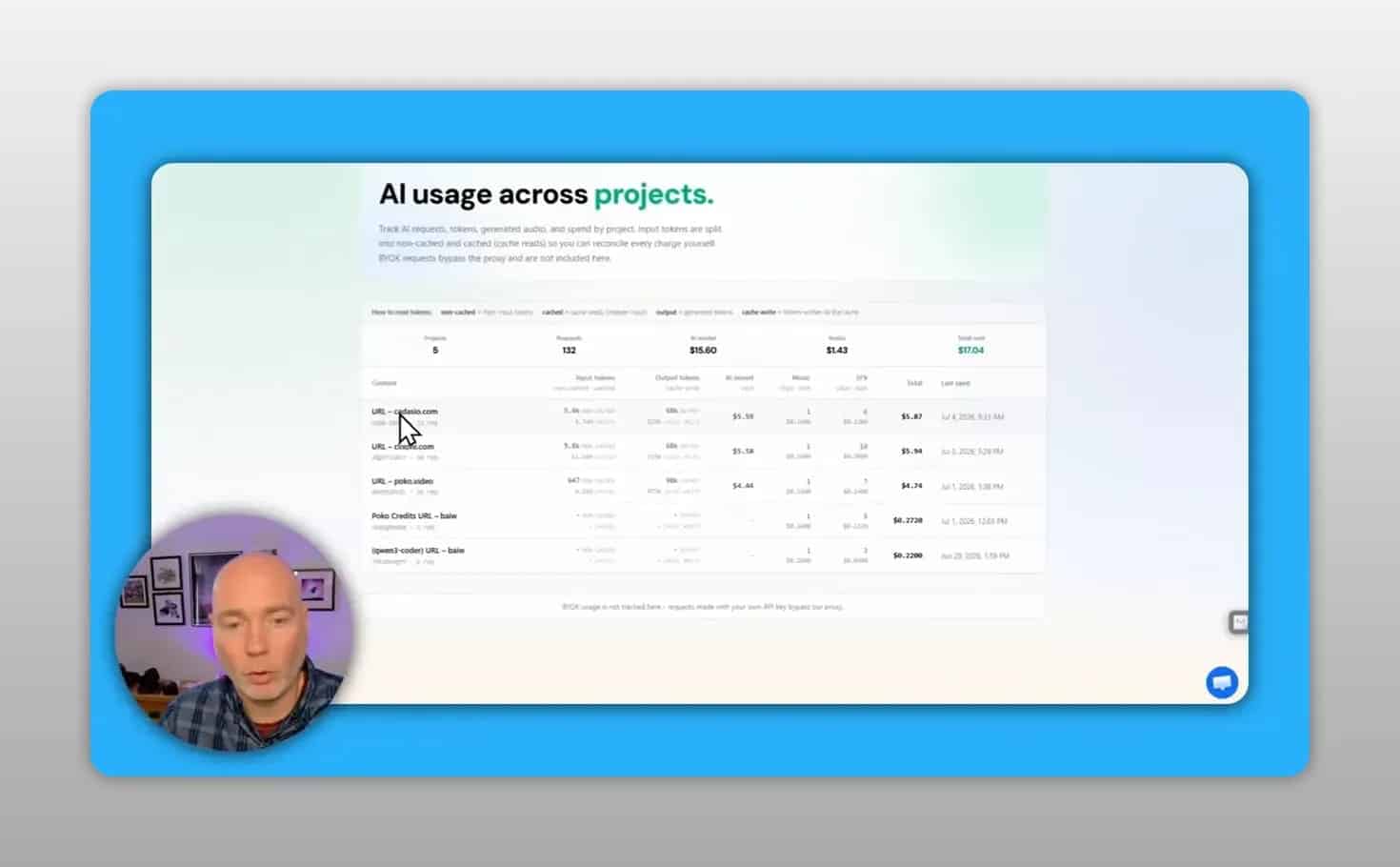
Based on the usage examples shown, a first run for a video around 40 to 45 seconds came out to roughly $5 to $6 using the credit-based workflow, with one example at $4.74.
Important cost notes:
- That estimate applies to the initial generation, not endless revisions
- Edits also consume AI usage
- Longer videos will cost proportionally more
- Local model experiments may reduce external spend, but only if your hardware can handle them effectively
For solo creators, that can be cost effective compared with hiring an editor for every short explainer. For agencies, the economics may be even better if short client videos are part of a repeatable service.
Export options
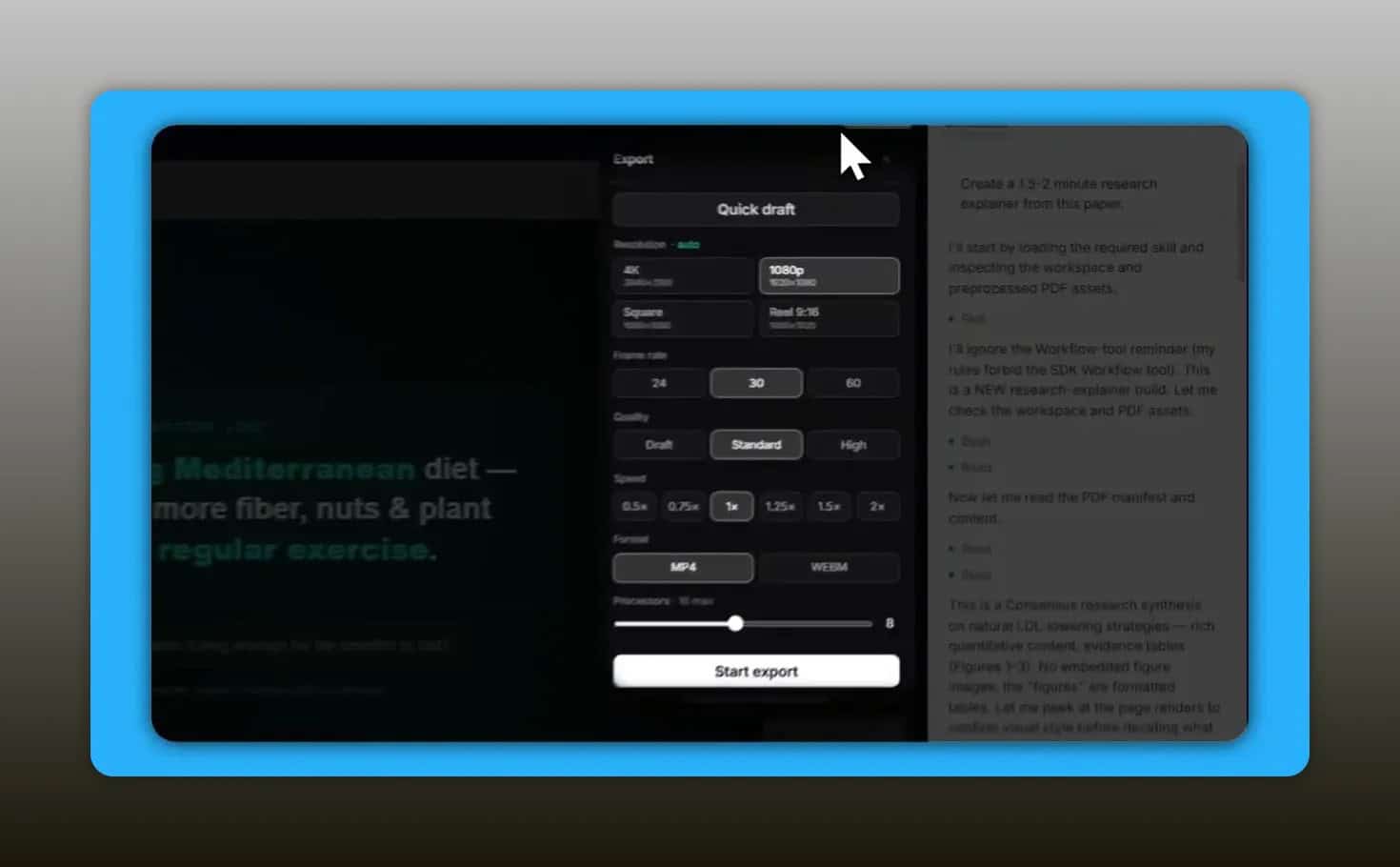
Once a project is ready, export settings include several practical controls:
- Resolution such as 4K or 1080p
- Format including square or portrait-friendly outputs
- Frame rate
- Quality
- Speed
- Number of processes used during export
That makes it suitable for website embeds, social clips, and client delivery.
Best use cases for Poko Motion
1. Landing page explainer videos
If you already have a polished website, turning it into a short explainer is one of the strongest fits.
2. Client ad creatives
Agencies can use it to create fast promo assets from client websites and messaging.
3. Technical product explainers
Products with strong documentation or technical visuals can benefit from document-to-video conversion.
4. Research and data summaries
The research paper example showed Poko Motion can convert complex findings into a more visual, easier-to-follow format.
5. Pitch deck videos
PowerPoints and PDFs can be repurposed into motion assets for websites or outreach.
Where Poko Motion may struggle
No AI video tool is perfect. A few limitations are clear.
- Weak source content leads to weaker videos
- Some first drafts need cleanup
- Local models can be slow on underpowered hardware
- Costs can rise if you keep revising long projects
- Project setup details may not always be recorded as clearly as advanced users would like
If you expect fully finished, agency-grade motion graphics with zero iteration, set expectations carefully. The real value is speed, automation, and an efficient revision loop.
Common questions
Can Poko Motion turn a PDF into a video?
Yes. PDF input is supported, including research-style documents. The app can extract key ideas and turn them into a narrated visual summary.
Can it turn a website into a promo video?
Yes. That is one of its clearest strengths, especially when the website has strong copy, branding, and imagery.
Does Poko Motion render locally?
Yes. Rendering happens on your machine, which helps with privacy and avoids cloud render queues.
Can you use your own AI keys?
Yes. The app supports Poco Credits as well as bring-your-own-key options for external model providers.
Does it support voice cloning?
Yes. You can upload audio to clone a voice, though that uses credits rather than running entirely locally.
Is it available on Mac and Windows?
Yes. The desktop app is available for both platforms.
Tips for getting better results
- Use high-quality source material with strong messaging and visuals
- Be specific in the prompt about structure, audience, and tone
- Start with a short video length before attempting a longer production
- Use repo mode when you need tighter control over assets
- Plan for one or two revision rounds instead of expecting a perfect first draft
Verdict
Poko Motion stands out because it does more than generate a script. It creates a full first-pass motion video from a URL, PDF, or source folder, supports chat-based revisions, renders locally, and gives multiple options for models and voices.
Its biggest strengths are speed, flexibility, and the ability to repurpose existing content into video without traditional timeline editing.
Its biggest caveat is equally clear: your output quality depends heavily on your input quality. Give it a rich website or detailed document and it has a lot to work with. Give it thin content and you should expect a thinner result.
For anyone evaluating AI tools to turn websites or PDFs into videos, Poko Motion looks like a strong option worth testing.
Try Poko Motion if you want to test the desktop workflow for website, document, or repo-based video generation.
If you need a product review request service, submit a review request here.
For broader context on AI narration, ElevenLabs is worth exploring since voice generation is part of the workflow. For document standards and portability, Adobe’s PDF overview can help if you are preparing source files for conversion.