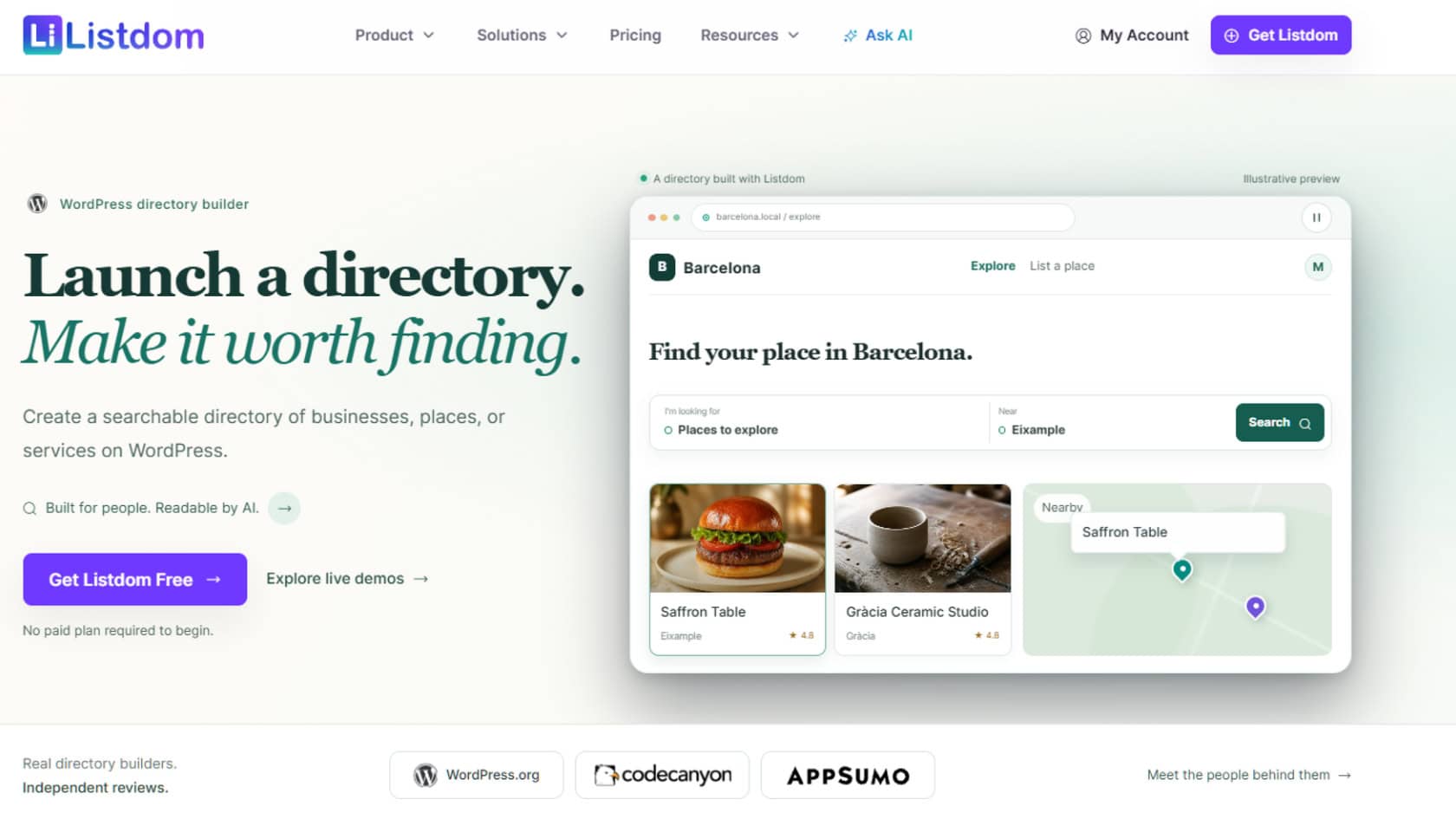
A WordPress directory website needs more than an attractive homepage. It needs organized listings, useful search filters, reliable business details, and a manageable way to keep everything updated.
Listdom handles the directory functionality, while AI can help customize the site and reduce repetitive editing. A practical workflow combines a ready-made design or an existing WordPress theme, structured business imports through Webilia, and optional site editing with Claude and Easy MCP.
This approach suits local business guides, specialist service directories, travel portals, and other searchable collections of businesses or places. The key is to separate the work into three parts: building the directory structure, adding trustworthy data, and refining the visitor experience.
What Listdom Does, and Where AI Fits
A directory brings businesses, places, or services together in a searchable collection. Instead of browsing unrelated pages, visitors can narrow their choices by category, location, or other relevant criteria.
The Listdom WordPress directory plugin provides the listing functionality. Its broader feature set includes:
- Listings organized with categories, locations, and labels.
- Search forms, interactive maps, and AI-powered search options.
- Different listing layouts, including grids and map-based displays.
- Bulk import and export using CSV, Excel, and JSON.
- A visual template builder for listing pages, cards, and map information windows.
- Frontend tools for users to submit and manage listings.
- Analytics for understanding listing performance.
- Optional features such as reviews, favorites, bookings, memberships, and paid listings.
Not every feature is included in the free plugin. Some layouts and capabilities require Pro, another add-on, credits, or additional configuration.
AI serves a different role. Claude connected through Easy MCP can help change headings, write introductory copy, and make supported site updates. Webilia supplies structured business data. These are separate tools for separate jobs, not one automatic process that guarantees a finished directory.
Choose Your Setup Before Installing a Demo
There are two sensible starting points. Choose based on whether you need a complete new design or directory functionality inside a site you already have.
Option 1: Use the Listdom theme and demo importer
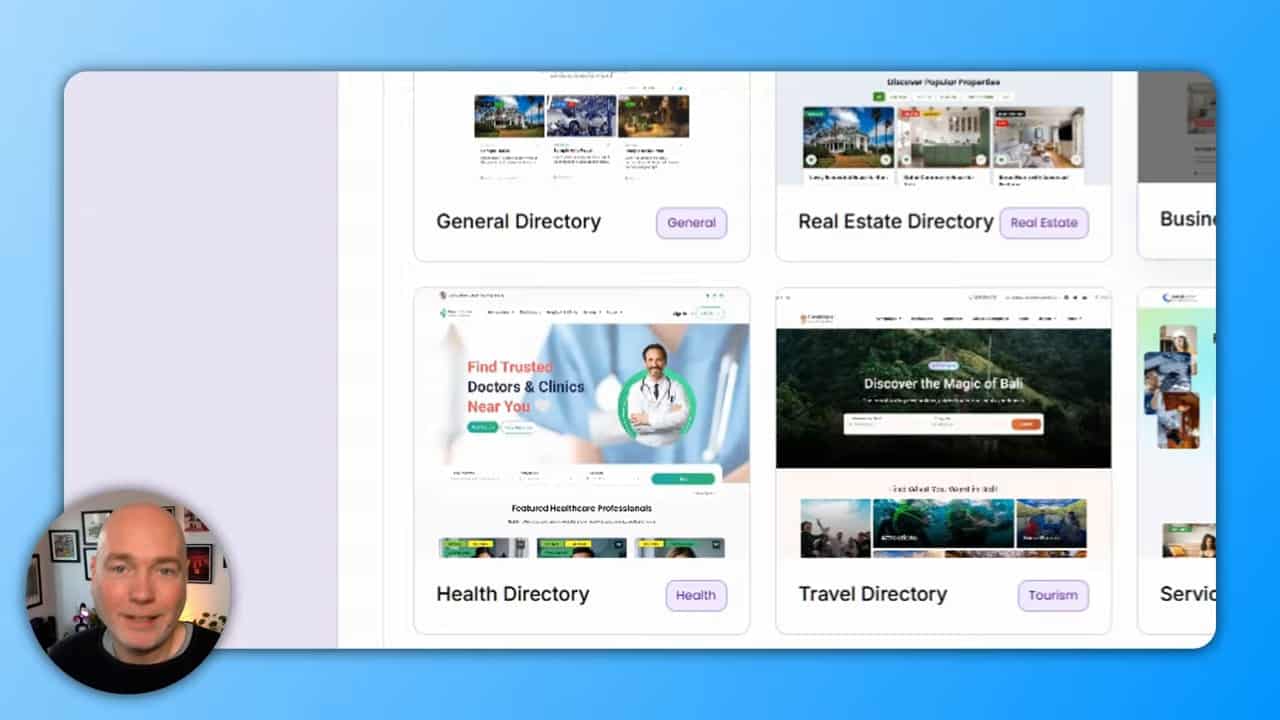
This is the most direct route to a preconfigured starting design. The importer offers niche demos such as general directories, real estate, health, travel, services, and city portals.
The General Directory demo is a useful starting point when your site spans several business categories. More specialized demos may provide a closer fit for a focused directory.
The demonstrated theme setup uses Elementor for visual page editing. If you are comfortable with Elementor and want a ready-made layout, this route avoids building the presentation from scratch.
Option 2: Add Listdom to your preferred theme
You do not have to replace your theme to add directory features. Listdom provides shortcodes that can place directory displays on existing WordPress pages.
This is worth considering if your site already has a design, navigation, and content that you want to preserve. Blocksy and an Oxygen-based setup are alternative approaches explored with the plugin.
Listdom also lists support for native WordPress blocks, Elementor, Divi, and Bricks. The important distinction is that the plugin supplies directory functionality, while the theme and builder shape its presentation.
An Oxygen-based workflow requires an Oxygen license. Its built-in MCP functionality can also be relevant if you want AI-assisted editing within that environment.
Build the Directory Structure First
Before importing businesses or asking AI to rewrite pages, define what the directory should help people find.
For example, a regional travel directory could organize places in two ways:
- By interest: beaches, museums, wildlife, food, and attractions.
- By location: cities or regions within the area covered.
A local services directory might instead prioritize service categories and the areas those businesses serve. This planning gives your listings, filters, and navigation a consistent structure.
Install the theme and import your chosen design
For a fresh site using the demo route:
- Open the WordPress theme installer. Search for the Listdom theme, install it, and activate it.
- Install and activate the required plugins. Follow the theme’s setup prompts.
- Open the demo importer. Preview the available designs before selecting one.
- Choose the closest match to your directory. General Directory works as a broad starting point.
- Confirm the dependencies. The illustrated setup requires Elementor.
- Run the import. Let the importer complete its plugin and content setup.
- Inspect the public site. Open the homepage, a listing, and the available directory layouts.
The initial demo setup can be quick, but an imported design is only a starting point. Sample listings, placeholder text, map configuration, and paid-layout restrictions still need attention.
Check layouts before committing to them
Directory layouts can include a grid, a combined list and grid, a half-map display, and a slider. Some options require a paid add-on.
Test the layout you intend to use early. If a demo page displays an upgrade notice instead of listings, resolve that dependency or choose an available layout before spending time customizing the surrounding page.
Populate the Site with Real Business Listings
A polished empty directory is not especially useful. Adding relevant entries is often the larger task, and Listdom provides several ways to approach it.
- Manual entry: Useful for a small, carefully selected starting collection.
- File import: Appropriate when you already have listing data in CSV, Excel, or JSON.
- Webilia Business Data: A way to discover real businesses and bring their available details into Listdom.
- Frontend submissions: A route for users to submit and manage listings once that workflow is configured.
How Webilia Business Data works
Webilia’s integration uses structured business datasets, including Overture Maps data, rather than relying only on AI to extract information from web pages. The Overture Maps Foundation provides additional background on that data ecosystem.
Available details can include a business name, address, telephone number, website, and geographic coordinates. Availability varies by business, so an imported entry should not be treated as a complete profile by default.
The integration also supports organizing imported records, preventing duplicates, and enriching existing listings.
A practical business import workflow
- Connect the Webilia account. Business Data operates through a connected account and credits.
- Open Business Data within Listdom. Set the location or map area relevant to your directory.
- Define the search. Use the available business criteria, radius, and maximum-results settings.
- Inspect the results. Select businesses that actually fit the directory’s scope.
- Configure the import assignments. Apply the appropriate category, location, labels, or other available settings.
- Import the selected businesses. Check the resulting entries in the WordPress listings area.
- Review before publishing. Confirm contact details, coordinates, categorization, and completeness.
In the illustrated import, the resulting entries were drafts. Check publication status explicitly rather than assuming that a successful import makes every business publicly visible.
Enrich existing listings instead of creating duplicates
Importing creates entries. Enrichment adds available business information to entries that already exist. Keeping those operations separate helps avoid unnecessarily rebuilding your directory.
Before applying enrichment, select the listings and estimate the required credits. Review the proposed field changes, especially when an existing value could be replaced.
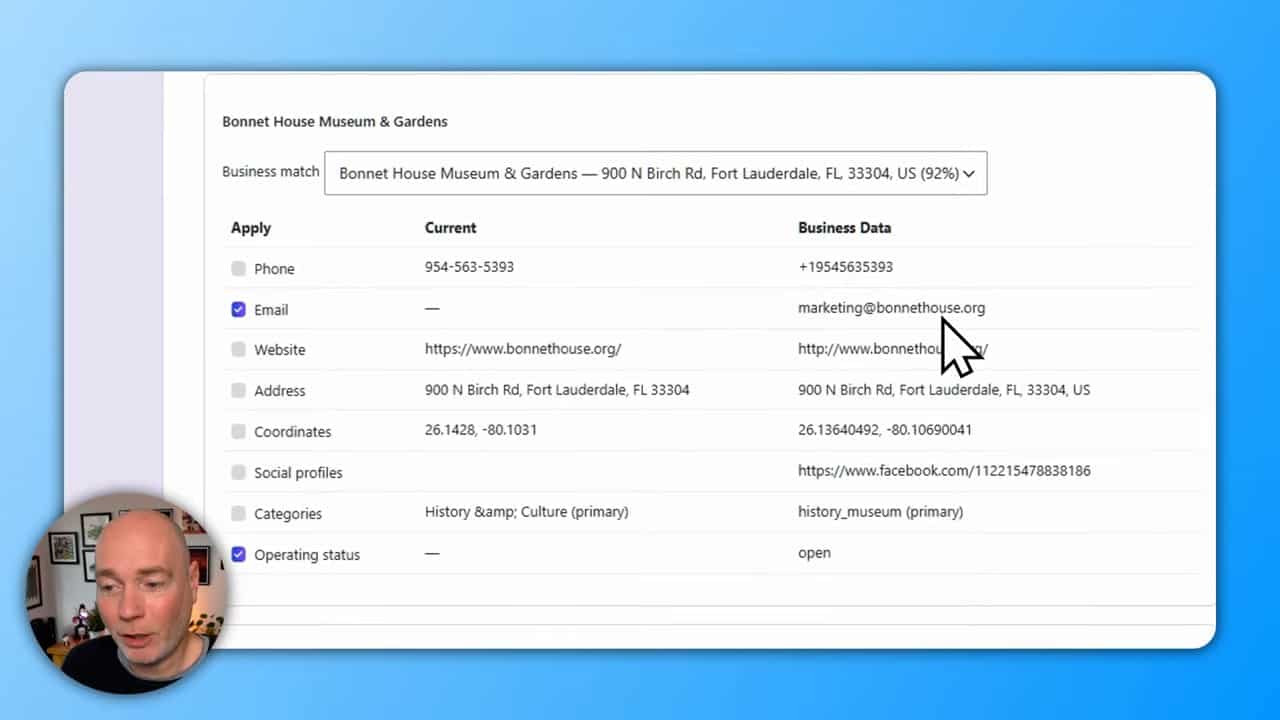
More data does not automatically mean better data. A record may still lack images, a useful description, or important contact information. Review the resulting listing page, not just the import success message.
Customize Search, Maps, and Listing Pages
Once you have a small set of relevant listings, refine how people find and evaluate them. Real entries make it easier to judge whether the layout and search fields are useful.
Make search match the directory’s purpose
Listdom offers advanced search forms, interactive maps, and AI-powered search options. Start with the filters your audience genuinely needs.
For a business guide, category and location may be the main decisions. For a travel portal, interest-based categories may deserve more prominence. Avoid adding controls simply because they are available.
Test a complete journey: choose a category, narrow the location, open a result, and confirm that the detail page supplies enough information to take the next step.
Use OpenStreetMap if you want an alternative to Google Maps
A demo may arrive with Google Maps configured but not working correctly. One alternative demonstrated with Listdom is switching to OpenStreetMap, which worked without supplying a Google Maps API key.
Check both individual listing maps and map-based directory layouts after making the change. A working map on one page does not confirm that every map display is configured correctly.
For background on the map data and attribution requirements, consult OpenStreetMap’s copyright and license information.
Edit the correct layer of the site
For an imported Elementor page, use Edit with Elementor to change page headings, introductory content, and surrounding sections.
Directory cards and listing output may be controlled through Listdom settings or shortcodes rather than ordinary page text. Its visual template builder provides further control over listing pages, cards, and map windows where available.
This distinction matters when troubleshooting: changing the page layout is not necessarily the same as changing the listing template.
Use Claude and Easy MCP for Repetitive Site Edits
AI is most useful when given a clear scope and access to the tools needed to carry it out. For this workflow, Easy MCP connects the WordPress site to Claude.
Connect the tools
- Install and configure Easy MCP on the WordPress site.
- Copy the connector URL provided by the plugin.
- Open Claude’s connector settings and add a custom connector.
- Paste the URL and complete the connection process.
- Enable the Easy MCP tools required for the intended tasks.
- Ask Claude to inspect the current setup and propose a plan before applying changes.
A connected account is not the same as enabled editing tools. If Claude can understand the request but cannot perform it, check the relevant Easy MCP tool settings.
Give AI a bounded task
A useful instruction identifies the directory’s audience, the desired changes, and what must remain untouched. For example:
Adapt this general directory into a Florida travel guide. First inspect the homepage and directory configuration, then propose a plan. Update the introductory headings and category descriptions, preserve the existing listing structure, and use OpenStreetMap instead of Google Maps where supported. Do not invent business details. Explain any changes that require a paid feature.
This is more actionable than asking for a complete professional website with no further direction.
Work in stages and preserve progress
Separate the work into small requests:
- Inspect the site and propose a plan.
- Update the homepage copy.
- Adjust the map configuration.
- Refine category introductions.
- Report completed work and unresolved issues.
If a conversation becomes difficult to continue, ask Claude for a handover summary covering what changed, what remains, and any blockers. Use that summary to continue in a fresh conversation.
Always inspect the actual pages afterward. AI-assisted edits can reduce repetitive work, but they do not remove the need to check navigation, search results, maps, and business information.
Understand the Costs Before Scaling
Keep three cost categories separate: directory features, business data, and the tools used to build or edit the site.
Listdom Pro and optional add-ons
Some display layouts require Pro. Other optional capabilities include reviews, favorites, bookings, memberships, and paid listings.
Choose a plan around the features you need, rather than assuming that importing a demo unlocks everything visible in its navigation. Check current package contents and license terms before purchasing.
Webilia business data credits
The illustrated credit model included 20 free starter credits and counted one credit for five business listings. Under that model, 20 businesses use four credits.
The displayed one-time top-up packs were:
- 100 credits: $25.
- 500 credits: $99.
- 2,000 credits: $299.
These are reference prices, not a guarantee of current offers. Enrichment has a credit-estimation step, so check the estimate before applying it rather than assuming every operation has the same cost.
Theme, builder, and AI access
Your preferred builder and AI setup may involve separate access or licensing requirements. In particular, the Oxygen alternative requires an Oxygen license. Treat these separately from Listdom add-ons and Webilia credits.
Common Mistakes to Avoid
- Treating the demo as a finished directory. Replace sample content and inspect every public-facing page.
- Choosing a paid layout unintentionally. Confirm the required add-on before designing around it.
- Importing too broadly. Keep the geography and business categories aligned with the directory’s purpose.
- Publishing incomplete records. Imported entries can still lack descriptions, images, or useful contact details.
- Enriching without comparing fields. Review proposed changes before replacing existing information.
- Expecting AI to work without enabled tools. Check Easy MCP permissions and tool availability.
- Checking only the homepage map. Test maps on listings and directory result pages as well.
- Assuming monetization is automatic. Paid listings and memberships require the relevant functionality and configuration.
Frequently Asked Questions
Can you build a WordPress directory without coding?
Yes. Listdom’s theme setup, demo importer, shortcodes, and visual editing tools support a no-code approach. You still need to configure the directory and review its content.
Do you need Elementor to use Listdom?
No. The illustrated Listdom theme demo uses Elementor, but the directory plugin can also be used with other themes and supported builders. Shortcodes provide a way to add directory displays to existing pages.
Can you add a directory to an existing WordPress website?
Yes. You can retain your current theme and use Listdom shortcodes to place directory functionality on selected pages instead of importing a complete demo design.
Can the directory make money?
Common directory revenue models include paid listings, featured placements, advertising, and memberships. The appropriate add-ons and setup depend on the model you choose.
Should AI create the business listings?
Use structured imports or verified information for factual business details. AI is better suited to assisting with presentation, introductory copy, and supported site edits than inventing addresses, telephone numbers, or business attributes.
A Practical Launch Checklist
Start with a focused directory and a small batch of listings. Before expanding, confirm that:
- The theme and builder suit your preferred editing workflow.
- The chosen directory layout works with your installed features.
- Categories and locations are consistent.
- Imported listings have been reviewed and have the intended publication status.
- Search filters return relevant results.
- Maps work on both listing and results pages.
- Sample content and missing images have been addressed.
- AI changes have been checked on the public site.
- Credit usage and paid-feature requirements are understood.
The most effective workflow uses each tool for a specific purpose: Listdom for directory structure, Webilia for available business data, your theme or builder for presentation, and AI for controlled editing assistance. That combination can reduce manual work without sacrificing the review that makes a directory useful.